
Set up Cursor
Learn how to run ktm init and enable the MCP server so Cursor can author and drive Kapptivate tests in your workspace.
Writing a Kapptivate test by hand means knowing the JSON grammar, the action catalog, and which selectors actually work on your app. ktm init scaffolds a workspace that hands all of that to your coding agent: the authoring skills, a catalog of your tests and variables, and a live connection to a robot that can drive real browsers and devices.
This page walks through the setup for Cursor. The same workspace works in Claude Code, Codex, and Copilot without changes.
Before you start
You need ktm installed and an API key. If you do not have them yet, follow Installation first, then create a key from your organization's Settings, then API Keys.
Cursor must already be installed. ktm init detects it and offers to configure it.
Scaffold the workspace
Create an empty folder and run the wizard inside it. One folder holds one product's tests.
mkdir my-tests
cd my-tests
ktm init
The wizard asks five things. Press Enter to take the default at any point.
app.kapptivate.com unless you were given a custom host.
Paste your key, or reuse one already stored for this host. The key goes to your OS keychain, never to a file in the folder.
A product is the app or site you test. If your key only reaches one operator, the wizard picks it for you. Switch later with ktm use <product>.
The wizard looks for a robot that can drive browsers and devices for your operator, then wires it up. Nothing to paste.
Nothing is selected by default. Check Cursor. The wizard writes .cursor/mcp.json for you.
When it finishes you have a folder like this:
my-tests/
  .agents/skills/          the authoring skills, read by Cursor
  .claude/skills/          links to the same skills, for Claude Code
  .cursor/mcp.json         robot connection for Cursor
  .mcp.json                robot connection for other agents
  AGENTS.md                workspace contract for coding agents
  CLAUDE.md                the same contract for Claude Code
  catalog/                 snapshot of your tests, variables, and reusables
  pages/                   selectors you have verified on a real run
  .ktm.json                which operator and product this folder targets
Files that carry a secret (.mcp.json, .cursor/mcp.json, .ktm.local.json) are added to .gitignore automatically. The folder is safe to commit as-is.
Open the folder in Cursor
Use File, then Open Folder, and pick the folder you just created.
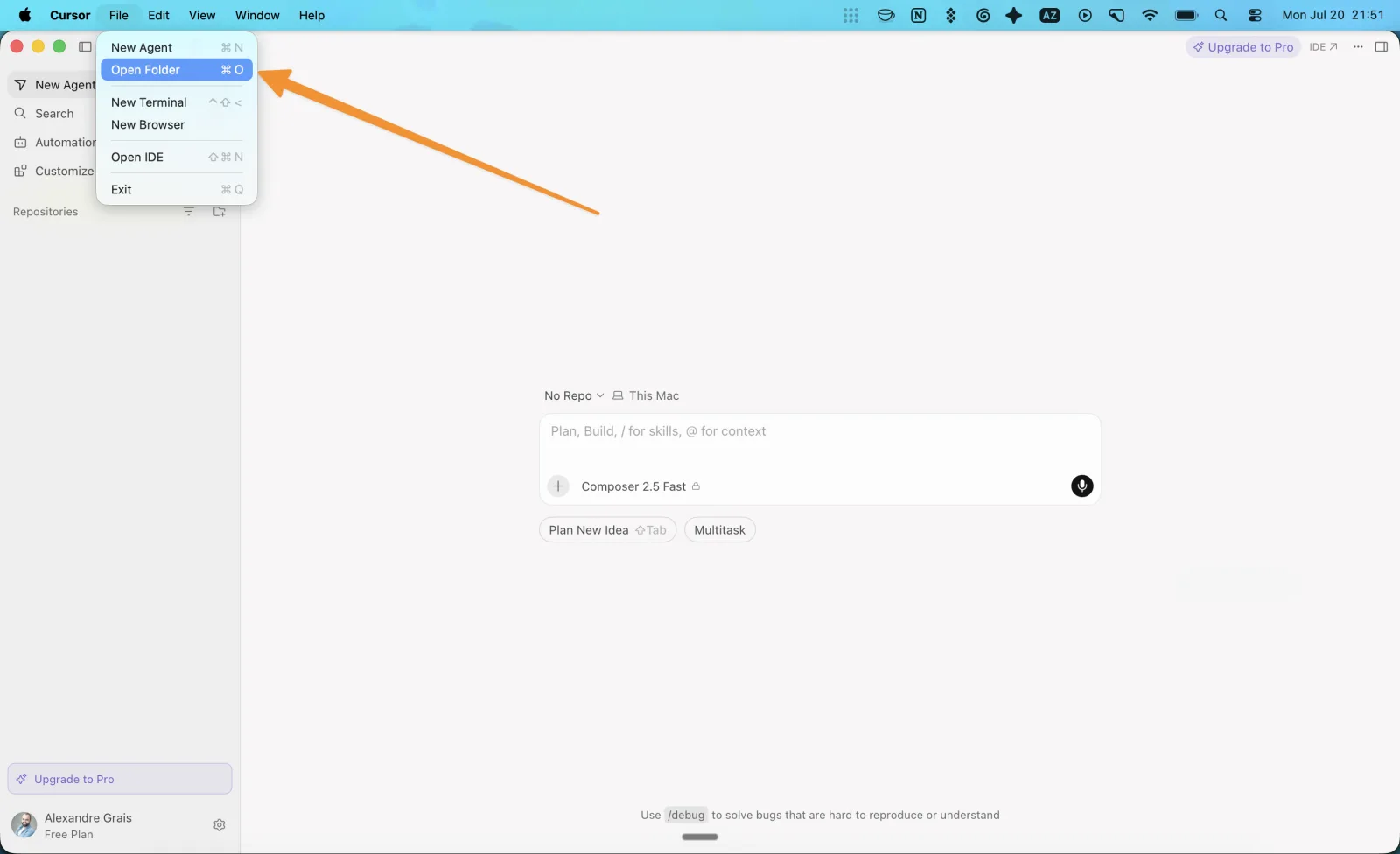
Opening the folder is what makes the workspace configuration apply. Cursor reads .cursor/mcp.json and .agents/skills/ relative to the folder you open, so opening a parent directory will not work.
Enable the robot connection
ktm init writes the MCP configuration, but Cursor requires you to enable it once per workspace.
Click Customize in the sidebar, then the MCPs tab.
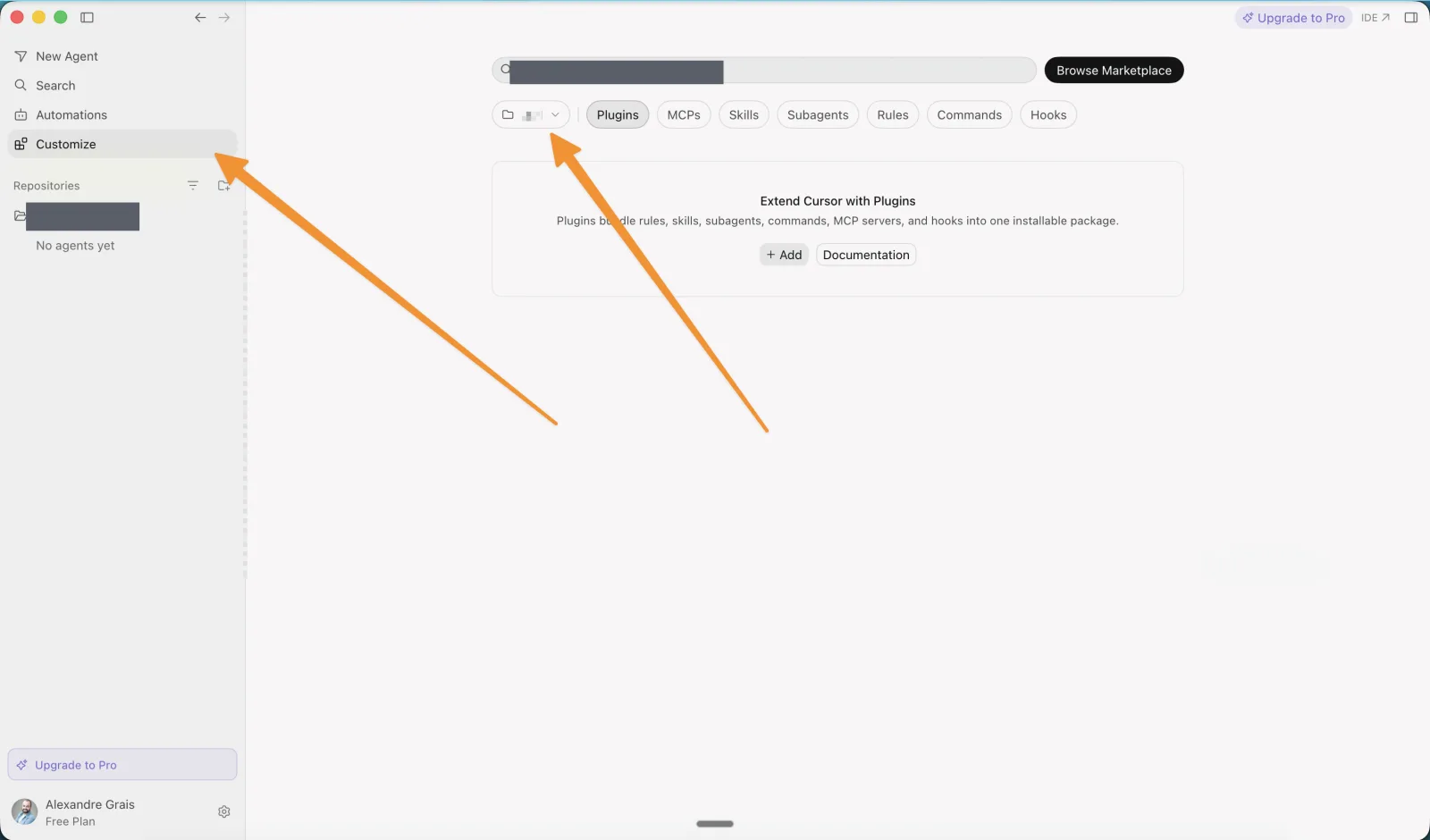
It appears under Connected, marked Workspace and Disabled.
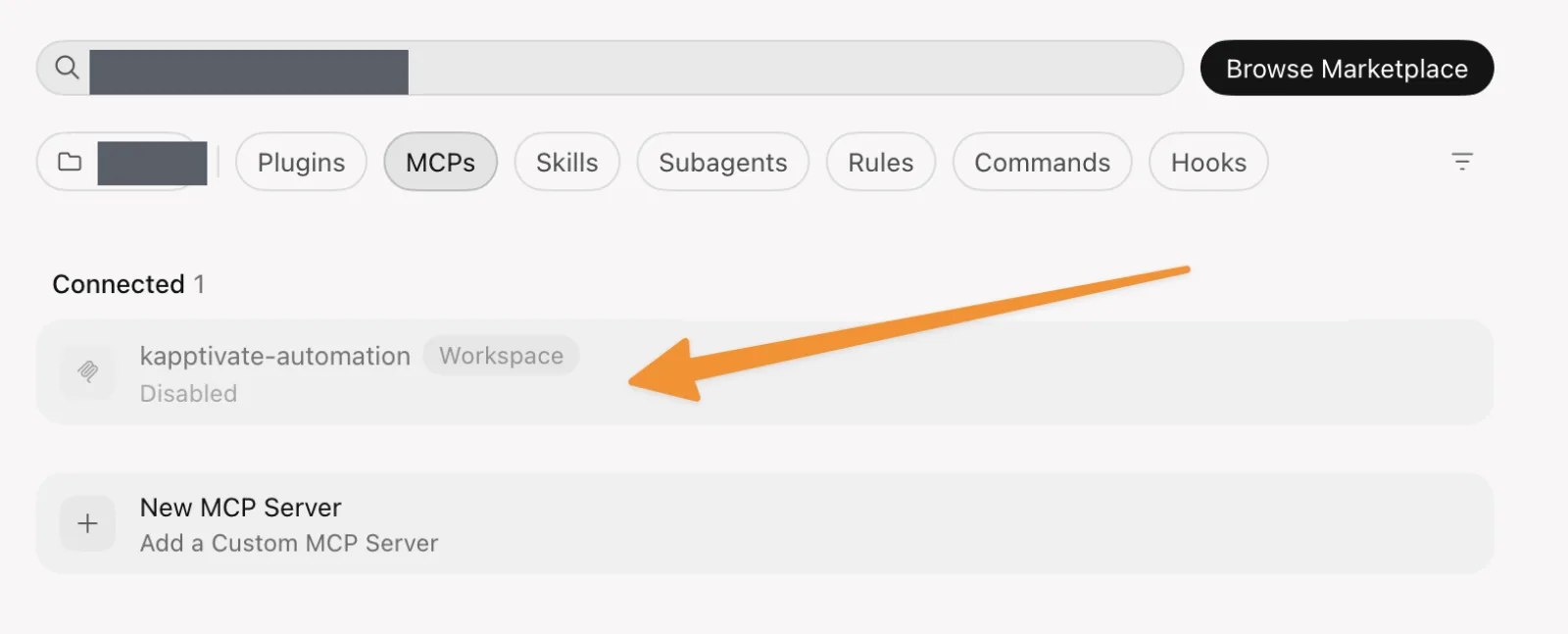
Flip the toggle next to the .cursor/mcp.json source.
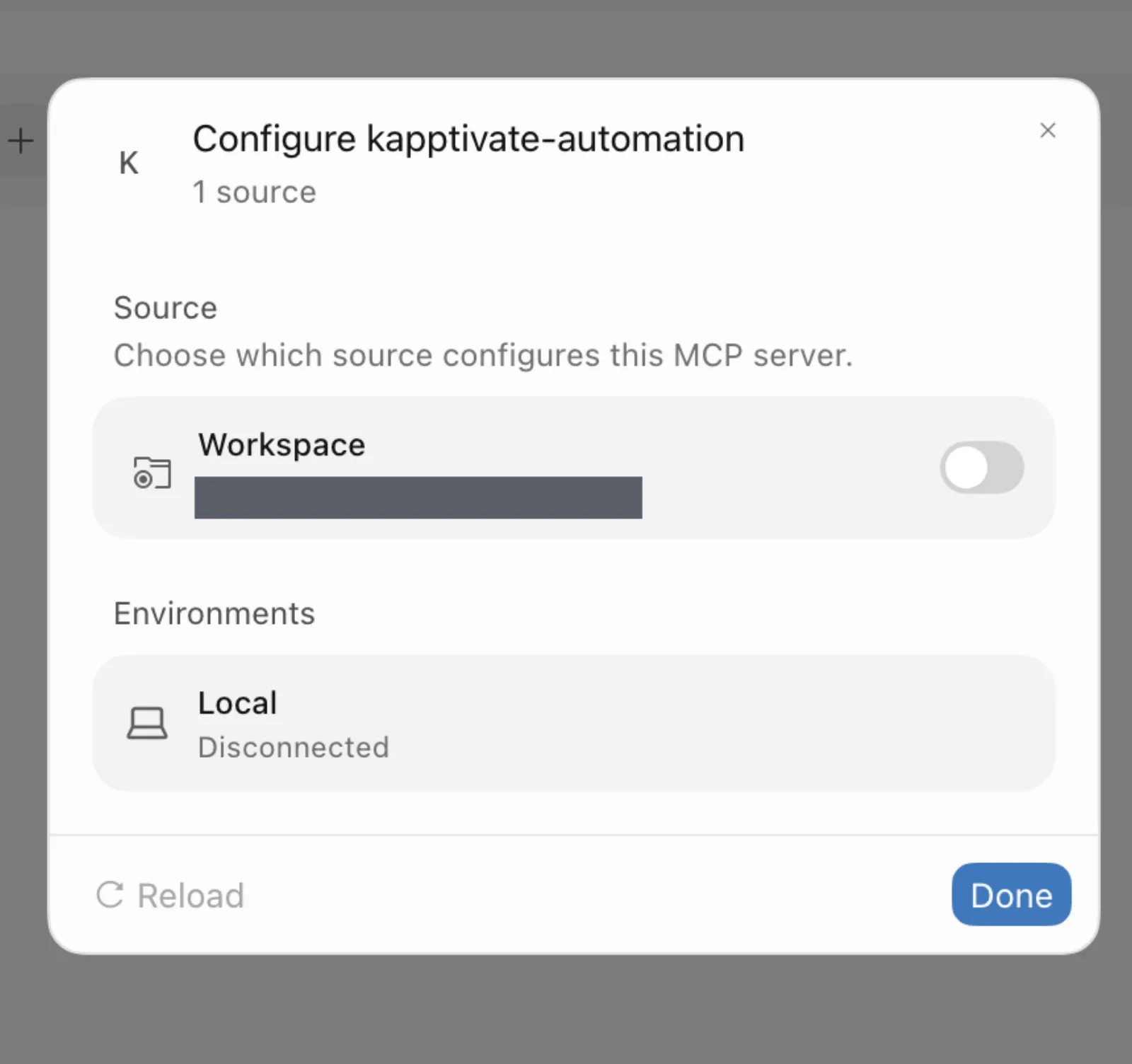
Local switches to Connected and the tool list appears. Click Done.
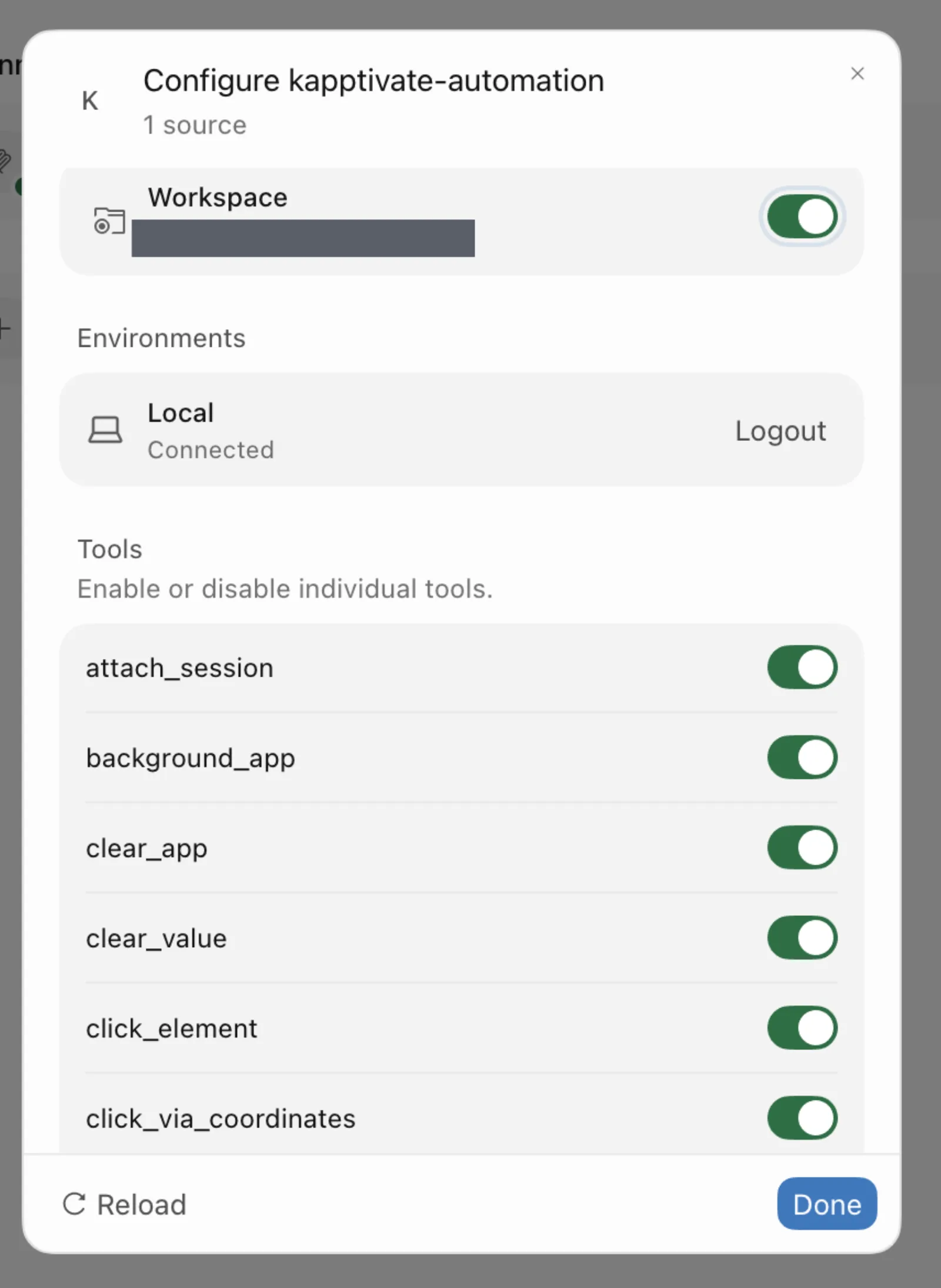
If Local stays Disconnected, the robot is not reachable. Check that it is online, then run ktm init --reconfigure to pick it up again.
Fill the catalog
The skills are available as soon as the folder is open. Type / in the agent panel to see them.
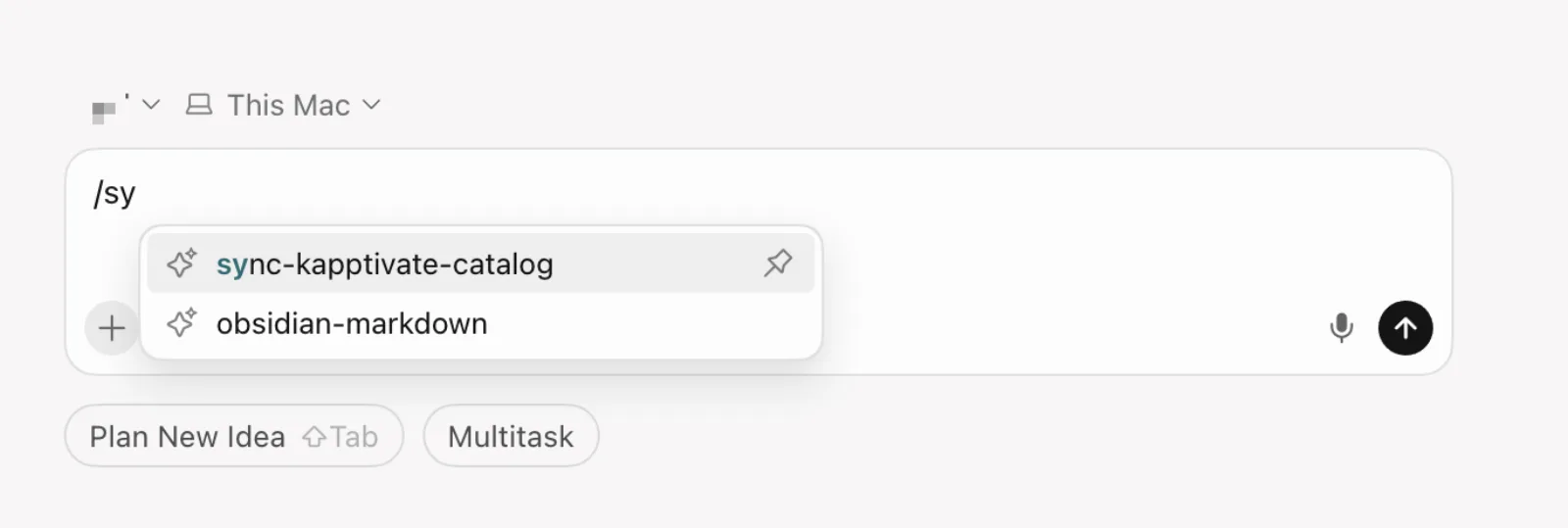
Run sync-kapptivate-catalog first. It pulls your tests, variables, and reusables into catalog/, which is what lets the agent reference an existing variable group by id instead of hardcoding a password.
Refresh it whenever the catalog is more than about two weeks old, or after someone changes tests on the platform.
Write your first test
Ask in plain language. The write-kapptivate-test skill carries the JSON grammar and the action catalog, so you do not need to.
Write a test that logs into the shop with the staging credentials
and checks that the account page shows the user's name.
The agent drafts the test, runs it on a real browser through the robot, and fixes what fails. A test is not done until it returns success: structural validation does not catch a wrong selector, only a real run does.
After a green run, ask the agent to record the selectors it verified into pages/. The next test against the same screens starts from known-good selectors instead of rediscovering them.
Keep the workspace current
The skills are version-locked to the CLI: they document the flags and behavior of the binary that wrote them. After upgrading ktm, refresh them.
ktm update
ktm init --refresh-skills
--refresh-skills deletes and rewrites the skill folders. If you keep your own files there, preview first with ktm init --refresh-skills --dry-run, which lists everything it would remove.
Troubleshooting
Cursor reads them from .agents/skills/ relative to the folder you opened. Confirm you opened the scaffolded folder itself, not its parent. If the folder is right, close and reopen it.
Cursor was probably not selected during the wizard, so .cursor/mcp.json was never written. Run ktm init --reconfigure in the folder and check Cursor this time.
The API key reached the platform but not the robot. Run ktm operators list and ktm reusables list --product <operator>~<product>. If the second one fails, your key lacks product-level access: create a new key on a team that has it.
No device-automation agent was online for your operator when the wizard ran. .mcp.json keeps a placeholder URL. Run ktm init --reconfigure once a robot is up, or pass --automation-url <endpoint> if you know it.
What's next?
Last updated on