
AI selectors
Learn how AI selectors find elements by intention instead of XPath, and configure enable levels and strategies like Smart, Always, or On demand.
Selectors are the most fragile part of a UI test: a renamed class or a restructured DOM breaks an XPath that worked yesterday. With AI selectors, a step finds its target from the human-readable intention (like a button's label) instead of a hand-written path: on the first run, the AI parses the page, finds the right element, and saves the selector for the next runs.
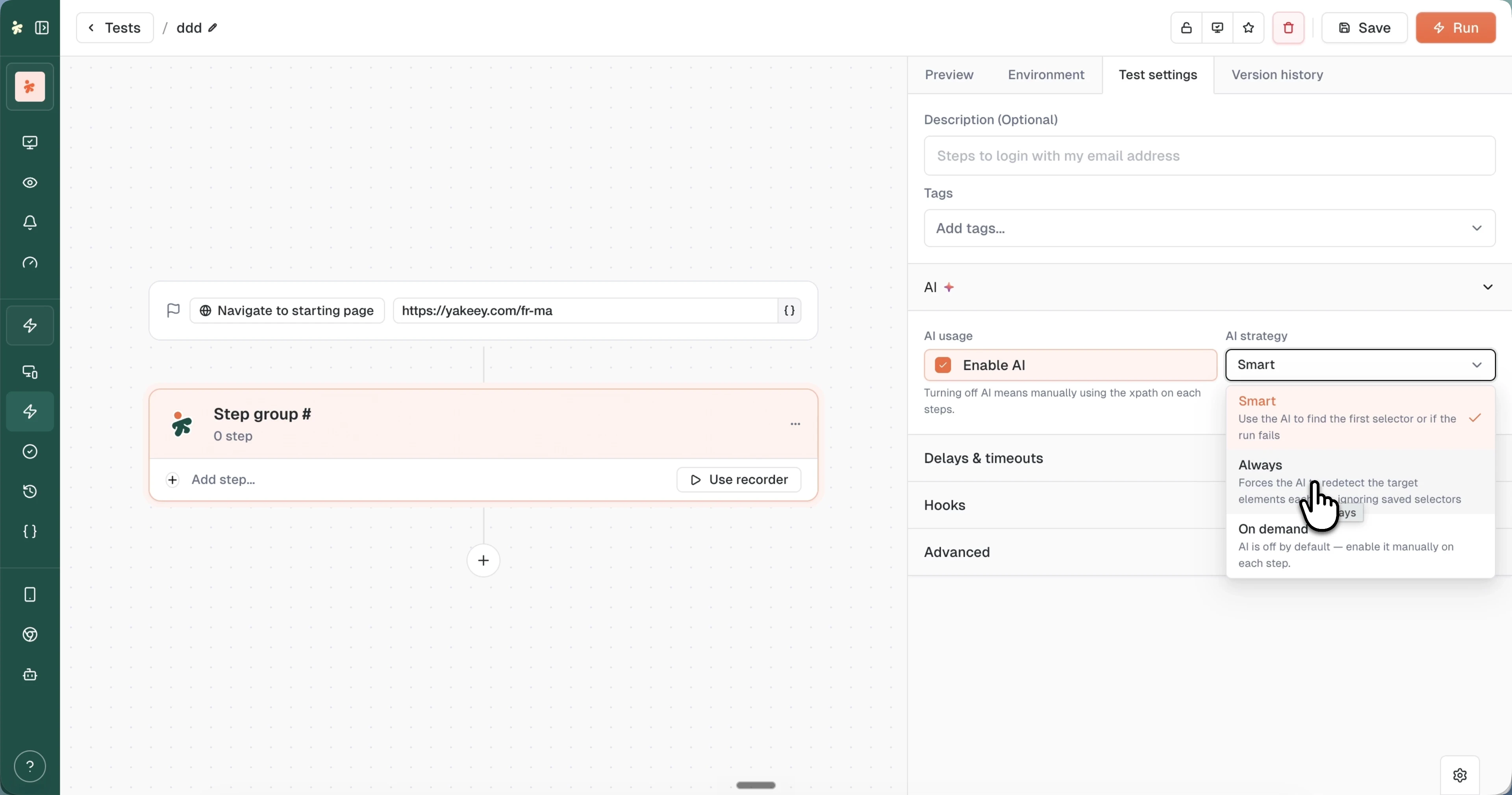
Enable AI
Three levels, from broadest to narrowest:
- At creation: check AI usage in the test creation form to start with AI on (Creating a test).
- Per test: toggle Enable AI in Test settings > AI. Turning AI off means maintaining the XPath on each step yourself.
- Per step: toggle Turn on AI for this step in the step's General tab. The selector field gets a gradient border to show AI is active. Link to test ties the step back to the test-level setting instead of a per-step override.
AI strategies
The strategy controls when the AI engages:
- Smart: use the AI to find the first selector, or when the run fails with the saved one.
- Always: force the AI to redetect the target elements on every run, ignoring saved selectors.
- On demand: AI stays off by default; enable it manually on each step that needs it.
Smart is the usual default: fast runs with cached selectors, AI as the safety net. Use Always on pages whose structure changes constantly, and On demand when you want AI only on a handful of known-fragile steps.
What's next?
Last updated on