
Create and edit roles
Learn how to view Kapptivate's default roles and create or edit custom roles with tailored View and Edit permissions.
Kapptivate provides default system roles you can reference, and lets you create custom roles with any combination of permissions that fits your workspace.
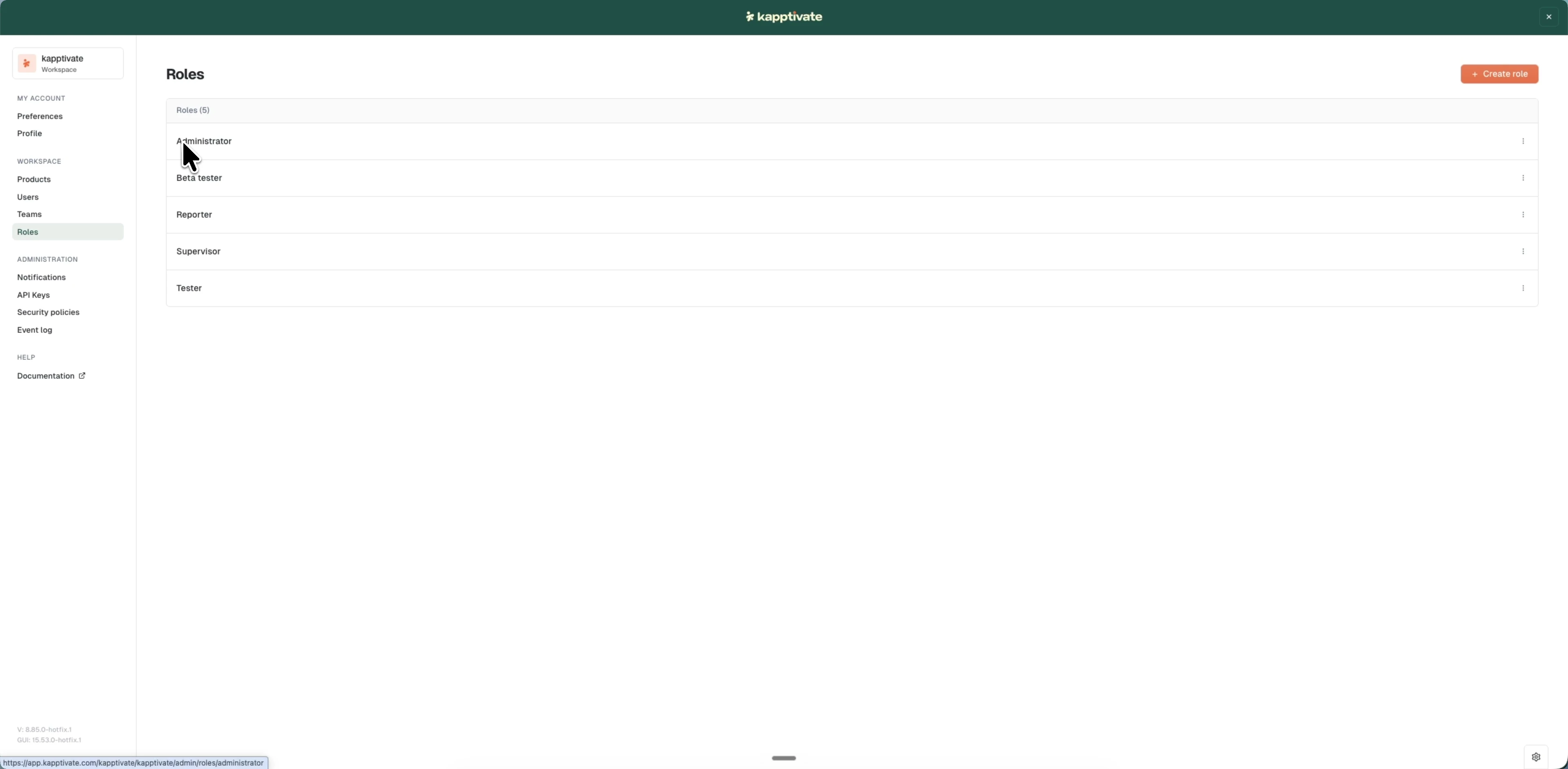
View default roles
Default roles are system-provided and read-only. All workspaces have the same default roles available.
To view default roles:
- Go to Administration > Roles
- Scroll through the list to see both default and custom roles
- Click a default role to open it; its permissions are shown in a read-only side panel with the note "This is a default role and cannot be edited"
Default roles cannot be modified, but you can use them as a reference when creating custom roles.
Create a custom role
Custom roles let you define exactly which permissions users and teams should have. You can assign permissions in any combination that makes sense for your workspace.
To create a custom role:
- Go to Administration > Roles
- Click "+ Create role" to open the "Create new role" modal
- Enter a role name
- In the permissions list:
- Expand each collapsible group; the headers carry a "View" prefix ("View Operator Admin", "View Events", "View Manual Testing", "View Automated Testing", "View Supervision", "View Analytics", "View Beta Features")
- Check the "View" permissions for features users should see
- Check the "Edit" permissions for features users should modify
- Click "Create role"
Remember that Edit implies View, you don't need to manually check both. When you check Edit, View is automatically enabled.
Edit a custom role
You can modify the permissions of any custom role you've created. Default roles cannot be edited.
To edit a custom role:
- Go to Administration > Roles
- Click the role name to open the editor
- Update the permissions as needed
- Click "Save"
Your changes take effect immediately for all users and teams with that role.
If you uncheck a View permission, the corresponding Edit permission is automatically unchecked. Consider the impact on users before removing permissions from a role.
Last updated on