
Tests overview
Organize, search, filter, and run bulk actions on Web, Smartphone, and Cellular tests from the Tests overview page.
Tests are automated scenarios that verify your Web, Smartphone, and Cellular channels. This page shows how to organize tests into collections, search and filter them, and run bulk actions on multiple tests at once.
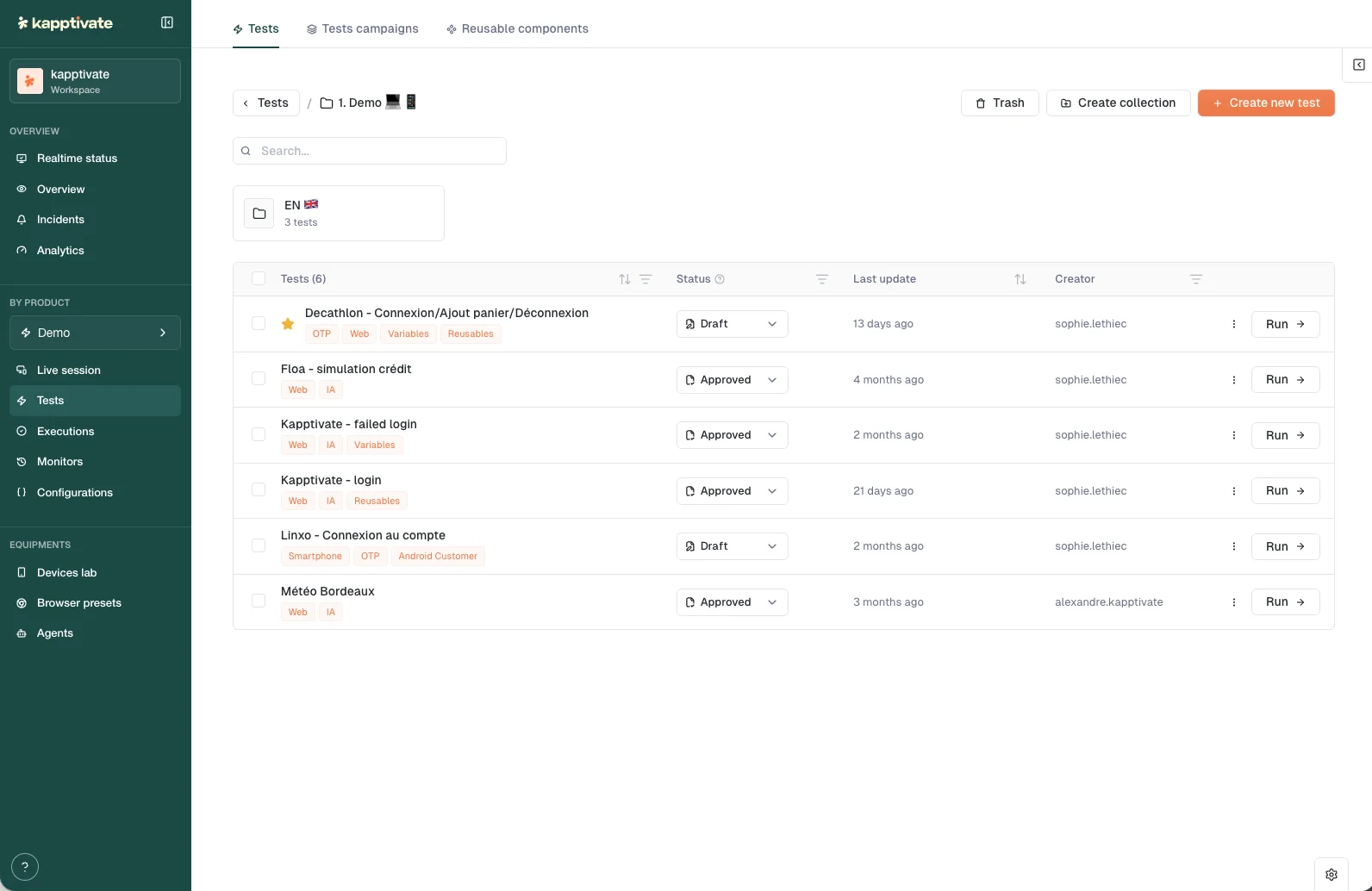
Collections
Tests live in collections, folders organized hierarchically under a root collection. Navigate through collections using the breadcrumb at the top of the page, and click Create collection to add one.
Each collection card has a three-dot menu with Rename, Duplicate, Move collection, and Delete. Tests in an empty collection show a prompt to create your first test. When you delete a test, it moves to a trash collection where you can restore or permanently remove it.
Finding tests
Use the search bar to find tests by name. Results update as you type. Filter tests by status (Draft, In Progress, Approved, or Deprecated), tags, or creator. All filters persist in the URL, so you can save and share filtered views. The product selector in the sidebar scopes everything to one product space, so you only see that product's collections and tests.
Test table
The test list shows columns for name, status, last updated, and creator, with a Run button at the end of each row. The name column displays:
- A star icon to favorite a test; favorites pin to the top of the list
- Lock icon if another user is editing the test
- Validity icons (red circle if the test itself is invalid; red triangle if it depends on an invalid test)
- Color-coded tags
The Status badge is also a dropdown: click it to change the test's status to Draft, In progress, Approved, or Deprecated inline, without opening the editor.
Click a test name to edit it. Disabled or grayed out names indicate you cannot edit that test (usually because another user has locked it).
Row actions
Each test row has a three-dot menu covering the day-to-day operations:
- Edit: open the test in the builder.
- Add to / Remove from favorites and Add tag(s): the tags modal assigns existing color-coded tags or creates new ones.
- Lock: protect the test from edits.
- Duplicate and Create copy in other product.
- Move test: pick a destination collection in a searchable folder tree.
- Run now and Create monitor.
- Replace existing test: see below.
- Delete: send the test to trash. Deletion is blocked while a monitor uses the test; the menu explains why.
- View connections: see what the test depends on and what uses it.
Replace a test
When a reworked copy is ready to take over from the original (a rebuilt flow, a v2), you don't have to rewire monitors or campaigns. Open the new test's menu, choose Replace existing test, and select the test to overwrite. The Delete source test checkbox (ticked by default) removes the now-redundant copy after the replacement.
Bulk actions
Select one or more tests by clicking the checkbox next to each name. A blue banner appears at the top with actions:
- Change Status: set all selected tests to Draft, In Progress, Approved, or Deprecated. Disabled if any test is locked.
- Duplicate: create copies of the selected tests in the same collection.
- Copy to Product: export tests to another product. Disabled if any test is a reusable component.
- Move: relocate selected tests to a different collection. Disabled if any test is locked.
- Favorite / Unfavorite: toggle favorite status on all selected tests.
- Create Monitors: convert selected tests into monitoring jobs. Single test navigates directly; multiple tests open a modal to choose which to monitor.
- Delete: send selected tests to trash. Disabled if locked.
- Add to Run Queue: queue selected tests for immediate execution. Disabled if any test is invalid.
Press ESC to clear your selection.
Test validity and dependencies
A red circle icon next to a test name means the test itself has an issue (invalid step, missing configuration). A red triangle means the test depends on another test that is invalid. Tests with validity issues cannot be run, the Run button is disabled.
Lock status
When you open a test for editing, it becomes locked to prevent simultaneous edits by multiple users. A lock icon appears next to the test name, and a tooltip shows who locked it. Other users cannot edit, move, duplicate, or change the status of a locked test until you close the editor.
Test campaigns
Group multiple tests into a campaign to run them together with shared or parameterized settings. Campaigns let you override variables, starting URLs, and browser presets per test, then execute them as a batch. See Test campaigns to create and run them.
What's next?
Last updated on