
Test campaigns
Group existing tests into reusable campaigns with per-test parameter overrides to run complete user journeys as one batch.
Some scenarios only make sense together: a complete user journey, a smoke-test pass across environments, a release checklist. A test campaign (also called a suite) groups tests to run as one batch, with shared context and per-test parameter overrides, so you compose journeys from existing tests instead of duplicating them. Campaigns live on the Tests campaigns tab, next to Tests and Reusable components.
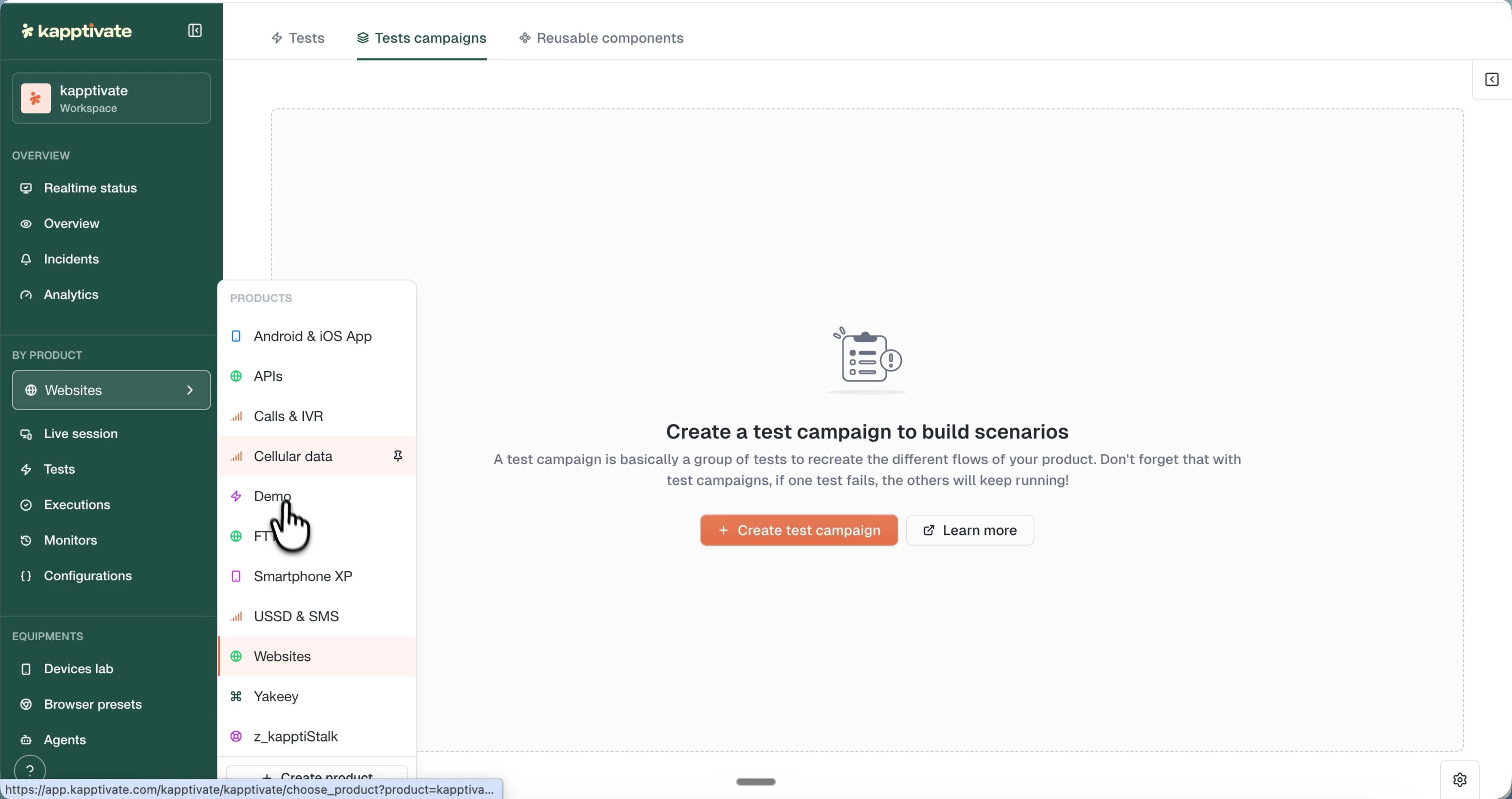
The campaigns list
The table shows each campaign's name, how many tests it contains, the last update, and its creator. A sidebar filters campaigns by collection, and each row has:
- Run: launch the campaign via the run confirmation.
- A three-dot menu with Move test campaign (pick a destination collection) and Delete (moves it to trash, where it can be restored).
- A checkbox (hover the left of the row) to select several campaigns and act on them at once from the top bar.
Create a campaign
- On the Tests campaigns tab, create a campaign and give it a name (required) and description
- Click Add Test and pick one or more tests from the modal
- Configure each test's parameters (see below)
- Save; the campaign needs a name and at least one valid test
The campaign editor
The editor shows an About section (name, description) and a Your tests timeline: the ordered list of tests that execute sequentially between the "Campaign start" and "Campaign end" markers. Drag tests to reorder them, and remove a test from its row (the test itself is not deleted).
Per-test parameters
The same test can play different roles in different campaigns. Click a test row to expand its Execution parameters:
- Starting URL: a different entry point than the test's default (staging vs. production).
- Device and Browser preset: pick from dropdowns.
- Variables: pick a preset environment from the dropdown (for example Default, production, dev-1) to populate the test's input variables in one move, or override individual values for this test only, in this campaign only. The test's own variables are overridable too, and what you set shows as tags on the test row.
Overrides are stored in the campaign, so the original test definition never changes, and several campaigns can reference the same test with different values.
Run a campaign
Click Run from the campaigns table or the editor; the run goes through a confirmation step before launching. See Run a campaign for the execution flow.
Invalid tests and unsaved changes
If a test in your campaign becomes invalid (missing device, broken steps), a warning banner appears and the campaign can't run until it's fixed. The editor also tracks unsaved changes and prompts a confirmation if you navigate away without saving; press Cmd+S / Ctrl+S to save quickly.
Last updated on