
Slack integration
Connect your Slack workspace to Kapptivate so incident alerts and monitoring digests land in a channel your team already reads.

Connecting Slack lets Kapptivate post incident alerts and monitoring digests straight into a Slack channel, instead of an inbox nobody opens. The connection happens once, from Administration → Integrations, and it relies on a Slack app that you create in your own workspace.
You need two things: permission to create an app in your Slack workspace, and admin access to your Kapptivate workspace.
Register the redirect URL (step 2 below) before the first connection attempt. If Slack does not recognize the URL, it never redirects: it shows its own error page, and the connection stays pending on the Kapptivate side.
Create the Slack app
Go to api.slack.com/apps, click Create New App, choose From scratch, and pick the workspace the alerts should go to.
Open OAuth & Permissions, and under Redirect URLs add the URL below, with your own Kapptivate domain in place of <your-domain>. Then click Save URLs.
https://<your-domain>/api/integrations/oauth/callback/slackExample: https://app.kapptivate.com/api/integrations/oauth/callback/slack
On the same page, under Scopes → Bot Token Scopes, add these four:
| Scope | What it allows |
|---|---|
chat:write | Post the alert message in the channel |
channels:read | List public channels in the channel picker |
groups:read | List private channels in the channel picker |
team:read | Identify the workspace being connected |
Open Basic Information → App Credentials. Copy the Client ID, then click Show to reveal and copy the Client Secret.
Connect from Kapptivate
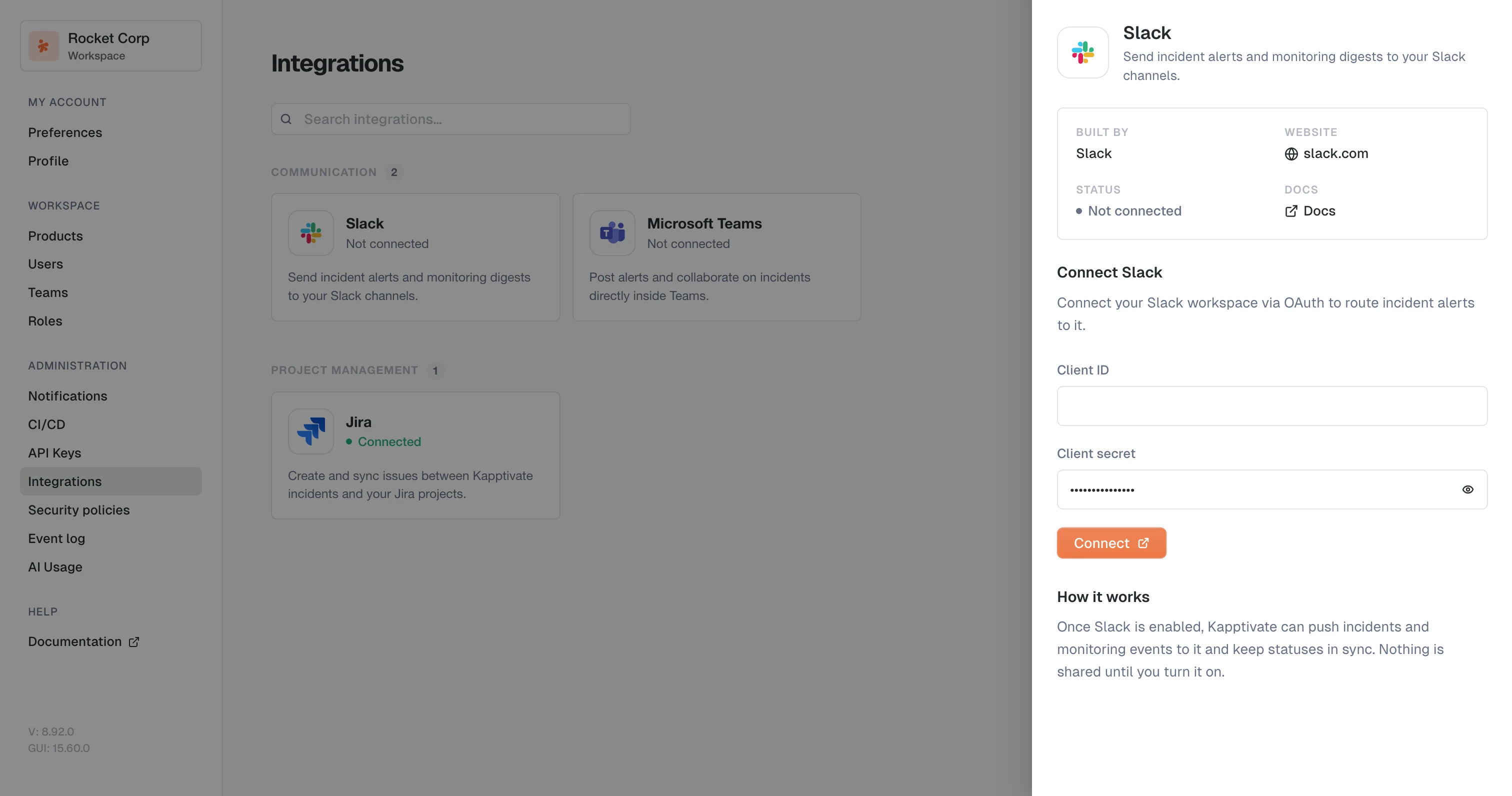
Go to Administration → Integrations and open the Slack card. Paste the Client ID and the Client secret from your Slack app, then click Connect.
A window opens and asks you to authorize the app for your workspace. Once you approve, you land back in Kapptivate and the Slack card shows Connected.
Choose the default channel
A connected integration still needs to know where to post. In the Integration details panel, under Default settings, pick a channel in Default channel and click Save. An alert that does not name a channel of its own goes here.
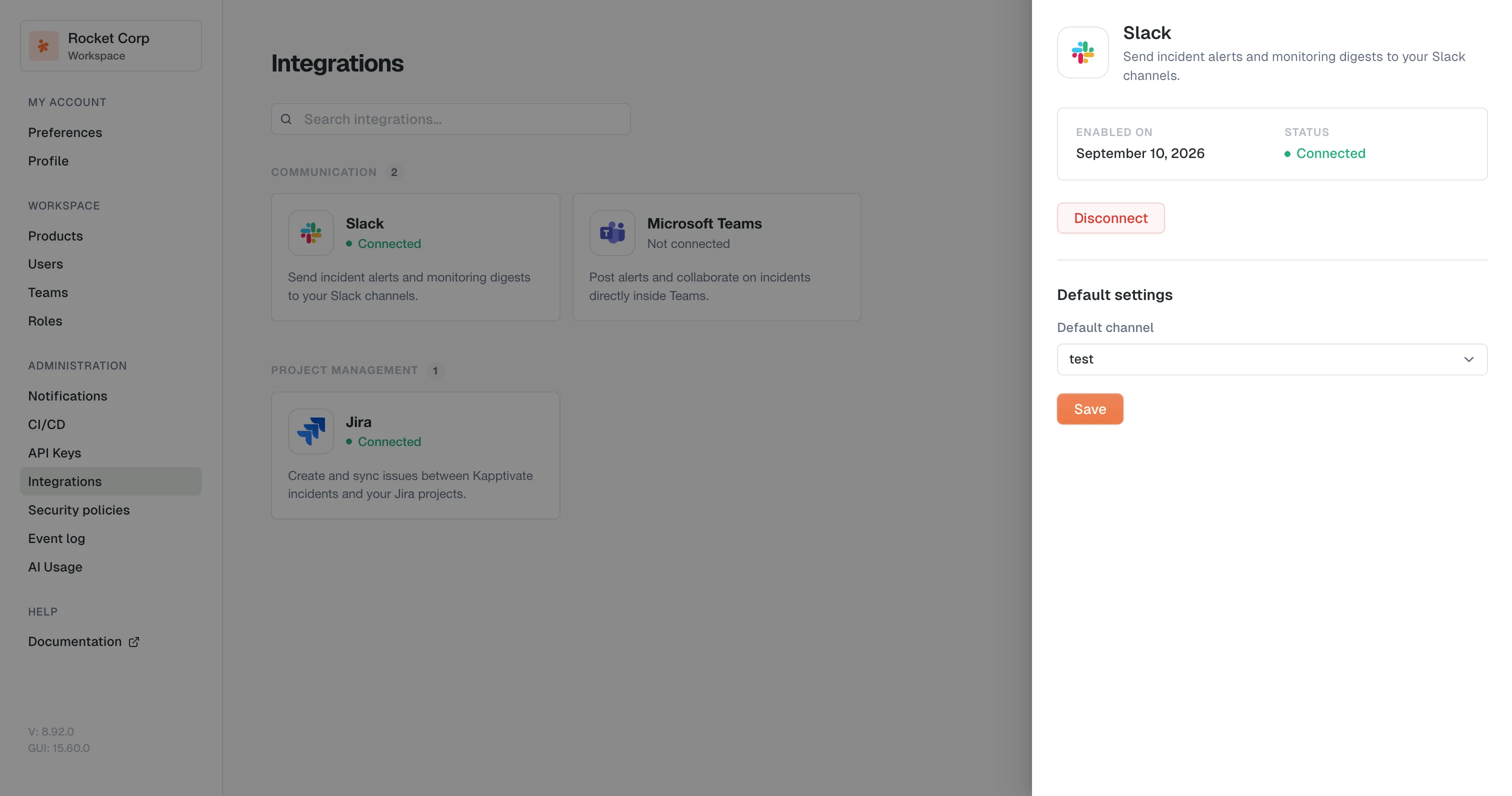
The picker lists the channels the app can see: public channels, and private channels the app has been added to. If a private channel is missing from the list, add the app to it in Slack, then reopen the picker.
Disconnect
In the Integration details panel, click Disconnect. Kapptivate stops posting to Slack, and the card goes back to Not connected. The Slack app itself stays in your workspace, so reconnecting later only takes pasting the credentials again.
Other integrations
Last updated on