
Incidents: track and triage outages
Track, filter, and manage incidents with counters, status filters, and bulk actions to quickly triage ongoing outages.
When an alert detects a problem, it raises an incident: a tracked record of the outage with its timeline, status, and context. The Incidents page is where you triage them, from spotting what's burning right now to closing what's been resolved.
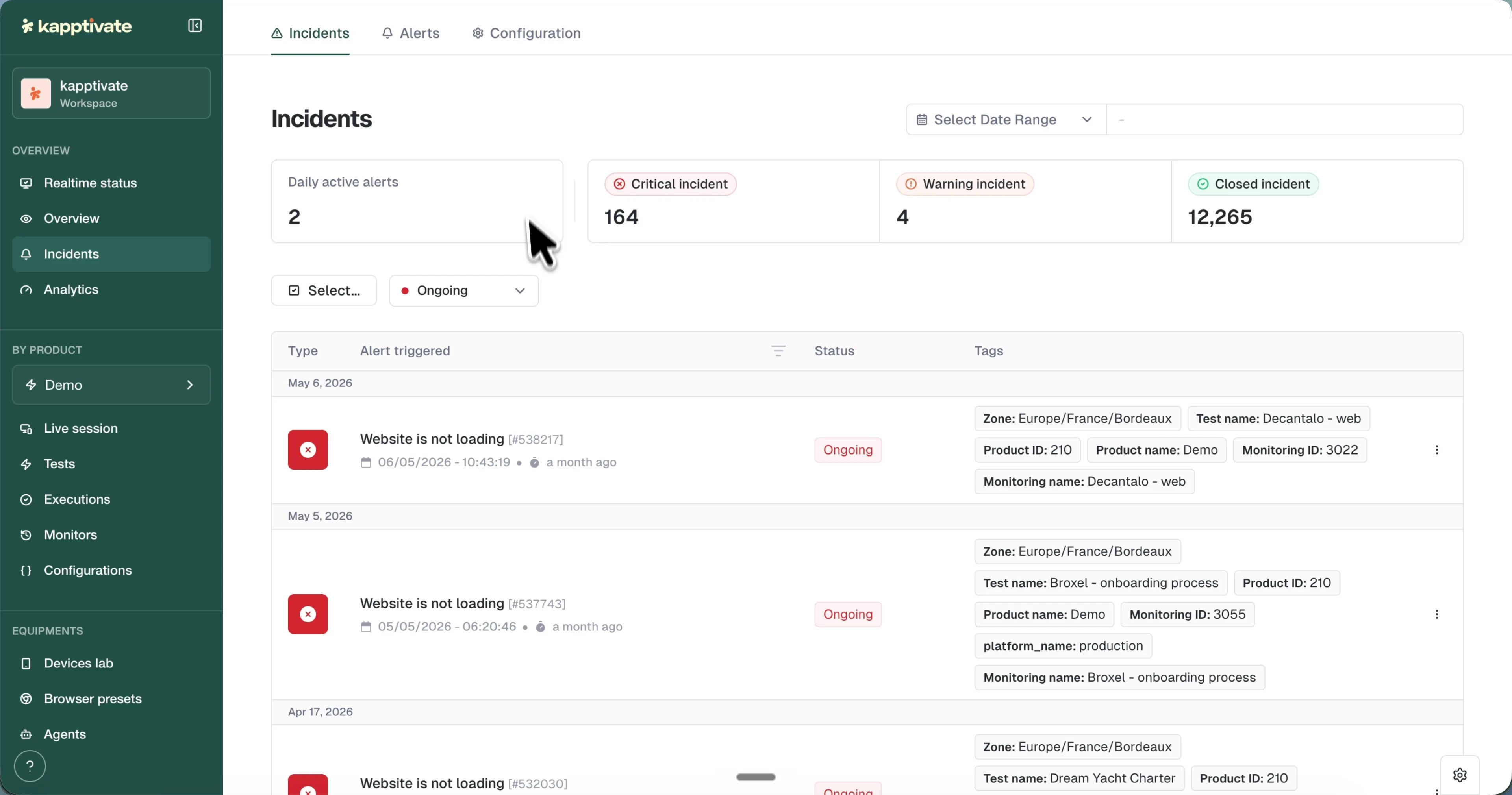
Counters
Four counter cards at the top summarize the current state at a glance:
- Daily active alerts: how many alerts triggered today.
- Critical incident: open incidents at critical severity.
- Warning incident: open incidents at warning severity.
- Closed incident: incidents that have been resolved.
Incident list
The table lists incidents grouped by creation date, with day separators between groups. Each row shows:
- Type: a colored icon for the incident severity.
- Alert triggered: the alert name with the incident ID, the trigger timestamp, and how long ago it fired.
- Status: a colored tag: Ongoing (red), Resolved, or Canceled.
- Tags: key-value context such as Zone, Product ID, Product name, Monitoring ID, Monitoring name, Test name, and platform.
Click a row to open the incident details, or use the row's menu for actions.
Filtering and date range
A workspace accumulates incidents fast; filters get you to the ones that need attention. The default view shows Ongoing incidents, those actively needing attention.
- Status filter: switch between Ongoing, Resolved, and Canceled, or clear it to show all.
- Date range: show only incidents created within a period. The picker is timezone-aware and remembers your preference across sessions.
Bulk selection and actions
Enable multi-select mode using the toggle button to select multiple incidents. When enabled, checkboxes appear on each row. Select the incidents you want to batch-modify, and a floating banner shows the count of selected items with action buttons.
Only ongoing incidents can be selected for bulk actions; closed incidents show disabled checkboxes. Press ESC to clear all selections and exit multi-select mode.
Batch actions let you change status, delete, or close multiple incidents at once. Confirm any irreversible actions.
Last updated on