
Troubleshoot an Offline robot
Bring a robot back from Offline, from what to read on the platform before you go, then what to do on site: a physical reboot and a check of the connections.
Most robots that stop reporting to Kapptivate have lost power, or lost the network. One physical reboot tells you which, and often settles it on the spot. Start there. If the robot comes back up and still reads Offline, check its network connection.
Before you go on site
Open the robot's details page from your robot list. The bar at the top carries its last contact: This agent is unreachable. (Last seen 4 months ago). Read it on the robot that failed, then on any other robot that reads Offline.
One robot down on its own is investigated at the robot. Several robots down at the same moment, in the same place, are investigated at the site that hosts them. In that second case, call your IT team.
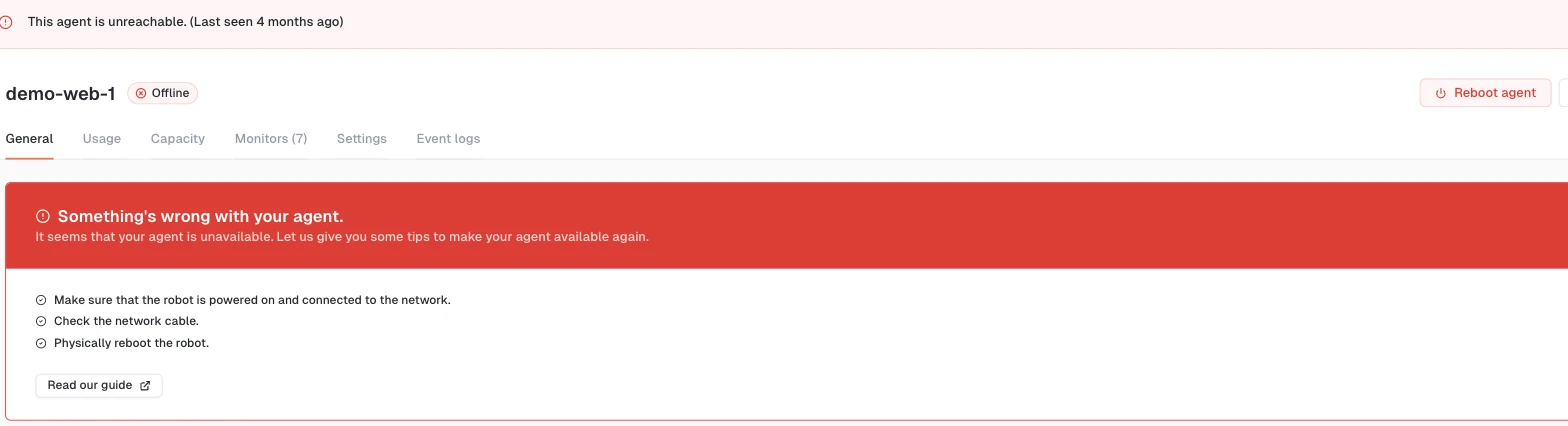
Reboot agent has no effect on an Offline robot. The command has to reach the robot over the link that is down, so the robot never receives it. Only a physical reboot can bring it back.
What you need on site
- A screen, a keyboard, a mouse, and a video cable, HDMI or VGA depending on the robot model.
Where to start
| What you see | What to check | Where to go |
|---|---|---|
| Only one robot is Offline | the robot, its power supply, its network cable | Reboot the robot |
| Every robot on the site dropped at the same hour | the site: power, network, firewall | Check the flows, once your IT team has looked |
Reboot the robot
Press the front button to power the robot down. Count ten seconds before you press it again. The platform needs about three minutes to notice the robot came back, so read the status after that, not before. It should read Online.
Still Offline? Reboot it a second time.
Don't go for a third. Past two, the trouble is no longer software. Move on to power and cables.
Check power and cables
The sockets you need are on the back panel. Plug in the screen, the keyboard, and the mouse there, then take the connections one at a time.
- Look at the front panel. A panel that stays dark means no power reaches the robot, so check the socket, the power brick, and the cord.
- On a cellular robot, the front LEDs blink around the clock. Frozen or dark LEDs on a lit panel send you to a robot that no longer boots.
- Check that the RJ45 cable sits in Ethernet port 1, 2, or 3, never port 4, which does not work. Configure the robot network shows the numbering.
If you changed a connection, restart the robot with its front button, then read its status again. Once everything checks out, plugged in and powered, go to check the robot's network connection.
A robot that no longer boots
The front panel is lit, the screen stays black: the robot no longer boots. On a cellular robot, you also see the LEDs stop blinking.
Nothing changed after two reboots? Stop here. Send the case to support@kapptivate.com, naming the robot as the platform names it. On a cellular robot, also attach a video of the robot's front panel to your message. It helps support with the investigation.
If the robot stays Offline
The robot boots, power and cables check out, and it still reads Offline? Then the problem most likely sits on the network. Go on to check the robot's network connection, which runs in a terminal on the robot.
What's next?
Last updated on