
Prepare an iPhone
Set up an iPhone for a smartphone robot, from the iOS settings to the pairing session with Kapptivate support.
Getting an iPhone ready runs in three stages. A few settings on the phone, then the cable into the robot, then Kapptivate support registering the device with Apple. Apple only allows automated testing on a registered device, and that last stage is the one you can't do yourself.
Plan for it. The registration takes 24 to 72 hours, so a new iPhone isn't testable the same day.
Before you start
- The robot is installed, with its USB hub powered on: see install a robot.
- The robot shows Online in the platform: see configure the robot network.
- The iPhone runs a supported iOS version.
- A USB-C to USB-A or Lightning to USB-A cable, preferably a new one. The hub's ports are USB-A, and the phone cables don't ship with the robot. A faulty cable is enough to make the link unstable.
The iPhone needs internet access, over Wi-Fi or the mobile network, at all times. iOS checks the certificates the platform uses online, so without a connection the device stays stuck in Configuration and never reaches Available.
First boot
Turn the phone on and go through the iOS setup: pick the language and country you want, skip every account, and connect it to the internet over Wi-Fi or a SIM with data. The labels quoted on this page are the English ones.
Do not set a passcode, Face ID, or Touch ID. The screen has to stay unlocked for the platform to use the phone.
Set up iOS
In Settings > General > Software Update > Automatic Updates, turn off every iOS Updates entry. The platform supports iOS 11 to 26, and an update can push the phone past the versions it covers.
In Settings > Display & Brightness > Auto-Lock, select Never.
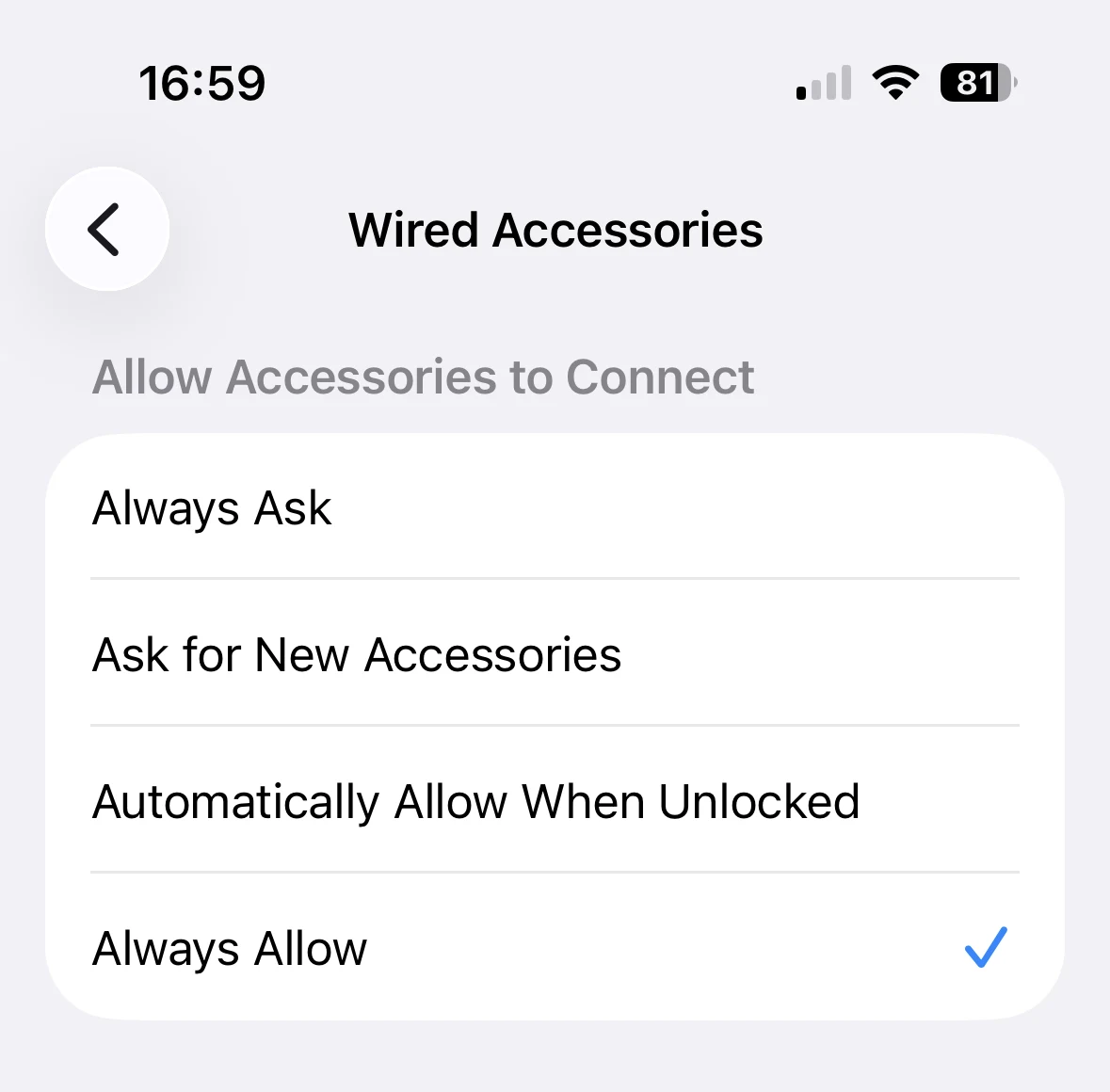
In Settings > Privacy & Security > Wired Accessories, select Always Allow. Earlier versions of iOS don't have this setting, so skip the step there.
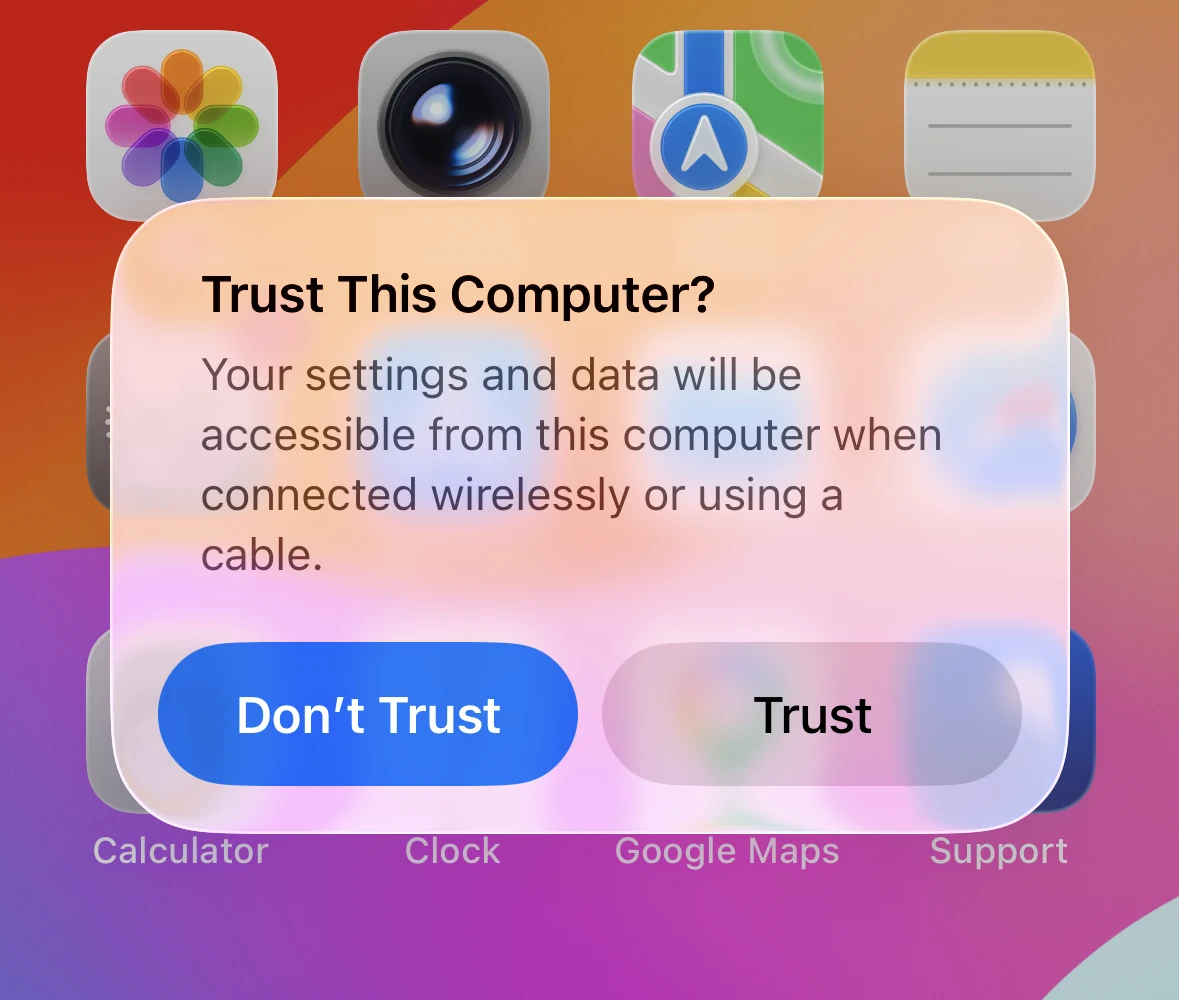
Plug the phone into a free USB port of the hub. If it was already plugged in, unplug it and plug it back: the popup only fires on connection.
When the iPhone shows Trust This Computer?, tap Trust.
Stand the phone up on a holder once it's plugged in. Air then moves behind the case instead of sitting against a flat surface.
Finish with support
These three stages are Apple's requirements and they run in this order. All three go through support.
Contact support@kapptivate.com to say the iPhone is connected and ready. If you went through Set up iOS and tapped Trust, there is nothing left to do on your side. Support reads the device identifier (UDID) directly from the robot.
Tell support if the trust popup never appeared. They can make it appear again during the session below.
Support registers the UDID with Apple, which is what allows automated testing on that specific iPhone. Count 24 to 72 hours. You have nothing to watch for: support tells you once Apple has cleared the device, and the pairing follows.
This stage only concerns an iPhone that has never been used with Kapptivate. A device already registered goes straight to the pairing.
Ask support@kapptivate.com for a 5-minute slot to finish the setup. During the session you confirm the popups on the phone, then check one last setting:
- If the trust popup never appeared, support triggers it. Tap Trust.
- Support then triggers the Developer Mode activation popup. Confirm it. The iPhone may reboot afterwards.
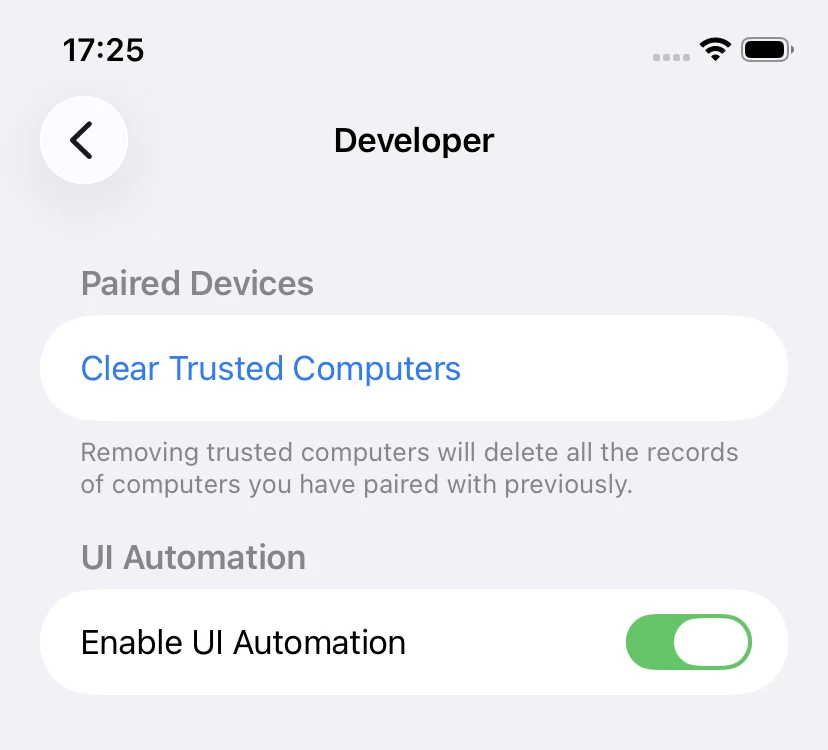
- In Settings > Developer, turn Enable UI Automation on. That menu only shows up at the root of the Settings once Developer Mode is active.
If iOS asks for a restart at any point, restart the phone and leave it connected to the robot.
Check that it worked
Open the Kapptivate platform and go to Agents, where the platform lists your robots. Open yours: the iPhone appears in its device list and shows Available once it is ready to take tests.
A device only becomes available when its own status is Available and the robot it hangs off is Online. If the iPhone isn't in the list, check the robot first.
If the phone is registered, paired, and still absent, the two usual causes are a lost internet connection and a dismissed trust popup. Check the Wi-Fi, then unplug and replug the cable to bring the popup back.
What's next?
Last updated on