
Agents: the machines that run your tests
Learn how to browse, filter, and manage Cellular, Smartphone, Web, and Passive agents, including devices, monitors, and maintenance tasks.
The Agents area lets you manage and monitor all your testing equipment, Cellular agents (with SIM slots), Smartphone agents, Web agents, and Passive agents, in one place. You can search and filter agents, open an agent to inspect its devices and monitors, and run maintenance tasks like reboots, updates, and maintenance mode.
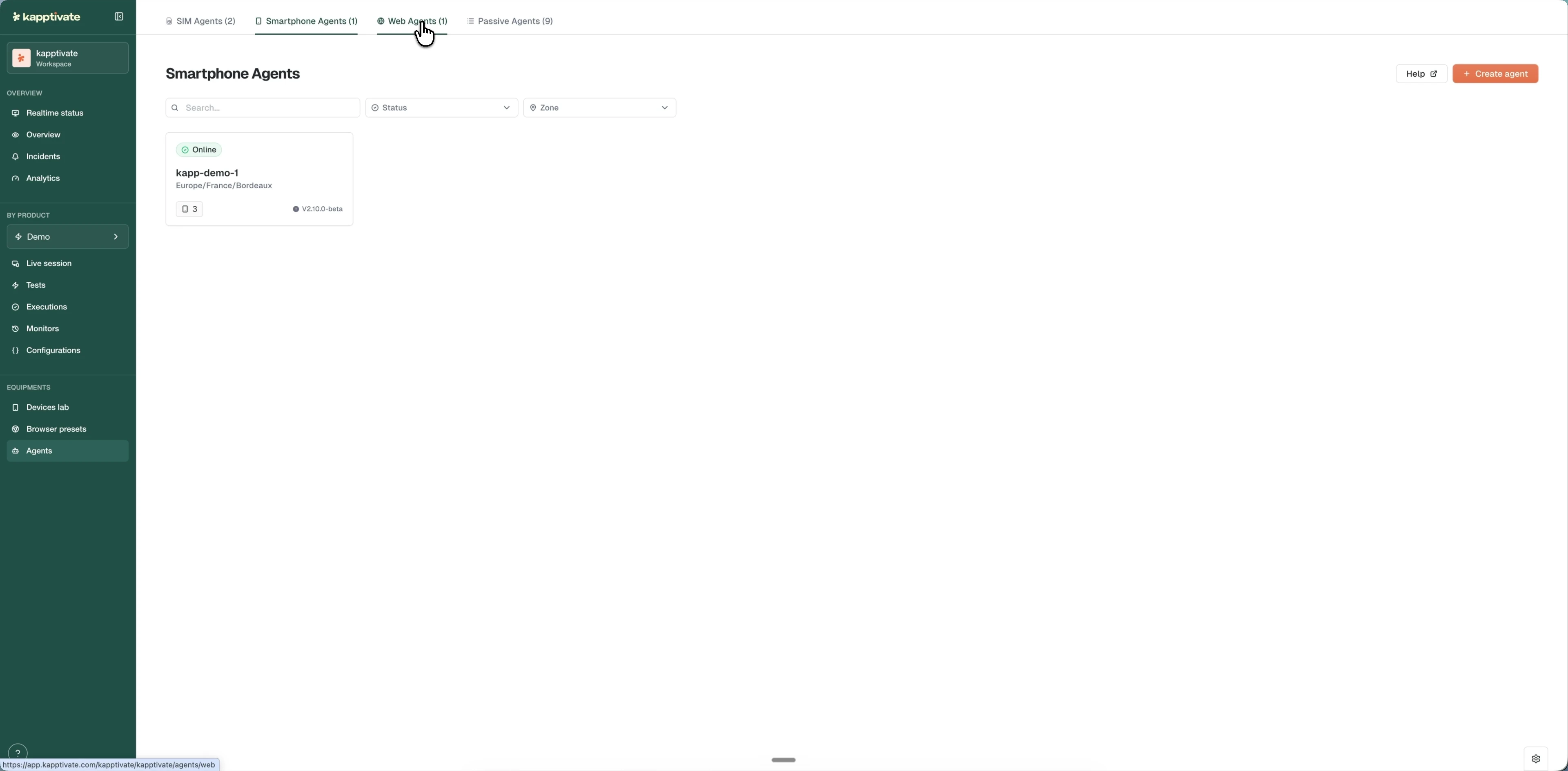
Agent types
Kapptivate groups agents into four types, each shown in its own tab. The tab labels show how many agents of each type you have.
SIM (also called Cellular): agents with SIM card slots. These run tests on cellular networks, SMS, USSD, and SIM-dependent flows. Each agent shows how many SIM slots are active and configured.
Smartphone: agents that run native iOS and Android app tests. Each shows its connected phones and their status.
Web: agents that run browser-based tests. They expose a configurable parallel-test capacity and a usage heatmap instead of a device list.
Passive: read-only agents that report monitoring data without executing tests. They have a simpler interface focused on monitoring, with no reboot or maintenance controls.
Browse and filter agents
When you open the Agents area, you see the agents for the current tab as cards, each showing its name, zone, status, and slots. Use Create agent (top right) to add a new one.
To narrow the list:
- Search by hostname or UUID. Results update as you type.
- Filter by Status: Online, Offline, Maintenance, Waiting for configuration, or Test-only.
- Filter by Zone: choose a zone or location. Zones are populated from your agents, so only zones that actually have agents appear.
Passive agents support search only; the Status and Zone filters don't apply to them.
Agent card details
Each agent card displays:
- Status badge: Online, Offline, Maintenance, Waiting for configuration, or Test-only
- Name: the display name or hostname
- Zone: the agent's configured location (SIM, Smartphone, and Web agents)
- Slot tags: number of active and total slots (SIM and Smartphone agents)
- Version: the software version, with an indicator when an update is available
- Action menu: a three-dot menu to edit, reboot, set maintenance, or delete the agent
For what each status means, see Statuses.
Open an agent
Click an agent card to open its detail page. The tabs depend on the agent type:
- SIM and Smartphone agents: General, Connected devices, Monitors, Settings, Event logs
- Web agents: General, Usage, Capacity, Monitors, Settings, Event logs
The agent's name and status sit at the top, with Reboot agent, Set agent in maintenance, and (for SIM, Smartphone, and Web agents) Test-only mode actions in the top right.
General
Basic information about the agent: hostname, location, software version, and UUID. Use Edit agent to change the name and other editable details.
Connected devices
Shown for SIM and Smartphone agents.
- SIM agents list each slot with the SIM's number, status, network, a health badge (hover it for the weekly-average usage), an access count (hover it for the products that can use the SIM), and active monitors.
- Smartphone agents list each phone with its model, status, UUID, usage badge, access count, and monitor count.
Device and health statuses are explained in Statuses.
Monitors
Shown for SIM, Smartphone, and Web agents. Lists the monitors running on the agent, grouped by suite, with each monitor's status, frequency, and location. Pause an individual monitor from its row menu, or use Pause all monitors to pause every monitor on the agent.
Settings
A left sub-navigation groups the agent's configuration:
- About: general information about the agent
- Software update: enable automatic software updates and choose when they run (every day at a set time)
- Automatic reboot: turn on scheduled reboots and set their schedule (we recommend rebooting at least once a week)
- Agent credentials: the agent's ID and password, with a Reset password action. Use these to configure the robot.
- Network configuration: a read-only JSON view of the agent's network interfaces, IP addresses, and MAC addresses (available for all agent types)
- Danger zone: delete the agent
Event logs
A per-agent history of events, with the same Type and User filters, time-range picker, and Export CSV action as the workspace-wide event log. Use the time-range picker to refine results.
Usage (Web agents)
Web agents have a Usage tab showing a weekly-average utilization heatmap, the agent's busy percentage hour by hour across the days of the week. Use it to spot when an agent runs hot and to balance load.
Capacity (Web agents)
The Capacity tab sets how many tests a Web agent runs simultaneously, from 1 to 10 parallel tests. The maximum is determined by your licence; raising it makes more browsers available for web testing.
Maintenance and test-only modes
Maintenance mode: use Set agent in maintenance (top right) to temporarily take an agent out of service. It stays visible in the list but stops running scheduled scenarios and monitors until you Remove from maintenance. Only admins can toggle maintenance.
Test-only mode: available for SIM, Smartphone, and Web agents. Activating it pauses all active monitors on the agent and reserves its capacity for manual tests. A confirmation dialog appears before activation. While the mode is active, an indicator shows next to the agent's name and the header button becomes Exit test-only mode; exiting opens a dialog confirming that the paused monitors will be resumed.
Reboot and delete
Reboot an agent from the Reboot agent button or the card's action menu. You'll see a confirmation and then a success or error notification; reboots time out after 3 minutes.
Delete an agent from the action menu or the Settings Danger zone. A confirmation dialog appears, and deletion is permanent.
Empty states
If no agents exist on a tab, you see an empty state with no filters. Once agents are added, the filters appear. If filters are applied but nothing matches, a card shows which filters are active so you can clear them.
What's next?
Last updated on