
View and manage API keys
View, search, edit, refresh, and revoke API keys in your workspace to control team access and keep credentials secure.
The API keys list shows every key created in your workspace, so you can audit what has access and replace credentials when needed. Each row shows:
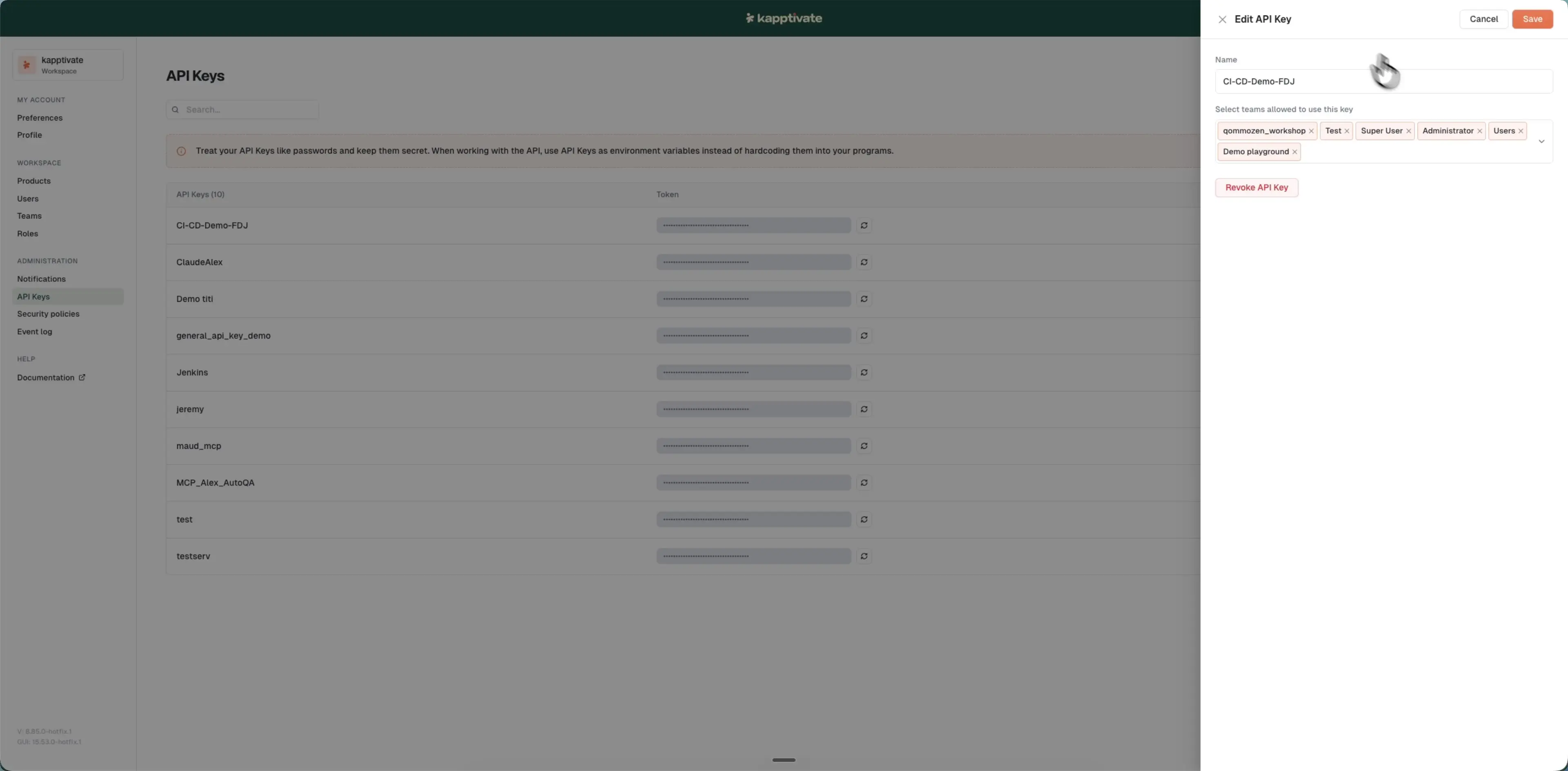
- Name of the key.
- Token: masked, with an inline refresh icon to generate a new one.
- Access: how many teams can use the key (or
-if none). - ⋮ menu: the Edit and Revoke actions.
Search API keys
Use the search box to filter keys by name. Search is case-insensitive and updates in real time.
Edit an API key
Click anywhere on a key's row, or open its ⋮ menu and choose Edit. The "Edit API Key" panel slides in from the right, where you can:
- Rename the key.
- Adjust the teams allowed to use it.
- Revoke it, with the red button at the bottom of the panel.
Click Save to apply your changes.
Refresh a token
To replace a key's token without changing its name or teams, click the refresh icon next to the masked token on the key's row. A "Refresh token?" modal warns that applications using the key will lose access; confirm with Refresh token. Kapptivate generates a new token and shows it in a modal. The old token stops working immediately.
Copy the new token before closing the modal. It's only shown once.
Revoke an API key
Revoking permanently disables a key. Any applications using it will fail to authenticate.
To revoke:
- Open the ⋮ menu on the key's row and choose Revoke, or click Revoke API Key at the bottom of the edit panel
- Confirm the revocation in the dialog
This action cannot be undone.
Last updated on