
Executions overview
View, filter, and rerun test executions, track statuses, and monitor live runs in real time from the executions list.
Every time a test runs it produces an execution. The executions list is the history of all of them: filter to what matters, re-run what failed, and click through to the detailed results.
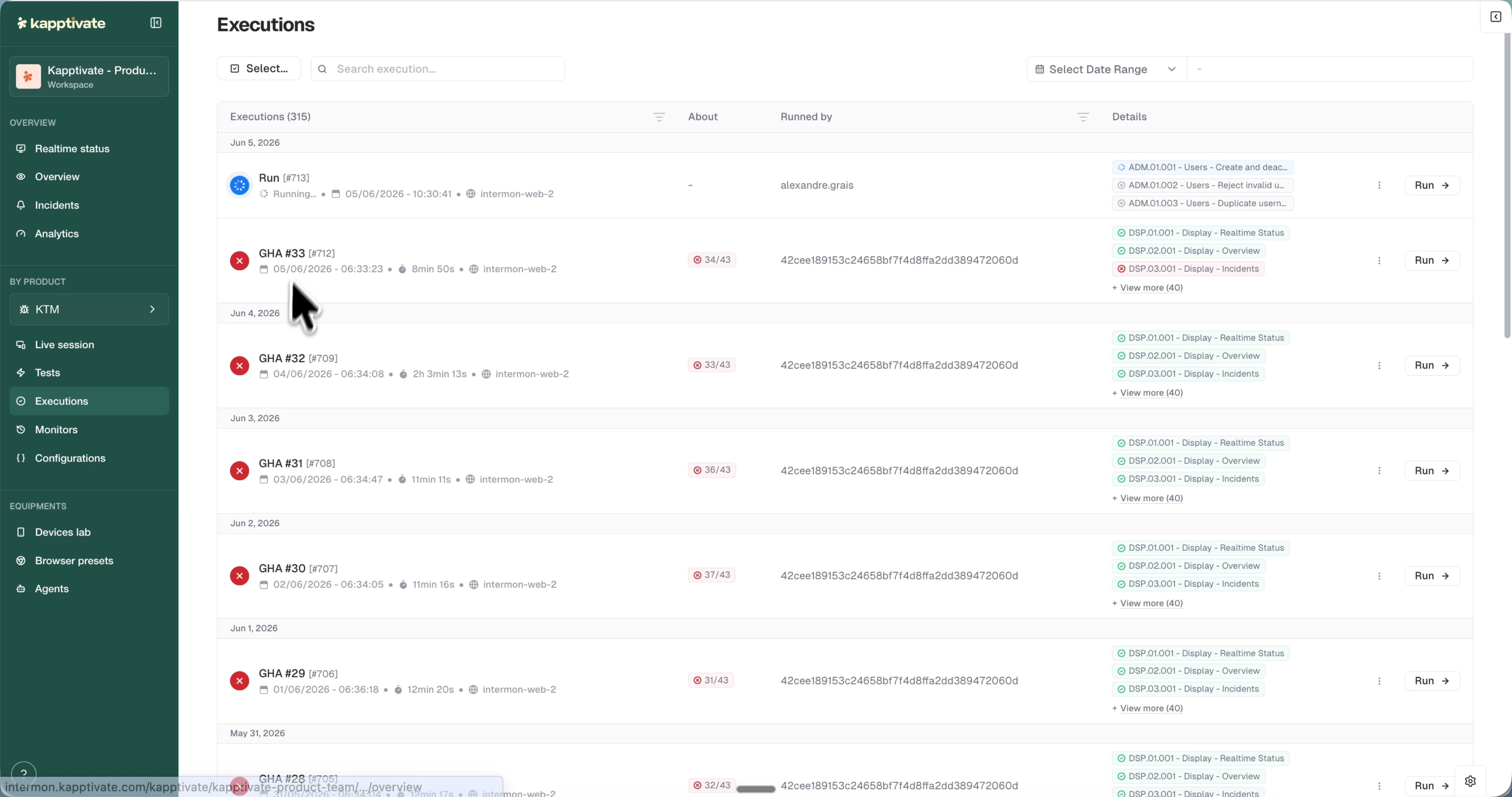
The executions list
Executions are grouped by day, newest first, and the list refreshes itself to show updated statuses. Each row displays:
- Name: the execution name with its status icon, run date, duration, and device chip.
- About: a badge with the failed/total test count.
- Ran by: who or what triggered the execution.
- Details: chips naming the tests in the execution, with "View more" when there are many.
- Run: a standalone button to re-run the execution.
Filter executions
- Search for executions by name.
- Status: filter by success, failed, warning, running, and other statuses when applicable.
- Creator: see only executions a specific user ran.
- Date range: pick a preset from the dropdown (Past 1h, 2h, 6h, 12h, 24h, Today, Yesterday, Last 7 days, Last 30 days) or set a custom range.
- Multi-select: enable the checkbox mode for bulk actions; press Esc to clear the selection.
Row actions
Use the Run button to re-run an execution as-is. The row's three-dot menu offers:
- Add tag(s): label the execution for organization.
- Rerun only failed tests: queue only the tests that failed.
- Rename execution: change its display name.
- Cancel execution: stop a run that is still going. It appears while the run is in progress, on runs made of new-experience tests, one test or a whole batch. The run stops immediately, the progress of that run is discarded, and its status becomes canceled.
- Delete: remove the execution.
Click the row itself to open the full results view.
Execution status
An execution's status reflects the outcome of its tests:
- success: all tests passed.
- failed: one or more tests failed.
- warning: all tests passed but with warnings. See Success, warning, failed.
- pending: queued, waiting to start.
- ongoing: currently running.
- canceled: user canceled the execution.
- blocked: blocked by another process.
- scheduled: scheduled for a future run.
- timed out: execution exceeded the timeout.
Scheduled executions show a tag with the scheduled run date and time instead of individual test details.
Live test monitoring
When a test is running, you can watch it live: open the execution to see a live preview of the device screen with the steps updating in real time, or run directly from the builder to watch in a modal without leaving the editor.
What's next?
Last updated on