
Run a test
Queue, review, and launch tests on demand from the tests list or builder, then track results in the executions list.
Not every execution waits for a schedule: while authoring, after a fix, or during an investigation, you run tests on demand. A manual run goes through three quick stages: queue the tests, review the queue, and launch.
Queue the tests
In the tests list, click Add to queue on a test's row. Keep adding tests to accumulate them: a floating bar at the bottom of the screen tracks the queue (Run queue with a counter), with Clear to empty it and Open to review it.
To queue several tests at once, select them with the checkboxes: a selection bar appears at the bottom with an Add to queue action for everything you selected.
Review the run queue
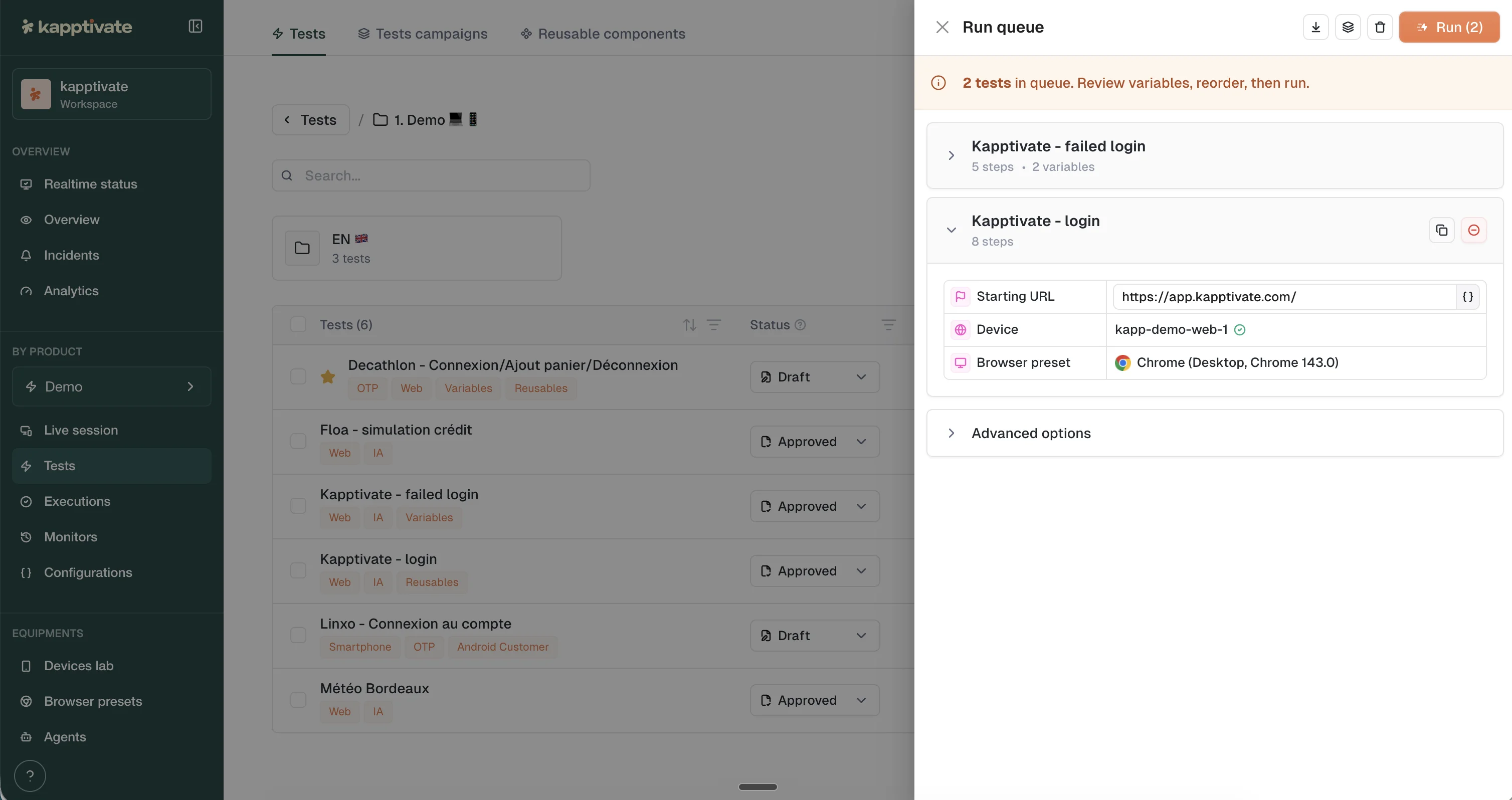
Click Open on the floating bar to slide out the Run queue panel. Each queued test shows its step count and variables. Expand a test to adjust its parameters for this run only, without touching the test itself: the device it runs on, its variables (the test's own as well as the product's, and an override takes references and randoms, not just plain text), and the channel-specific settings. A web test, for example, exposes its starting URL and its browser preset.
Two buttons on each test card let you duplicate it (to run the same test several times) or remove it from the queue.
The toolbar at the top of the panel can also turn the queue into a reusable asset: one click creates a test suite from the queued tests, so a batch you assemble often doesn't have to be rebuilt. The trash icon empties the queue.
To launch many tests with different variable values, upload a CSV batch instead of queuing them one by one.
Advanced options
The Advanced options section at the bottom of the panel controls how the batch behaves:
- Execution mode: how much data is collected during the run, from Fast to Detailed (Standard by default).
- Run later: schedule the run instead of launching immediately.
- Parallel test execution: run the queued tests in parallel.
- Wait between each test: insert a pause between tests.
More options expands the rest:
- Send results by email / by SMS / by call: get notified when the run finishes.
- Ignore errors: keep going when a step fails.
- Use capabilities: pass extra execution capabilities.
Launch
Click Run in the panel header to launch everything in the queue. The run lands in the executions list, where you can follow it and open its results.
Run from the builder
While authoring, you don't need to leave the editor to try your test: click Run in the top right of the builder. A modal opens with a live video feed of the executing test, which you can expand to full screen to watch the run in real time.
Last updated on