
Viewing results
Read a single execution result: steps, screenshots, video, and metadata.
An execution result shows exactly what happened during a test run: which steps ran, what the screen looked like at each one, and the conditions it ran under. It's where a red row in the executions list turns into an actionable diagnosis.
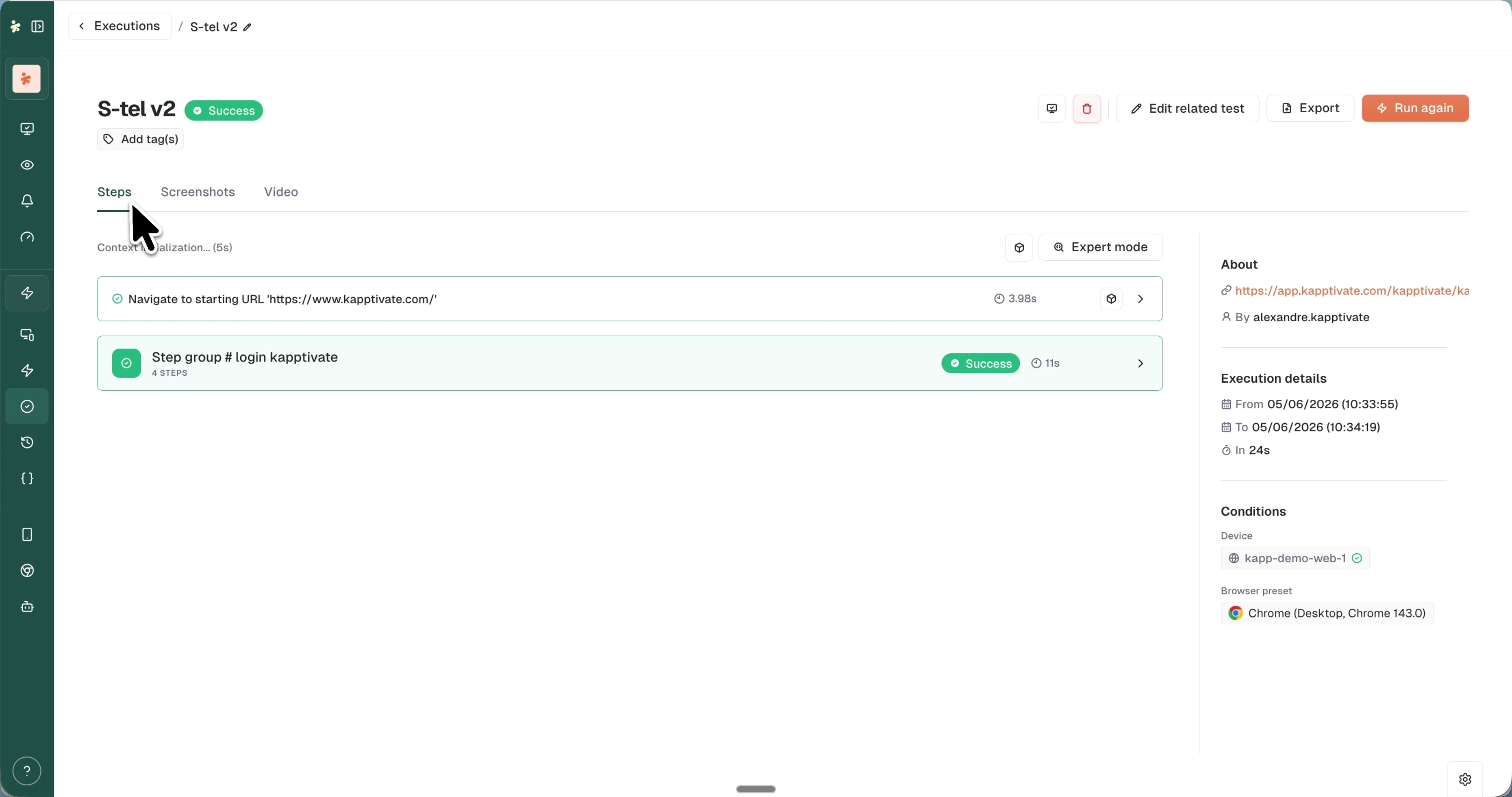
The result view
Open any execution from the executions list. The view is built around:
- Header: the execution name (click the pencil to rename), its status badge, and an Add tag(s) button.
- Top-right actions: Edit related test to jump into the builder, Export to download a report, Run again to re-run, and the trash icon to delete.
- Tabs: Steps, Screenshots, and Video.
- Sidebar: About (the tested URL and who ran it), Execution details (start, end, and duration), and Conditions (the device and browser preset used).
Executions with several tests open in the multi-test view instead.
Steps
The Steps tab is the step-by-step account of the run. Each step shows its description, status, and duration; expand it to see the Result with an inline screenshot, the interacted element highlighted.
- View artifacts opens a modal with the step's logs and images.
- Click a screenshot to open a full-screen carousel and flip through the run visually, step by step.
- Expert mode (top right of the tab) reveals additional technical detail.
Screenshots
The Screenshots tab gathers all screenshots captured during the run, labeled with the step that produced each one, so you can correlate visual state with test steps. Click any screenshot to view it at full size.
Video
The Video tab plays back the entire run, so you can watch the full execution in motion without stepping through individual steps. Use the Download button to save the recording locally.
Export a report
Click Export (top right) to download a report of the execution. A modal lets you pick the format, such as an Excel report, before saving.
Multi-test executions
A campaign run, or any execution with several tests, opens a view built for the batch: first the overall outcome, then each test one click away.
- Summary counters at the top: Success executions, Failed executions, Unexecuted, and Total duration (counting up in real time while the run is live).
- About sidebar section: the overview and an Execution time chart plotting each test's duration, so the slow tests stand out.
- Tests sidebar section: every test in the execution; click one to open its step-by-step results without leaving the execution.
For API tests, a step's details include the HTTP exchange, organized into Headers, Body, and Performance tabs.
Re-running
Run again (top right) queues the same tests with the current test configuration. To re-run only what failed, use Rerun only failed tests from the row menu in the executions list.
Last updated on