
Variables in tests
Learn how test, global, and random variables work in test steps, and manage them all from the Environment tab for consistent results.
Static test data goes stale: a hardcoded email collides on the second sign-up, a fixed name can't prove the confirmation page shows what you typed. Inside a test, variables keep every step fed with live data, values produced by earlier steps, generated on the fly, or pulled from your product configuration.
Three kinds of variable
Whatever the field, a value can mix literal text with three kinds of variable, each with its own color in the editor:
- Test variables, in orange: they live inside this test. A step that produces a value creates one (
SmsCode,Extracted), a Set variable step declares one, and you can create one yourself from the picker. - Global variables and variable groups, in blue: defined once for the product in Configurations, reused by every test.
- Built-in randoms, in grey: generated fresh at run time, not stored anywhere.
The color is the quickest way to read a field: orange stays inside the test, blue comes from the product, grey is generated.
The variable picker
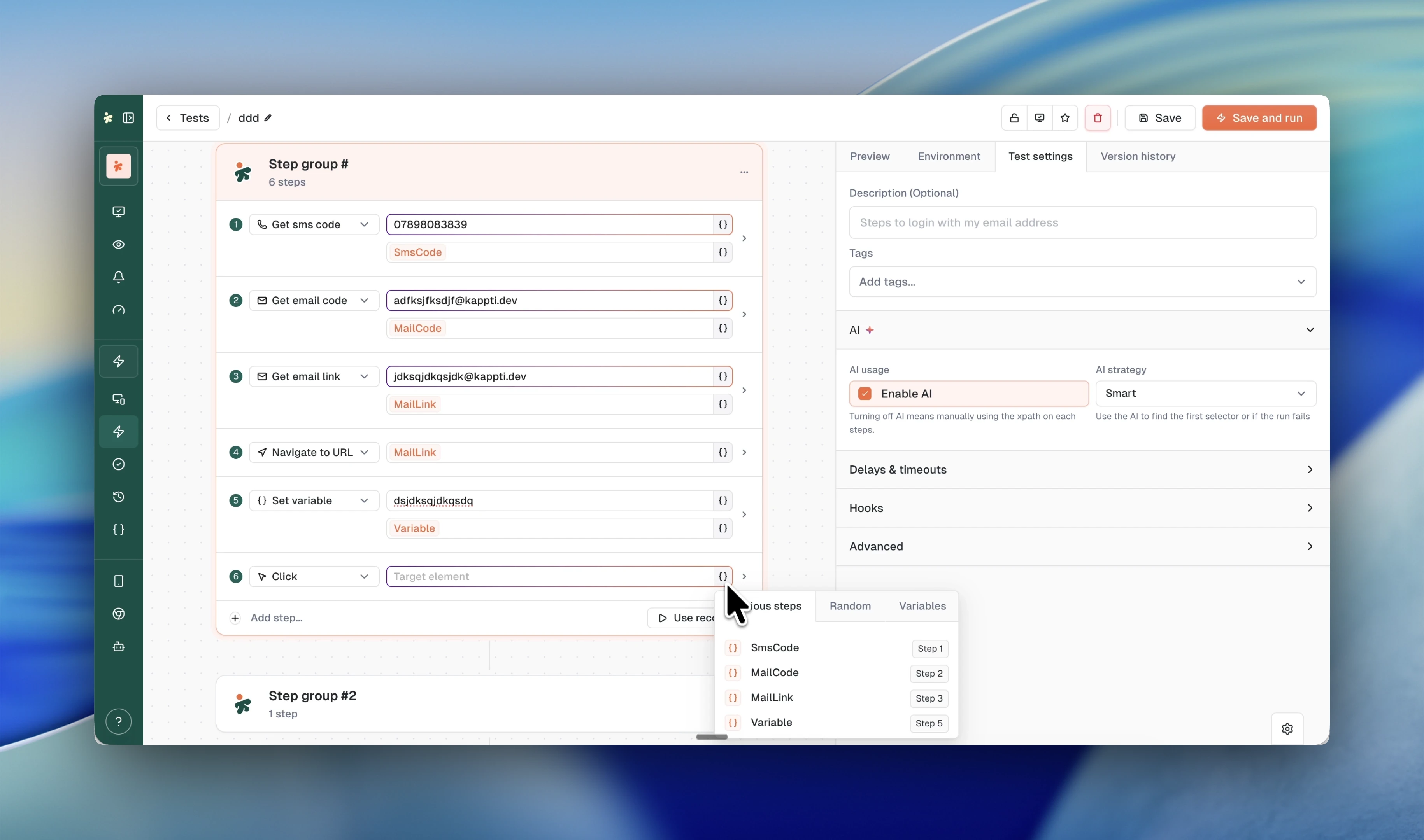
Click the {} icon next to any step field to open the variable picker. Selecting an entry inserts it as a pill in the field, where it can mix with literal text. The picker has three tabs:
- Previous steps: values produced earlier in the test, plus Create in-test variable at the bottom.
- Random: generated fake data for this run.
- Variables: your product's configured variables and groups, plus a shortcut to create a global variable without leaving the test.
Previous steps
Every step that produces a value exports it as a variable, listed with the step that created it (for example SmsCode, Step 1). Typical producers: Email & SMS steps (SmsCode, MailCode, MailLink), text-reading actions, and your own Set variable steps.
Pick one to chain steps together: navigate to the MailLink extracted two steps earlier, or type SmsCode into the 2FA field.
Set variable
The Set variable step stores a value of your own mid-test: give it a value and a name, and it appears in the Previous steps tab for every later step. See the Set variable reference for the JSON format and template functions.
Create an in-test variable
A value you need in several steps does not have to come from a Set variable step. Open the picker on the field, choose Create in-test variable at the bottom of the Previous steps tab, and give it a name. The variable lands in the field as a tag, and its value is yours to fill in the Environment tab or in the step's Variables tab.
Its value can be as rich as any other field: literal text, a global variable, a built-in random, or another test variable.
Random data
The Random tab generates fresh fake data at run time, so each execution uses new values. Presets: First name, Last name, City, and Street address.
Custom opens a format builder when the presets don't fit:
- Text: pick the character sets and the length.
- Number: generate a numeric value.
- Date: pick the format,
DD/MM/YYYY,MM/DD/YYYY,DD/MM,MM/DD, orM, D Y, with optional constraints.
Configured variables
The Variables tab exposes what's defined in your product's Configurations: standalone variables and variable groups you can expand to pick a specific entry (like a PASSWORD inside your default group). Define once, reuse across every test.
Edit and review in the Environment tab
The builder's Environment tab gathers the variables your test touches, in three tables:
- Test variables: everything declared inside the test (extracted codes, Set variable steps, in-test variables). The Value column is editable, and an edit stays in sync with the Set variable step that declares the variable, so you never have to hunt for the step to change a value.
- Global variables: the configured variables the test references, with secret values masked.
- Variable groups: the groups the test references, and which variant is used.
The same three tables sit in a step's Variables tab, narrowed to what that step uses.
Editing a value here changes the test, not just the next run, so the Run button becomes Save and run.
Variables assigned by a custom step script (test.variables.set) do not appear in these tables. Their value only exists during the run, and the script would overwrite anything you typed here.
Override values for one run
The test holds the values it normally runs with. Everywhere a test is launched, those values can be replaced without touching the test:
- Run a test: expand the test in the run drawer and edit its variables for this run only.
- Create a monitor: the monitor form asks for the values it will use on every scheduled run.
- Test campaigns: overrides are saved on the campaign, shown as tags on the test rows, and reused every time the campaign runs.
An override is not limited to plain text: it takes references to global variables and built-in randoms too, so a monitor can run the same test with a fresh email address every time.
In the results
An execution's result page has a Variables tab listing what went in and what came out, and so does the monitor result modal. Values built from variables and randoms are rendered as the same tags you saw in the editor, so a run's inputs read exactly like the test that produced them.
What's next?
Last updated on