
Run a campaign
Review the campaign editor, launch a batch run, and track results, including multi-test execution details, in the executions list.
A campaign bundles tests that make sense together; running it executes them as one batch. You launch it straight from the campaign editor, where everything the run will use is laid out for review.
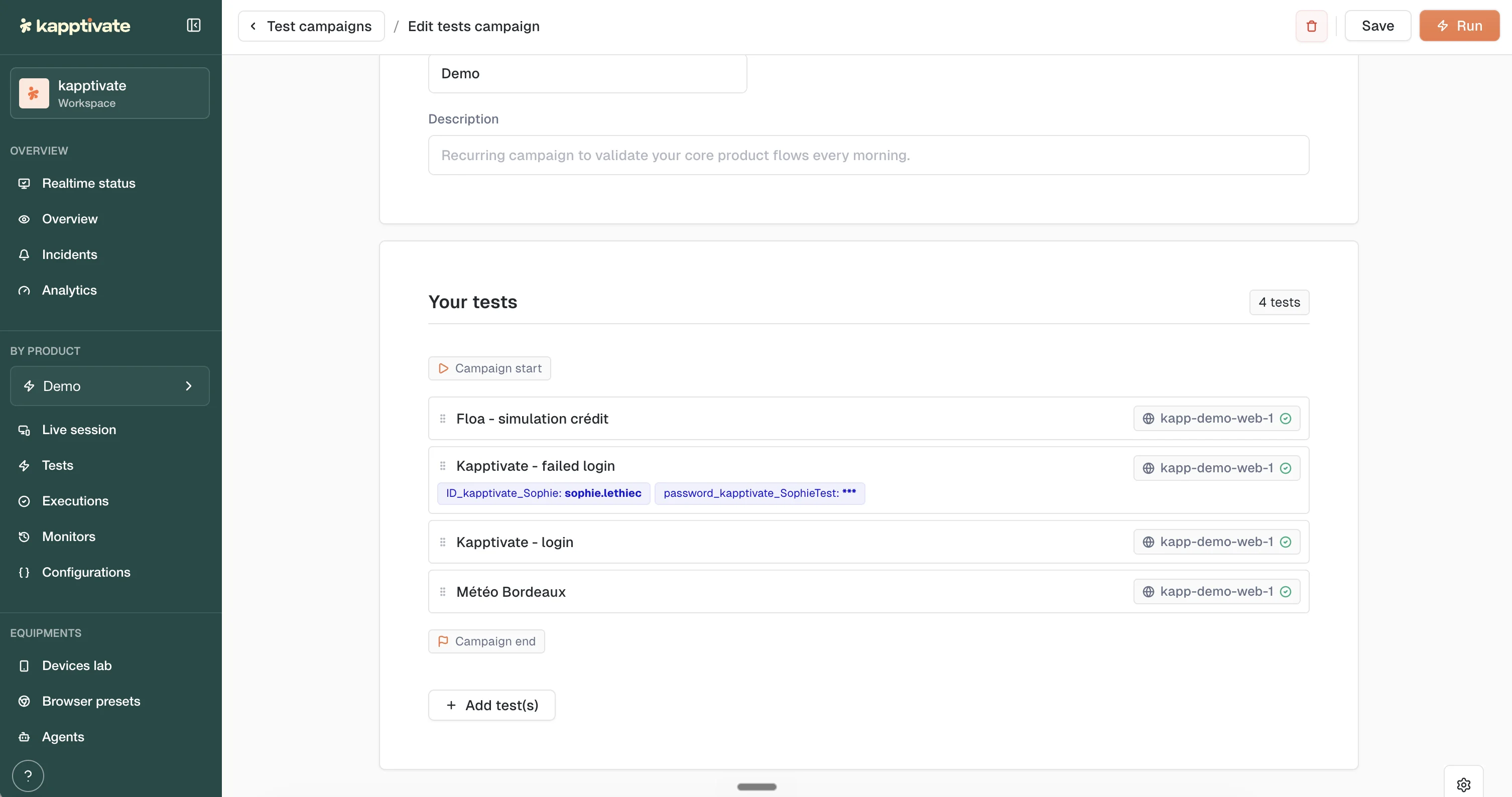
Review the campaign
Open a campaign from the Tests campaigns tab. The editor shows its name and description, then Your tests: the tests the campaign runs, in order, between the Campaign start and Campaign end markers.
Each test row carries what that test will run with:
- Device: the agent or device assigned to the test, shown on the right of the row.
- Variables: the test's variable values, shown as pills under its name, with secret values masked.
Drag the handle on a row to reorder the tests, and click Add test(s) to extend the batch. Save stores your changes without running.
Launch
Click Run (top right) to execute the campaign. The tests run in their listed order as a single batch, each under its own execution mode.
Follow the execution
The campaign lands in the executions list and opens as a multi-test execution: summary counters, an execution time chart, and each test's detailed results one click away in the sidebar.
To launch campaigns from a script or a pipeline instead of the UI, see Run campaigns from the CLI.
Last updated on