
Devices lab
Manage SIM cards and smartphones in the Devices lab: view status, usage, monitors, and settings, then search and filter with ease.
The Devices lab is the central place to manage every test device in your workspace. It shows all the physical SIM cards and smartphones connected to your agents in one searchable view, where you can check a device's status, control which products use it, and open it to inspect usage, monitors, and settings.
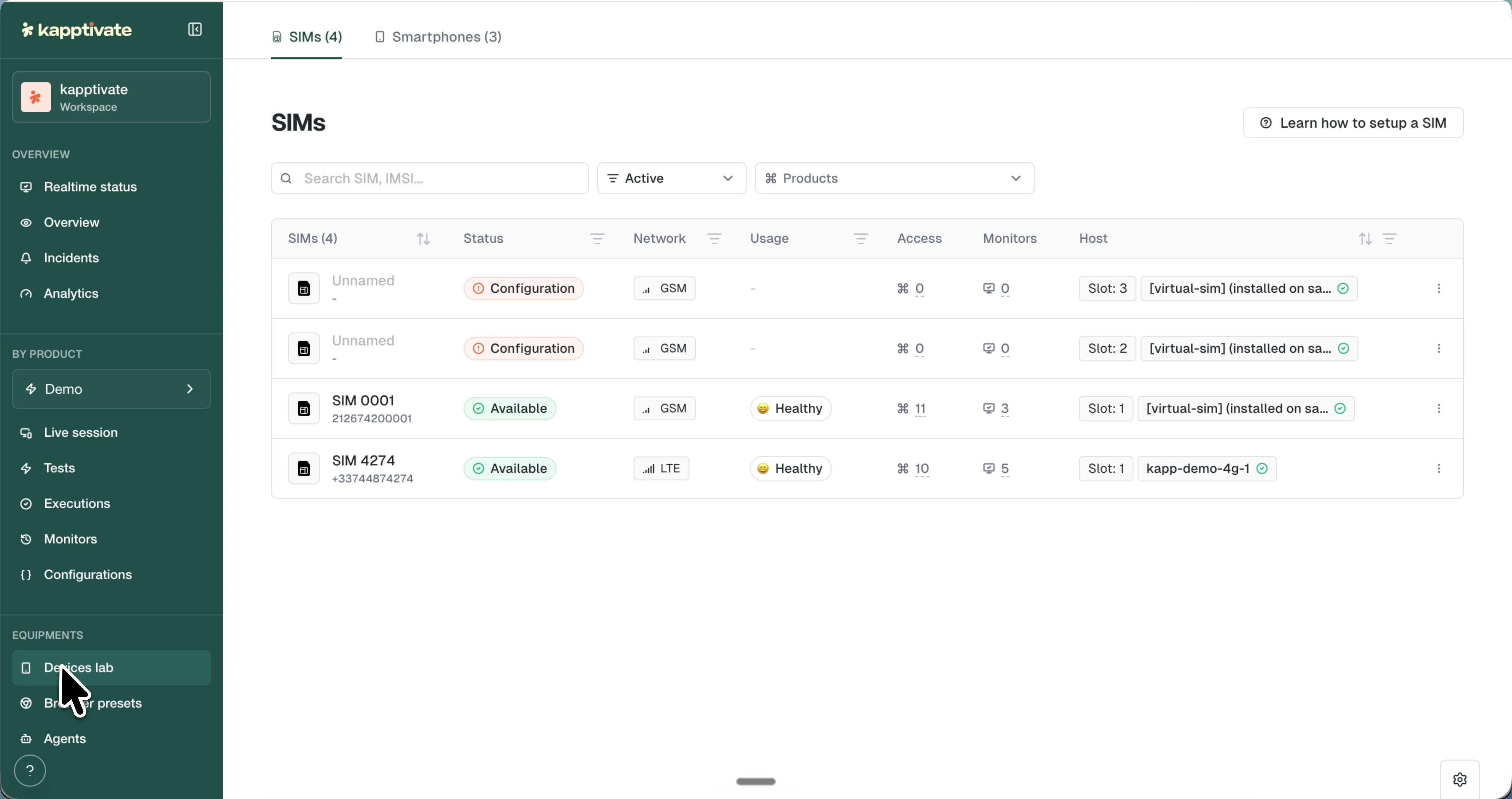
View your devices
The Devices lab has two tabs: SIMs and Smartphones. Each lists its devices in a table.
SIMs lists the SIM cards connected to your SIM (Cellular) agents. Columns show the SIM's name and number, status, network and signal, usage, access count, monitors, and host agent (with its slot). Use Learn how to setup a SIM for the installation guide.
Smartphones lists the phones connected to your Smartphone agents, with their model, status, UUID, usage, access, monitors, and host. Use Learn how to setup a new device for the installation guide.
Several columns reveal more on hover: the network badge shows the connected network and signal level, the usage badge shows the exact usage percentage, and the host chip shows the agent's status and location.
For what each status and usage badge means, see Statuses.
Search and filter devices
Above each table:
- Search by name, IMSI or MSISDN (for SIMs) or by name or UUID (for smartphones). Results update as you type.
- Status filter: choose Active (in use) or Archived (retired). Active is the default.
- Products filter: a multi-select dropdown that limits the list to devices assigned to the product(s) you pick.
Open a device
Click a device row to open its detail page. The tabs are General, Usage, Monitors, Settings, and Event logs, with the device name and status at the top.
Three actions sit in the top right:
- Reboot slot (SIM cards): remotely reboots the SIM's slot on its agent.
- Test-only mode: pauses all monitors on the device and reserves it for manual testing.
- Launch live session: opens an interactive live session with the device.
General
The General tab shows the device's core information (for a SIM: slot, host agent, phone number, location, network, and usage; for a smartphone: model, host agent, and location, with an Edit smartphone button) and a Products section that controls which products may use the device.
Leave This device can be used by all the products on to grant access to every product, or turn it off and use Add product to restrict access to a selected list.
Usage
The Usage tab shows a weekly-average utilization heatmap, the device's busy percentage hour by hour across the days of the week. Use it to spot usage patterns and balance load across devices.
Monitors
The Monitors tab lists the monitors currently using the device, grouped by suite, with each monitor's status, frequency, and location. Pause an individual monitor from its row, or use Pause all monitors.
Settings
Settings group the device's editable fields and read-only technical details in a left sub-navigation.
For a SIM card:
- About: edit the national and international MSISDN and the device name, then Save changes.
- SIM Details: read-only technical information, IMSI, ICCID, type, ISO code, country, operator, registered network name and PLMN, and modem firmware.
- Default APN: the SIM's default access point configuration.
For a smartphone:
- About: rename the device.
- Smartphone Details: connection details, UUID, URL, type, and model.
- Props: a JSON object of device-specific properties such as screen resolution, manufacturer, and OS build versions.
Event logs
A per-device history of events, with the same Type and User filters, time-range picker, and Export CSV action as the workspace-wide event log.
Empty states
If no agents of a type exist (for example, no SIM agents), you see a message suggesting you contact sales, with a link to the agent installation guide. If agents exist but no devices are configured yet, you see a prompt to configure devices with a link to the setup guide.
What's next?
Last updated on