
BrowserStack devices for mobile tests
Connect a BrowserStack account, import the cloud devices you need, and run your smartphone tests on them.
Kapptivate can run your native app tests on the devices of a BrowserStack account instead of on phones plugged into a robot. You connect the account, pick the devices worth importing, and those devices show up in your Devices lab next to your physical ones. Tests, monitors, and results work the same way on both.
You still set up an agent, and it sits in the Agents list next to the others. What changes is what setting it up means: you connect an account, with nothing to install and no hardware to receive.
Before you start
- A BrowserStack account with an Automate or App Automate plan.
- Its username and access key, which you copy from your BrowserStack profile.
- The app you want to test, uploaded to BrowserStack's App Management. Kapptivate can only launch the apps your BrowserStack account holds, never the ones preinstalled on a public cloud device.
Quickstart
Connect the account. Open Agents, click Create agent, and pick BrowserStack under From a provider. Paste your username and access key, then Connect. Kapptivate checks the credentials against BrowserStack before going further.
Import your devices. The next screen lists every device the account offers. Search or filter by brand, tick the ones your users actually have, and save the selection.
Give your products access. A last step asks which products may run tests on what you just imported, so you do not have to open each device to grant it.
Run a test on a cloud device. Create or open a Smartphone test, select an imported device, pick the app, and run it.
Connect a BrowserStack account
Connecting an account is the same gesture as creating an agent: Agents > Create agent. The BrowserStack row sits in the From a provider group, below the agents that run on your own infrastructure.
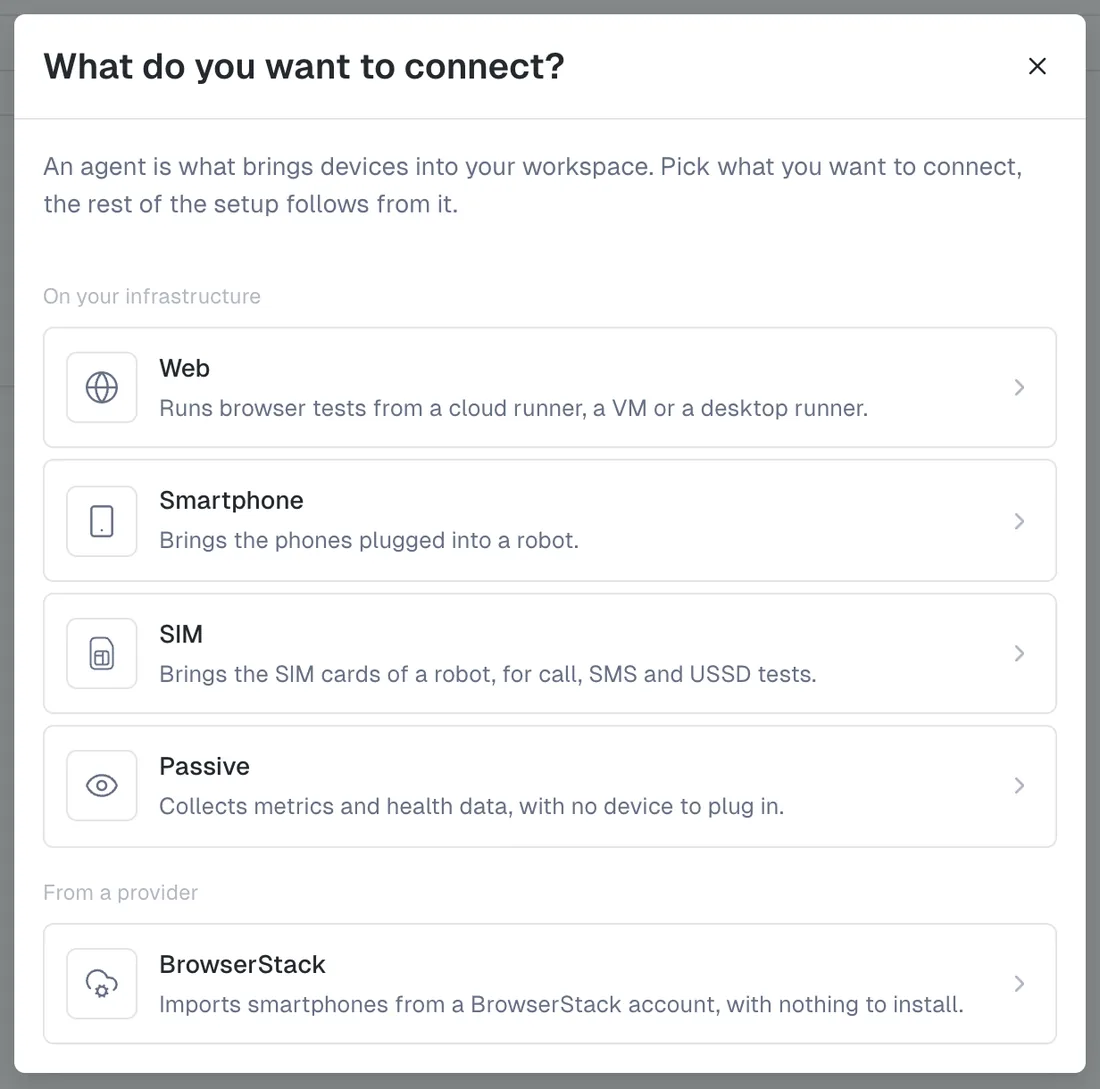
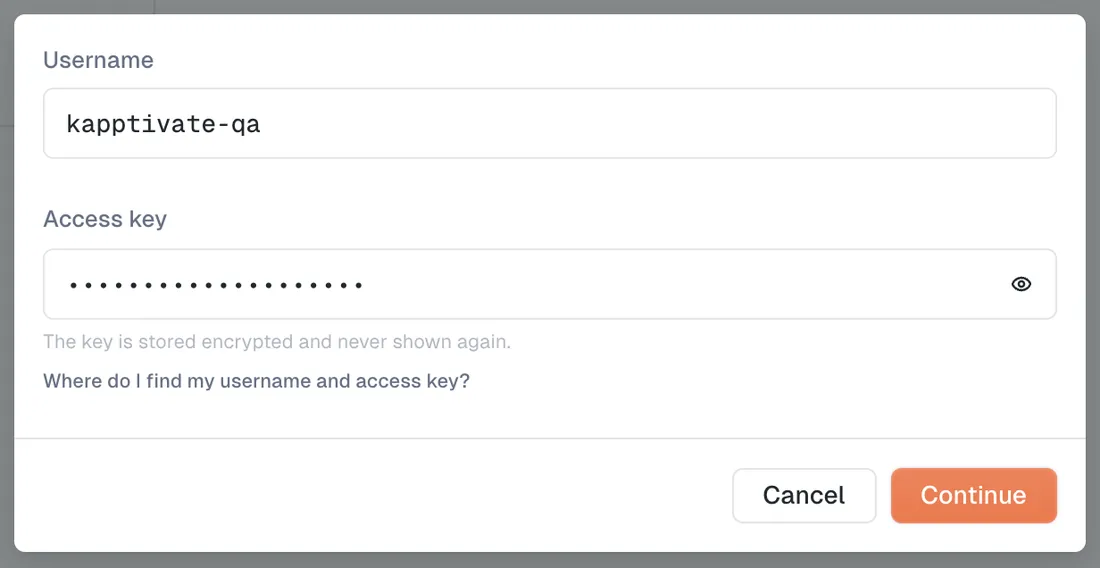
The form asks for two fields:
- Username: your BrowserStack username.
- Access key: the key from the same profile page. It is stored encrypted and never shown again, so keep a copy on BrowserStack's side.
Kapptivate tests the pair when you submit. Three answers are possible:
- Connected to BrowserStack, with the plan name and the number of parallel sessions it allows. The connection continues to the device import.
- Credentials refused: the username or the key is wrong. Check both on your profile page, then try again.
- BrowserStack unreachable: nothing is wrong with your credentials, the provider did not answer. Try again in a moment.
An account can only be connected once per agent. If the username is already declared, the form says so instead of creating a duplicate.
Once connected, the account appears as a card on the Smartphone tab of the Agents list, with its status, its username, and the number of devices it brings. The Type filter on that tab separates Robot agents from BrowserStack ones.
Choose the devices you import
BrowserStack offers far more devices than a team ever tests on. Rather than pouring the whole catalogue into your workspace, you pick from it: only the devices you select appear in your Devices lab and in test forms.
The picker lists the devices of the account with their OS and version. To find yours:
- Search by name.
- Filter by brand, with Apple grouped under its own name rather than by model line.
- Unselect all clears the selection when you would rather start from nothing than untick a catalogue.
- The submit button counts what is picked, for example Save (12).
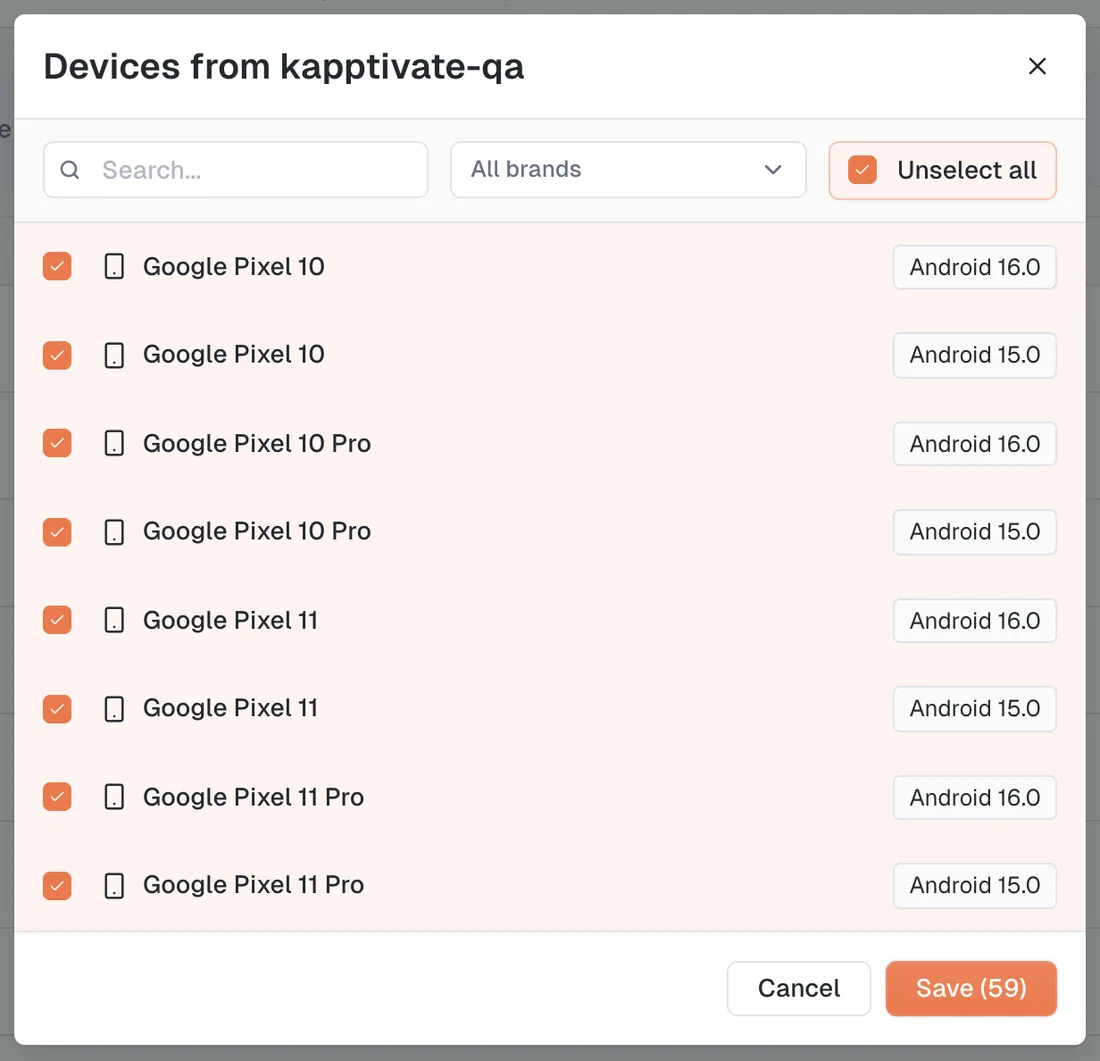
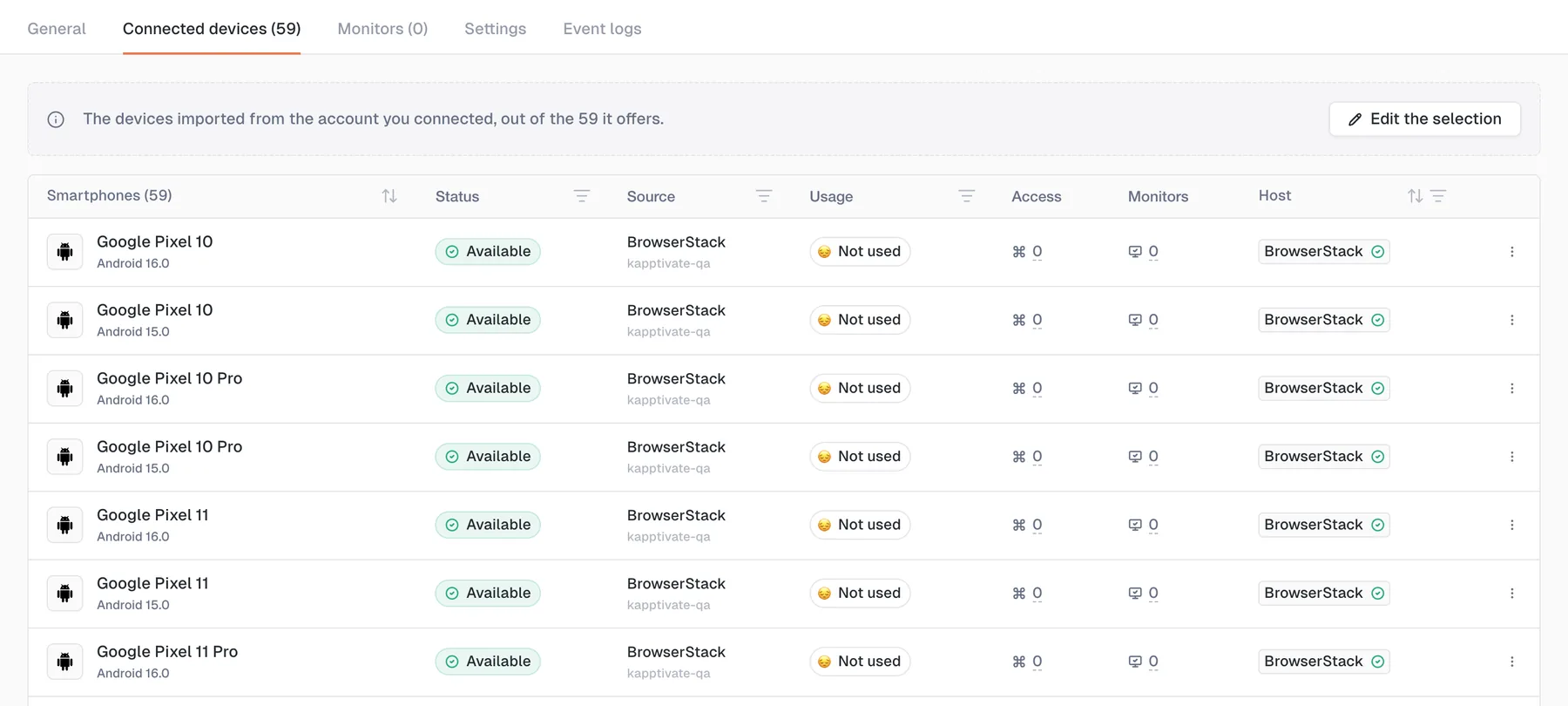
Save the selection and the devices land on the agent. You can reopen the picker at any time from the agent's Connected devices tab with Edit the selection, to add a device you now support or to drop one you no longer test.
Dropping a device does not delete anything on BrowserStack. It goes back to the catalogue and can be imported again later. The tests and monitors that ran on it do stop, so check what uses a device before removing it.
Give products access to the imported devices
Right after an import, Kapptivate asks which products may use the devices. A device nobody can use is a device nobody tests with, and ticking the same products on fifty devices one by one is the work this step removes.
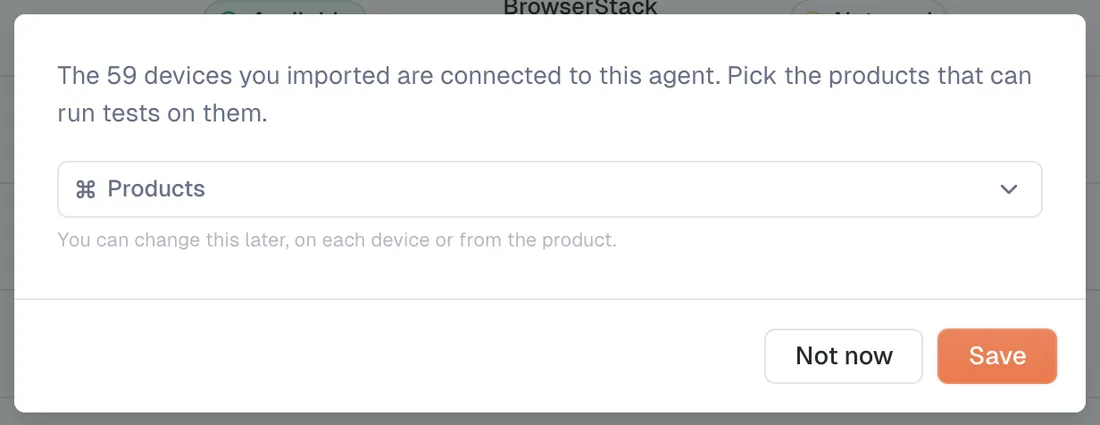
Pick one or several products and save, or choose Not now. The choice is never final: you can change it later on each device's General tab, or from the product's devices settings.
The BrowserStack agent page
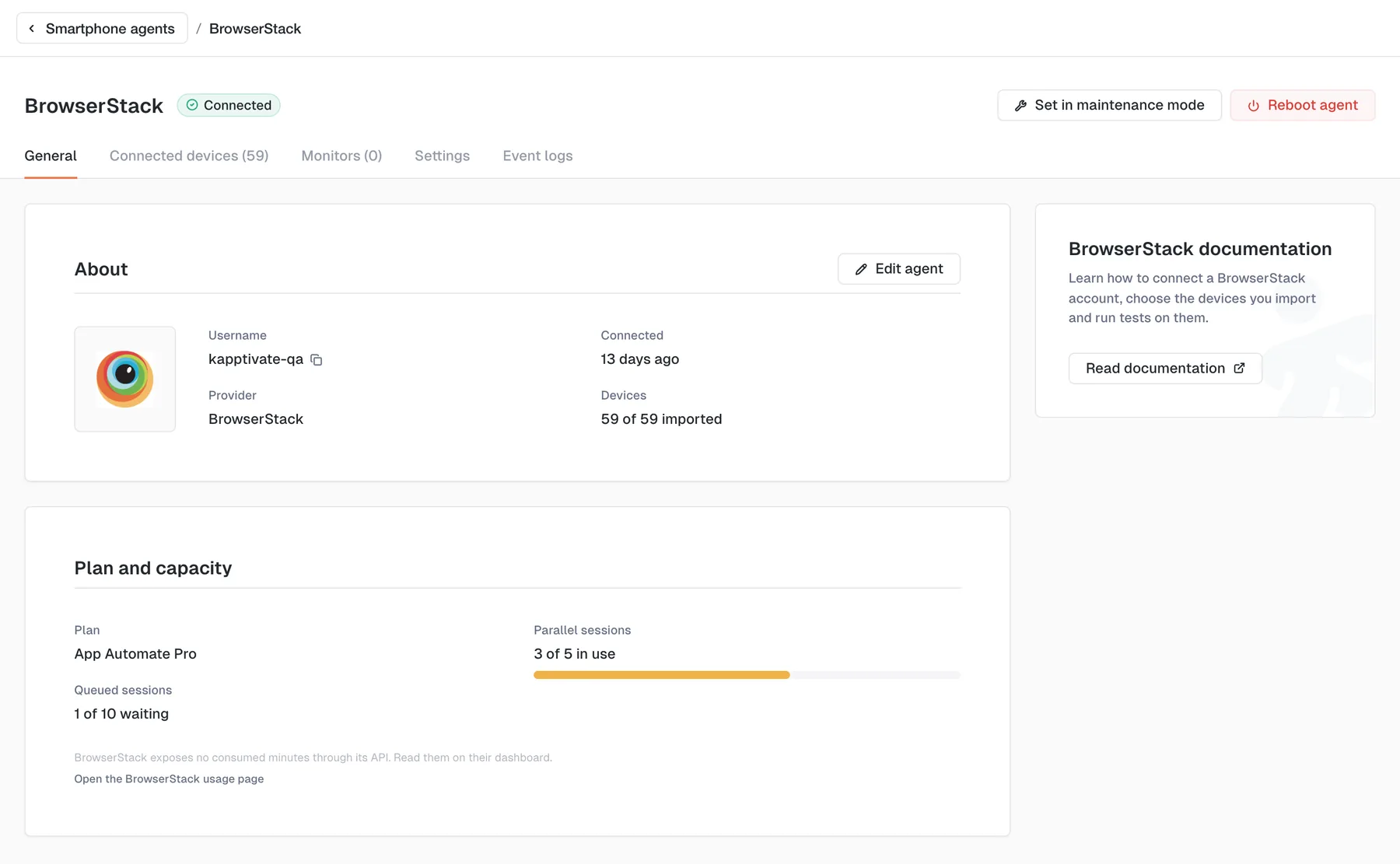
Click a BrowserStack card in the Agents list to open the agent. It has the same tabs as the other agents.
General
About shows the account it connects with, the provider, since when it has been connected, and how many devices it imported out of those the account offers. Edit agent takes you to the Settings tab.
Plan and capacity shows what the account can run at once, which is the only usage BrowserStack reports:
- Plan: the Automate plan attached to the account.
- Parallel sessions: how many are running out of the maximum the plan allows, with a progress bar.
- Queued sessions: how many runs are waiting for a free session.
When every parallel session is in use, a warning says so: a test that starts then waits in the queue instead of failing. BrowserStack exposes no consumed minutes through its API, so read those on their own usage dashboard, which the panel links to.
Connected devices
The devices imported from the account, in the same table as the rest of your smartphones. Edit the selection reopens the picker. Before the first import, this tab invites you to pick devices rather than showing an empty table.
Monitors
The monitors running on the imported devices, grouped by suite, with their status, frequency, and location. Pause one from its row, or pause them all.
Settings
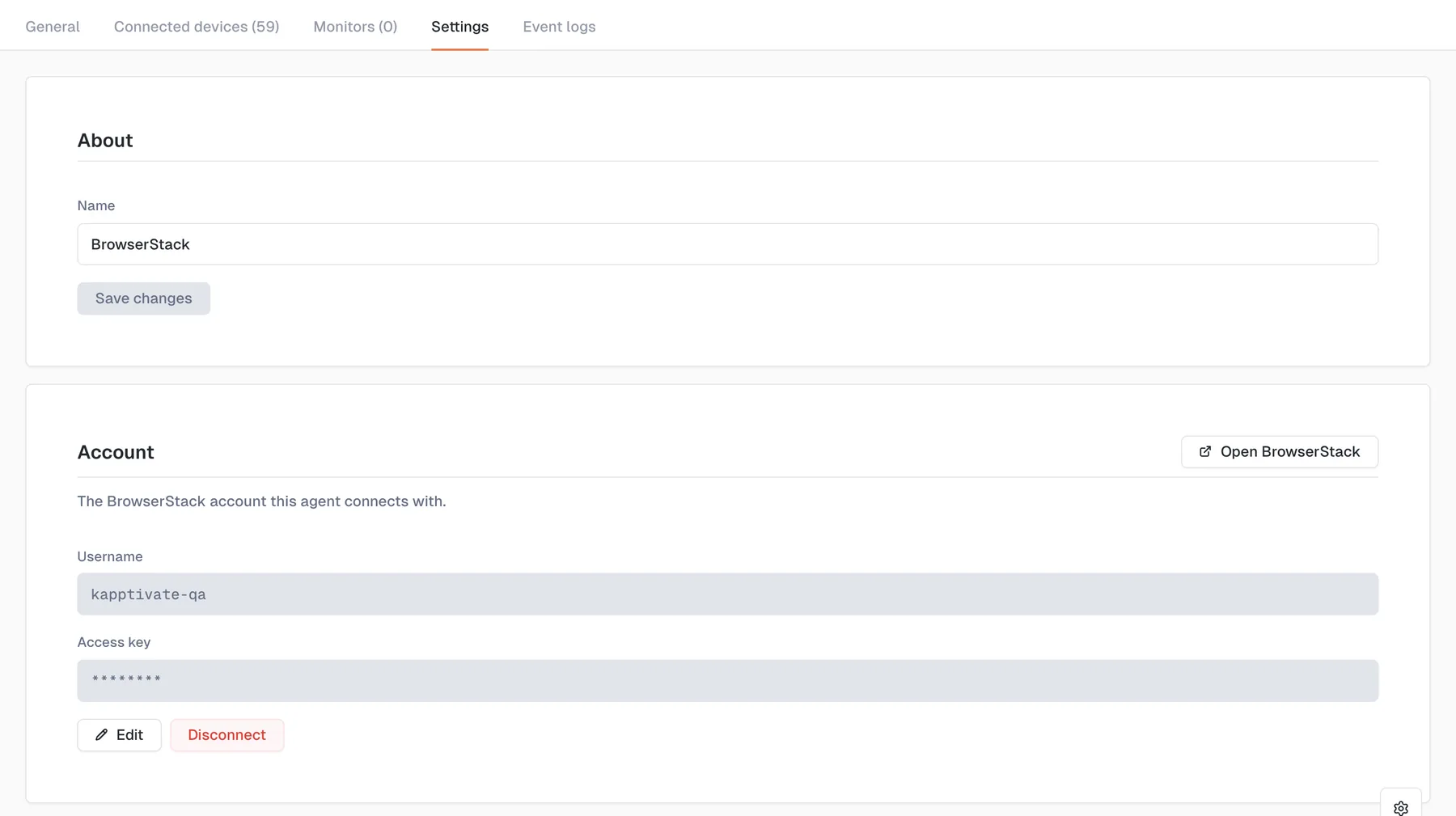
- About: rename the agent. The name is what appears on the agent card, in the Devices lab, and in test forms.
- Account: the username and the masked access key. Edit replaces the credentials, for example after a key rotation on BrowserStack. Leave the key field empty to keep the current one. Open BrowserStack goes to the profile page where the credentials live. Disconnect removes the account, its imported devices, and stops the monitors that use them.
- Danger zone: delete the agent. Deleting removes the agent, the devices it imported, and stops the monitors that use them. It cannot be undone.
Event logs
The agent's history of events, with the same Type and User filters, time-range picker, and Export CSV action as the workspace-wide event log.
Maintenance and reboot
The header carries the same Set in maintenance mode and Reboot agent actions as the other agents. Maintenance is what pauses the monitors when the account itself is the problem: a rotated key, an exhausted quota, or an incident at the provider.
Cloud devices in your lab
Imported devices sit in the Devices lab, on the Smartphones tab, alongside the phones connected to your robots. A few columns read differently for them:
- Source says BrowserStack with the account underneath, where a lab device shows its UUID. Use the Source filter to keep only Lab or only BrowserStack devices.
- Host links to the BrowserStack agent that imported the device, the way a physical phone links to its robot.
- Status only ever says Available. BrowserStack reports the model, the OS, and a capacity limit, but nothing about a device's health, so Kapptivate does not claim a check nobody makes. A cloud device is never busy either: it is allocated for the length of a session, and the ceiling that matters is the plan's parallel sessions.
- Usage reads Not used rather than a percentage: what to watch for a cloud device is the account's capacity, on the agent's General tab. On the device's own page, Location reads BrowserStack cloud.
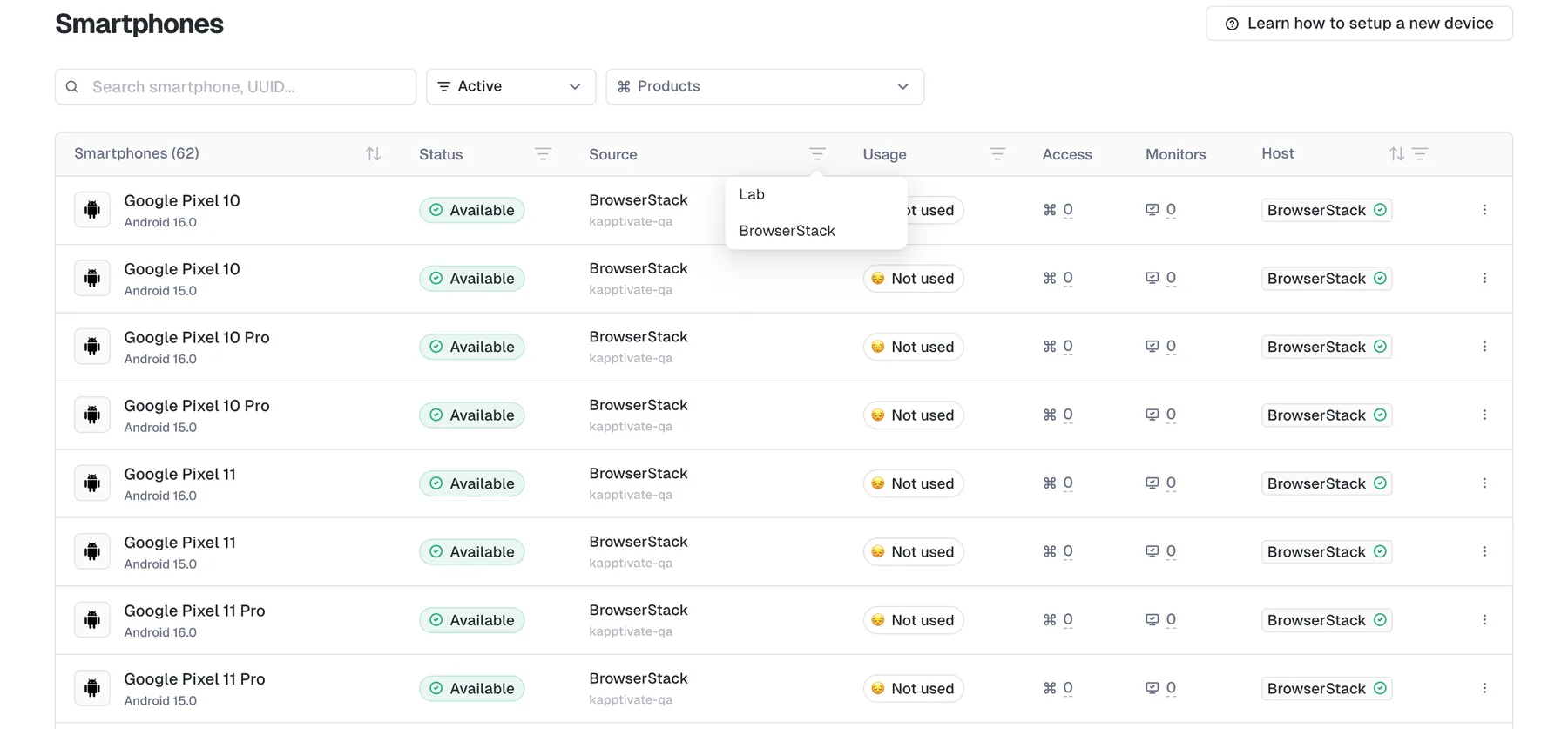
Remove from the selection, in a device's row menu, takes it out of your workspace. It stays available on BrowserStack and can be imported again.
Run tests on a cloud device
An imported device behaves like any other in a Smartphone test: pick it when you create the test, when you run it, or in a monitor.
Two differences are worth knowing:
- The app list comes from BrowserStack. Only the apps uploaded to your BrowserStack account appear, and the apps already installed on a public cloud device cannot be tested: BrowserStack blocks access to them. Upload the app you want to test, native ones included, from BrowserStack's App Management.
- The execution links back to the provider's session. An execution run on a cloud device carries a BrowserStack session link in its details, where you find the provider's own video and logs. BrowserStack purges old sessions, after about 30 days depending on the plan, and the link dies with them, so Kapptivate warns you when a link is likely expired.
Everything else, per-step screenshots, statuses, variables, campaigns, and monitoring, works exactly as on a lab device.
What's next?
Last updated on