
Schedule when a monitor runs
Configure monitor scheduling with simple intervals or advanced options like specific days, times, time windows, and timezones.
A monitor's schedule determines when and how often it runs. You can choose simple repeating intervals or advanced schedules with specific days, times, time windows, and timezones.
Simple scheduling
Simple scheduling runs the monitor at a fixed interval: every X seconds, minutes, or hours.
- Every: set the number and unit (seconds, minutes, or hours). Minimum is 10 seconds.
- Default: every 5 minutes.
Choose this mode for monitors that should run continuously on a regular cadence with no time-of-day or day-of-week restrictions.
Advanced scheduling
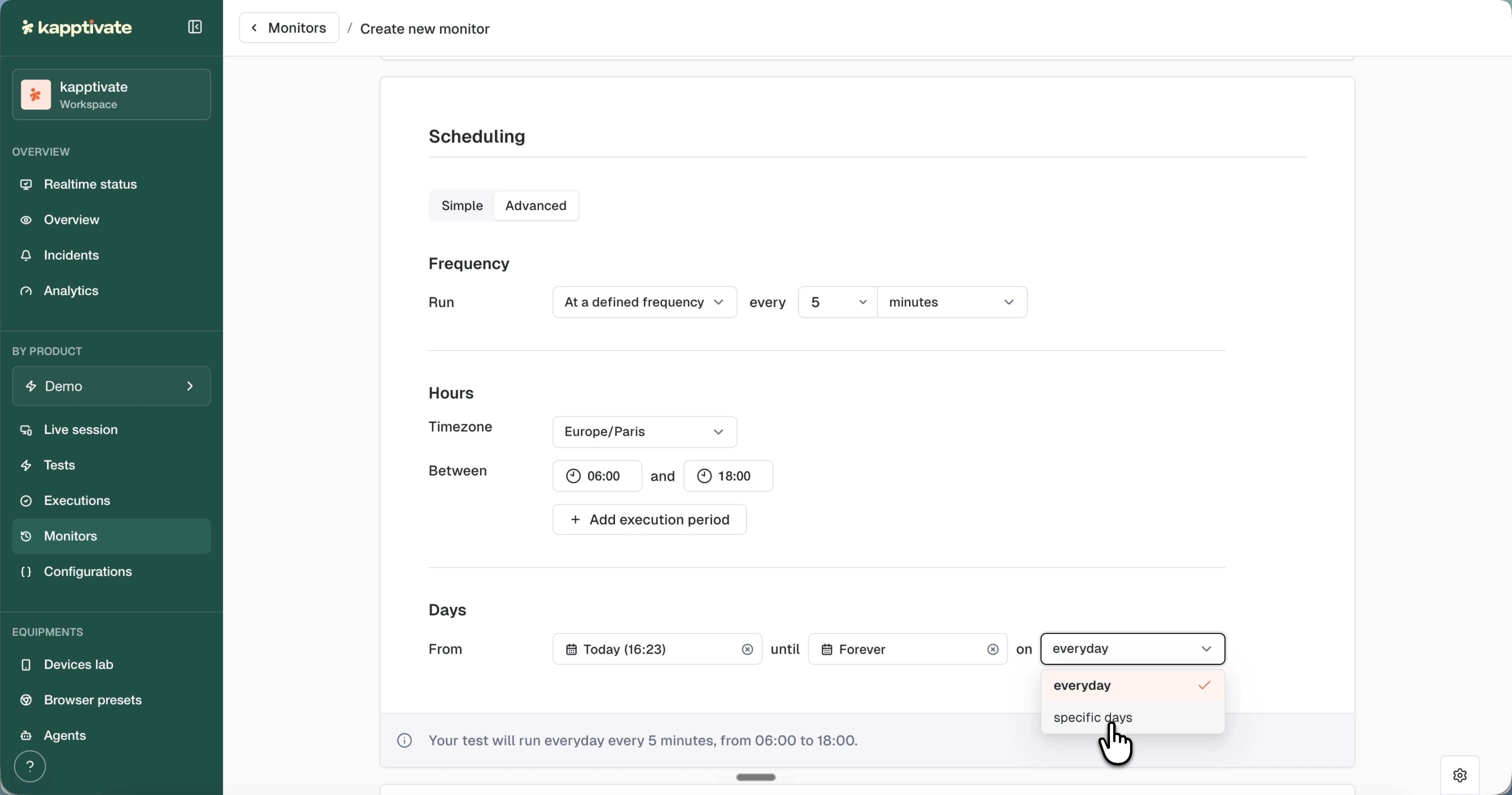
Advanced scheduling lets you control which days the monitor runs and what time windows it uses. You can also set an end date or run the monitor at specific times only.
Run frequency
Choose how the monitor repeats:
Defined Frequency: repeats every X seconds, minutes, or hours within optional time windows. Use this when you want regular intervals but only during business hours or certain parts of the day.
Specific Times: runs at exact times (up to 12 per day). Use this when you want to run at 9:00 AM, 12:00 PM, 3:00 PM, etc.
Days of the week
Choose Every day (all 7 days) or Specific days (select individual weekdays). At least one day must be selected.
Start and end dates
- From: when the schedule begins (defaults to today).
- Until / Forever: pick an end date, or tick the Forever checkbox to run indefinitely.
The monitor runs at 23:59:59 on the end date and then stops.
Time windows (defined frequency only)
If you choose Defined Frequency, you can set one or more time windows. The monitor will run every X seconds/minutes/hours only between these times.
- Default: 00:00 to 23:59 (all day).
- Example: run every 5 minutes between 9:00 AM and 5:00 PM, then again between 9:00 PM and 6:00 AM.
You can add or remove time windows.
Time zones
Select the timezone that applies to the schedule. Times (specific times, time windows, start/end dates) are interpreted in this timezone.
- Default: your system's current timezone (auto-detected when you switch to advanced mode).
- Supported: any IANA timezone (e.g., UTC, America/New_York, Europe/London).
- Reference: radio buttons switch the time reference between Local and UTC.
Update scheduling only
If you want to change only the schedule without editing the full monitor form, open the monitor's three-dot menu and click Edit frequency. A modal appears with just the scheduling fields. This is faster than opening the full edit form.
You can also update scheduling for multiple monitors at once: enable multi-select, check the monitors, and click Edit Frequency in the bulk actions banner.
Last updated on