
Change your password
Learn how to change your password from your profile settings, including step-by-step instructions and what happens after you reset it.
You can reset your password from your profile page at any time.
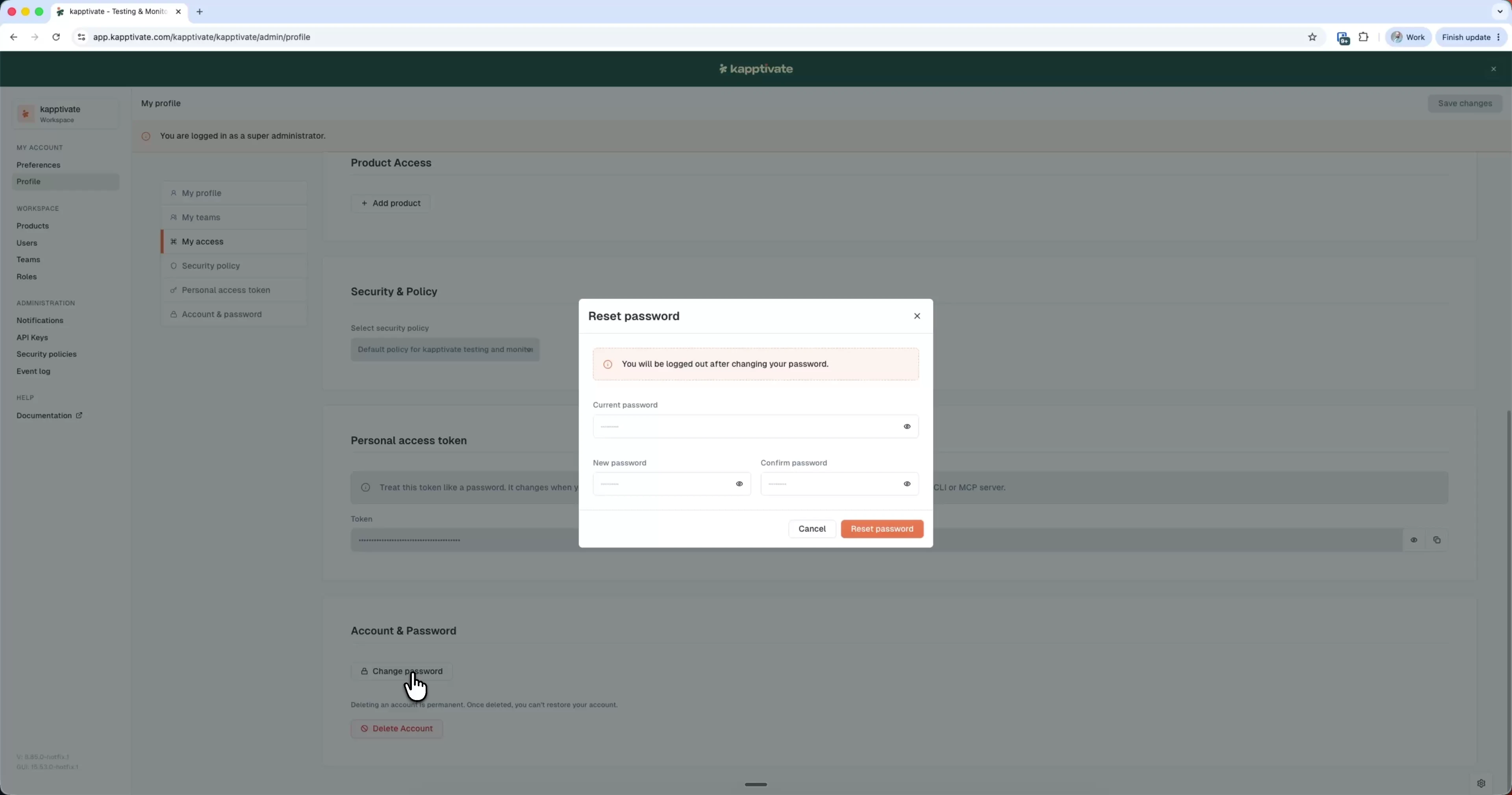
- Click your workspace name at the top of the sidebar and select Settings, then open Profile under My account
- Scroll to Account & Password
- Click Change password
- In the "Reset password" modal, enter your current password, then your new password twice
- Click Reset password
Changing your password logs you out automatically and returns you to the login page. Log back in with your new password.
Last updated on