
Date, time, and language preferences
Adjust date, time, and language preferences in your account settings so the application displays information the way you expect.
Your preferences control how dates, times, and language appear across the application, so what you see matches your region and habits. They live on their own page: click your workspace name at the top of the sidebar, select Settings, then open Preferences under My account.
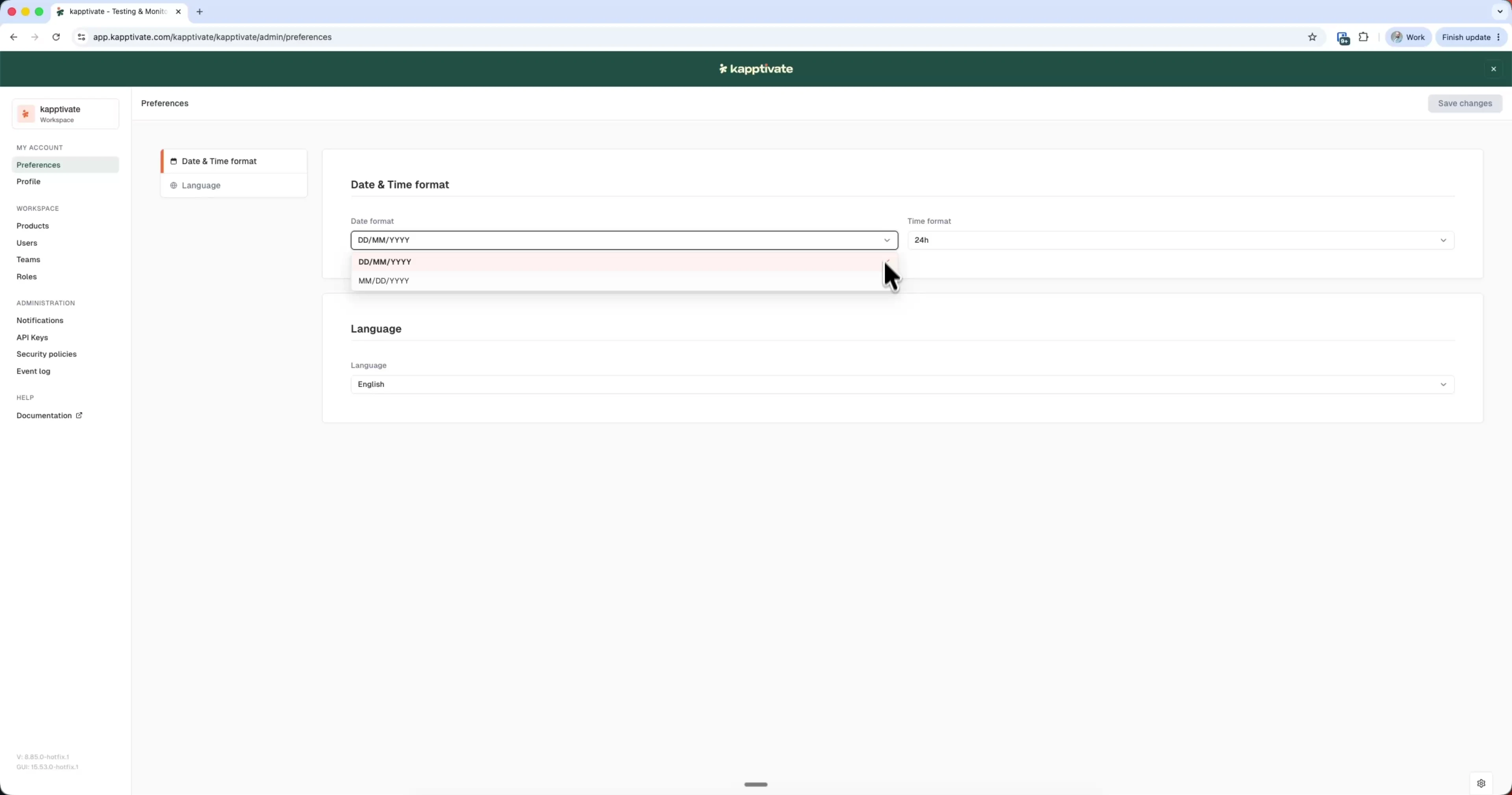
Set your date and time format
Your date and time format preference applies across the entire application.
- On the Preferences page, go to Date & Time format
- Choose your Date format: DD/MM/YYYY or MM/DD/YYYY
- Choose your Time format: 12h (am / pm) or 24h
- Click Save changes (top right)
Your changes apply immediately to all dates and times shown in the application.
Choose your interface language
You can set your preferred language for the interface. Changing it updates the entire application instantly.
- On the Preferences page, go to Language
- Select your language from the dropdown: English or Français
- Click Save changes
The interface refreshes immediately with your selected language.
Choose your display mode
The same page carries a Display mode section, with a light, a dark, and an auto option. It applies as soon as you pick it, without going through Save changes. See Display mode.
Last updated on