
Search and manage teams
Search, filter, view details, duplicate, or delete teams from the Teams list to manage member access and product assignments efficiently.
The teams list gives you a card grid with search, detailed team cards, and quick actions for duplicating or deleting teams.
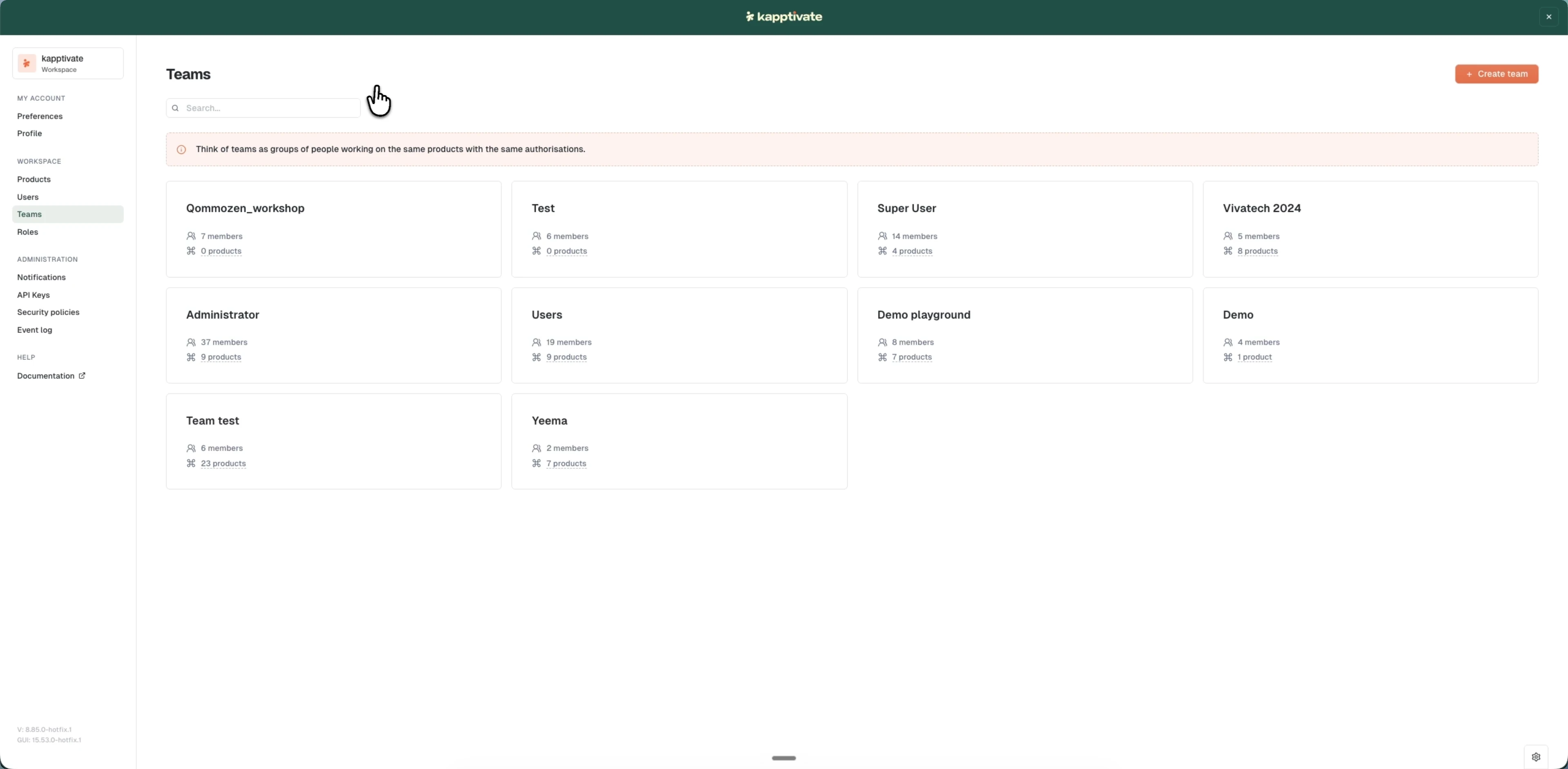
Filter and search teams
- Search: enter a team name to filter (updates in real-time)
- Card display: shows team name, member count, and the number of assigned products
View team details
Each team card displays:
- Team name: click to edit
- Member count: icon and number of members
- Products: the number of products the team can access
- Action menu: Edit, Duplicate, Delete options
Duplicate a team
You can clone an existing team to create a new one with the same members, products, and roles, then customize it as needed.
- Go to Administration > Teams
- Hover over a team card to reveal the action menu
- Click "Duplicate"
- The system creates a new team with a slightly modified name (e.g., "Team Copy")
- Edit the new team to customize its name, members, or access
Duplicating is useful when you need a team with a similar structure but different scope.
Delete a team
Deleting a team removes it permanently and cancels its product access for all members. This action cannot be undone.
- Go to Administration > Teams
- Hover over a team card to reveal the action menu
- Click "Delete"
- Confirm in the alert dialog
Members lose access to products they inherited from the deleted team. They retain access if they have direct product assignments or belong to other teams.
Last updated on