
Manage access
Manage user access through team membership, direct product assignments with roles, and security policies for granular, efficient permission control.
A user's access comes from three sources: team membership, direct product assignments, and their security policy. You can combine all three to get the level of control you need.
Assign users to teams
Users in a team inherit that team's product access and roles. This is the most efficient way to manage access for multiple users at once.
- Open a user for editing
- Open the User Teams tab
- Click + Add team, then search or use Select all to pick one or more teams; each team shows its member count
- Click Save changes
The user now has access to all products assigned to those teams.
Grant product access with roles
You can assign users directly to products and specify a role for each one. This supplements team-based access when you need more granular control.
- Open a user for editing
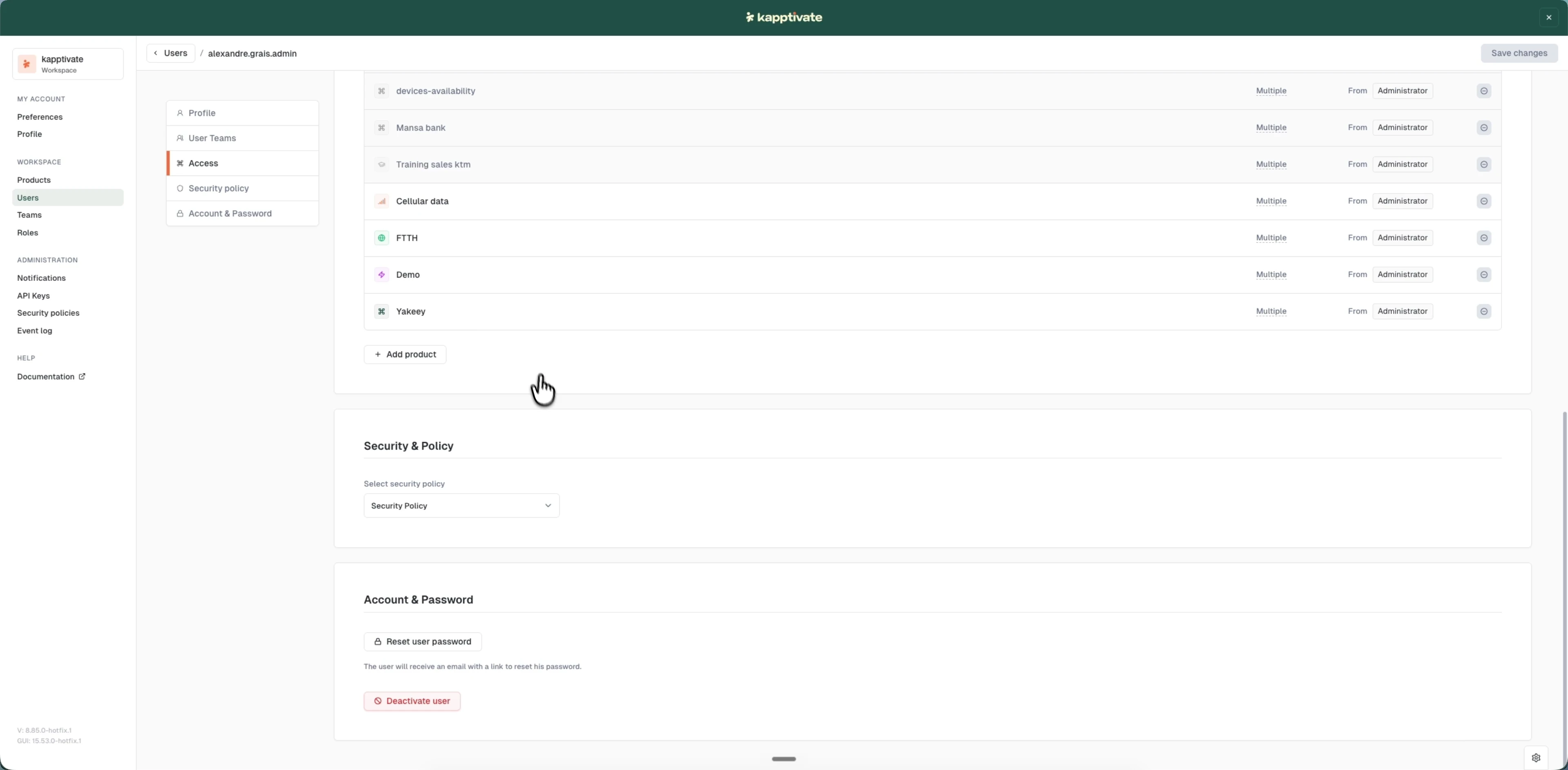
- Open the Access tab
- Click + Add product, then search or use Select all in the selection modal
- Pick a role for the product: Administrator, Beta tester, Reporter, Supervisor, or Tester
- Click Save changes
Each product lists an access source: Manually added for direct assignments, or From [team] when the access is inherited. A product the user reaches through several teams or roles shows Multiple, so you can always see why a user has access to a product.
Remove a manually added product with the trash icon at the end of its row. Inherited products can't be removed here; adjust the team's access instead.
Apply security policies
Security policies control password requirements and authentication rules per user. You set the policy when creating a user and can update it later.
- Open a user for editing
- Open the Security policy tab
- Choose a policy from the dropdown
- Click Save changes
If you're adding an existing user to your workspace, the security policy defaults to the workspace default.
Last updated on