
Search and manage users
Search, filter by status or team, deactivate or reactivate accounts, reset passwords, and export user data to CSV.
The users list gives you tools to find specific users quickly and manage their account status across your workspace.
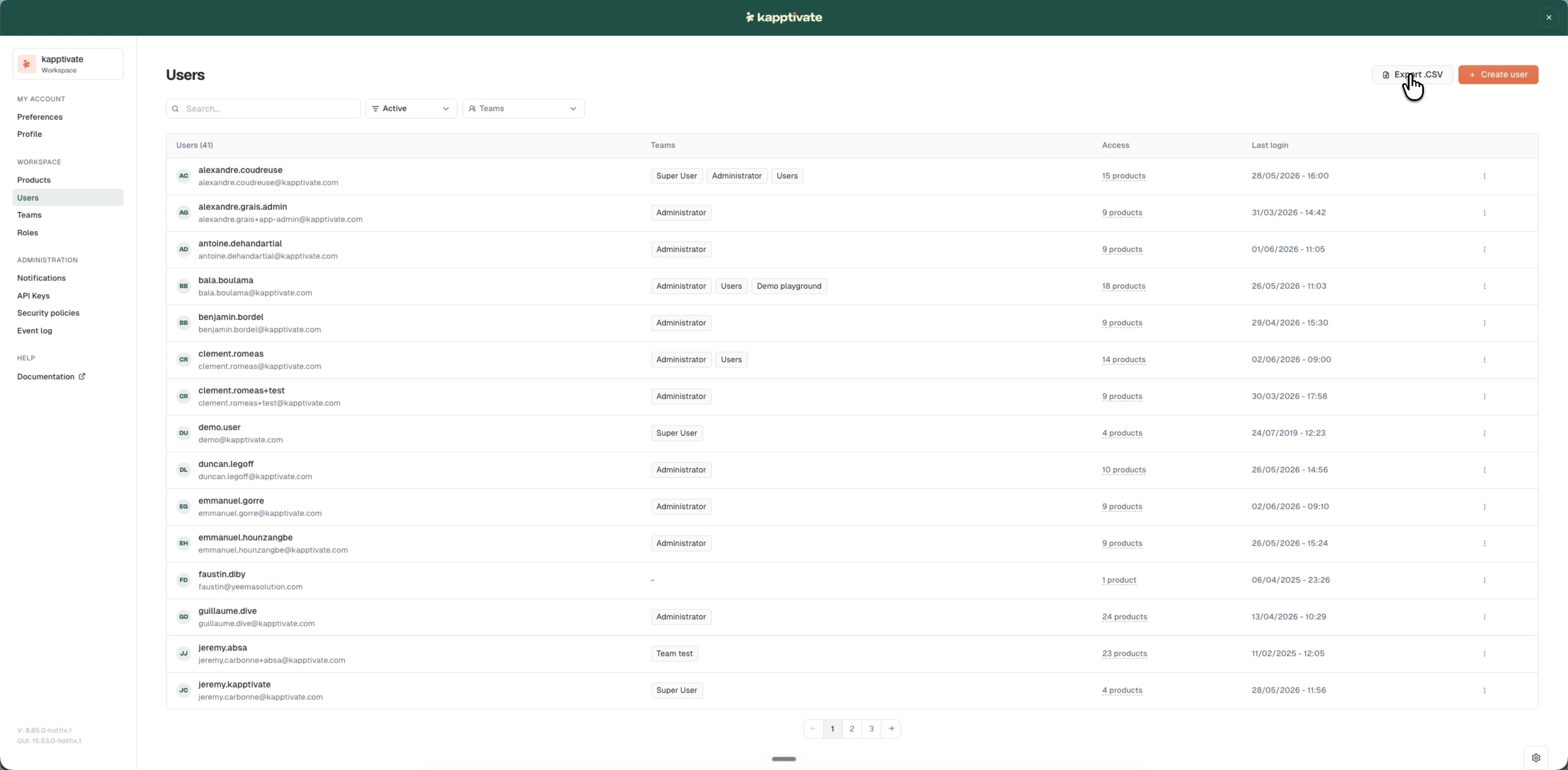
Filter and search users
The users list supports multiple ways to find the users you need:
- Search: enter a name, email, or username to filter results as you type
- Status: filter by Active or Disabled users
- Teams: select one or more teams to show only their members
The list shows each user's name and email, teams, products they can access, and their last login time.
Deactivate a user
Deactivating a user disables their account while preserving all their data. They cannot log in, but you can reactivate them at any time.
- Go to Administration > Users
- Click the user's name or use the Actions menu
- Click Deactivate
- Confirm in the alert dialog
Disabled users appear in the users list with a "Disabled user" badge; their teams, product access, and last login stay hidden until you reactivate them.
You can also deactivate a user from their edit page: open the user, go to the Account & Password tab, and click Deactivate user.
Reactivate a user
You can reactivate any deactivated user to restore their account access.
- Go to Administration > Users
- Filter by Disabled status to show deactivated users
- Click the user's name or use the Actions menu
- Click Reactivate
- Confirm in the alert dialog
The user can log in again with their existing credentials.
Reset a user password
If a user is locked out or needs new credentials, you can trigger a password reset for them. The user receives an email with a link to set a new password. You never see or set the password yourself.
- Go to Administration > Users and open the user
- Open the Account & Password tab
- Click Reset user password
- Confirm in the dialog
Once you confirm, the user can no longer log in with their old password and must use the link in the email to choose a new one.
Export users to CSV
You can download a list of all users in your workspace with their profile data, teams, and access details.
- Go to Administration > Users
- Click the export button in the table header
- Save the CSV file to your computer
The export includes name, email, teams, and product access information for all users.
Last updated on