
Edit a user
Edit a user's profile, teams, product access, roles, and security policy from tabbed settings, then save changes to apply them.
You can update any user's profile, teams, products, roles, and security policy at any time. Changes take effect immediately once you save.
Open a user
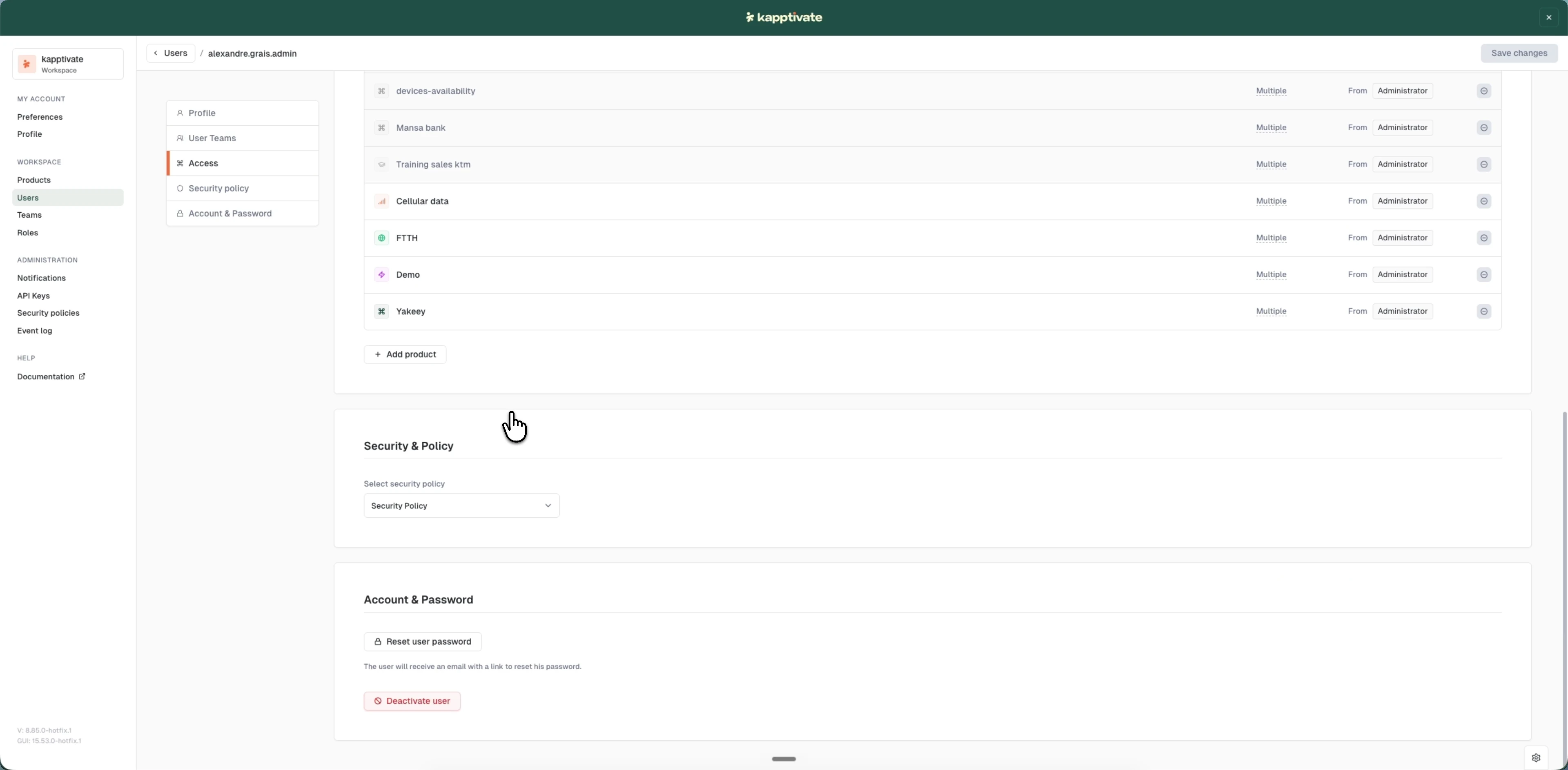
Go to Administration > Users and click the user's name in the table. Their edit page opens with a left-hand menu that splits the account into tabs:
- Profile: username, first and last name, email
- User Teams: the teams the user belongs to, with the products and member count each one grants
- Access: direct product access and the role on each product
- Security policy: the security policy applied to the account
- Account & Password: reset the user's password and deactivate the account
Make your changes
Open the tab you want and edit it. Each tab is independent, so updating one property leaves the others untouched: changing a user's email doesn't affect their team assignments.
On the Access tab, each product shows its role and an access source: Manually added for direct assignments, or From [team] when the access is inherited from a team. A product the user reaches through several teams or roles shows Multiple.
Click Save changes to apply your updates.
Last updated on