
Create a user
Learn how to create a user by setting their profile, assigning teams or product access, and applying a security policy.
When you create a user, you set their basic profile, give them access through teams or products, and apply a security policy.
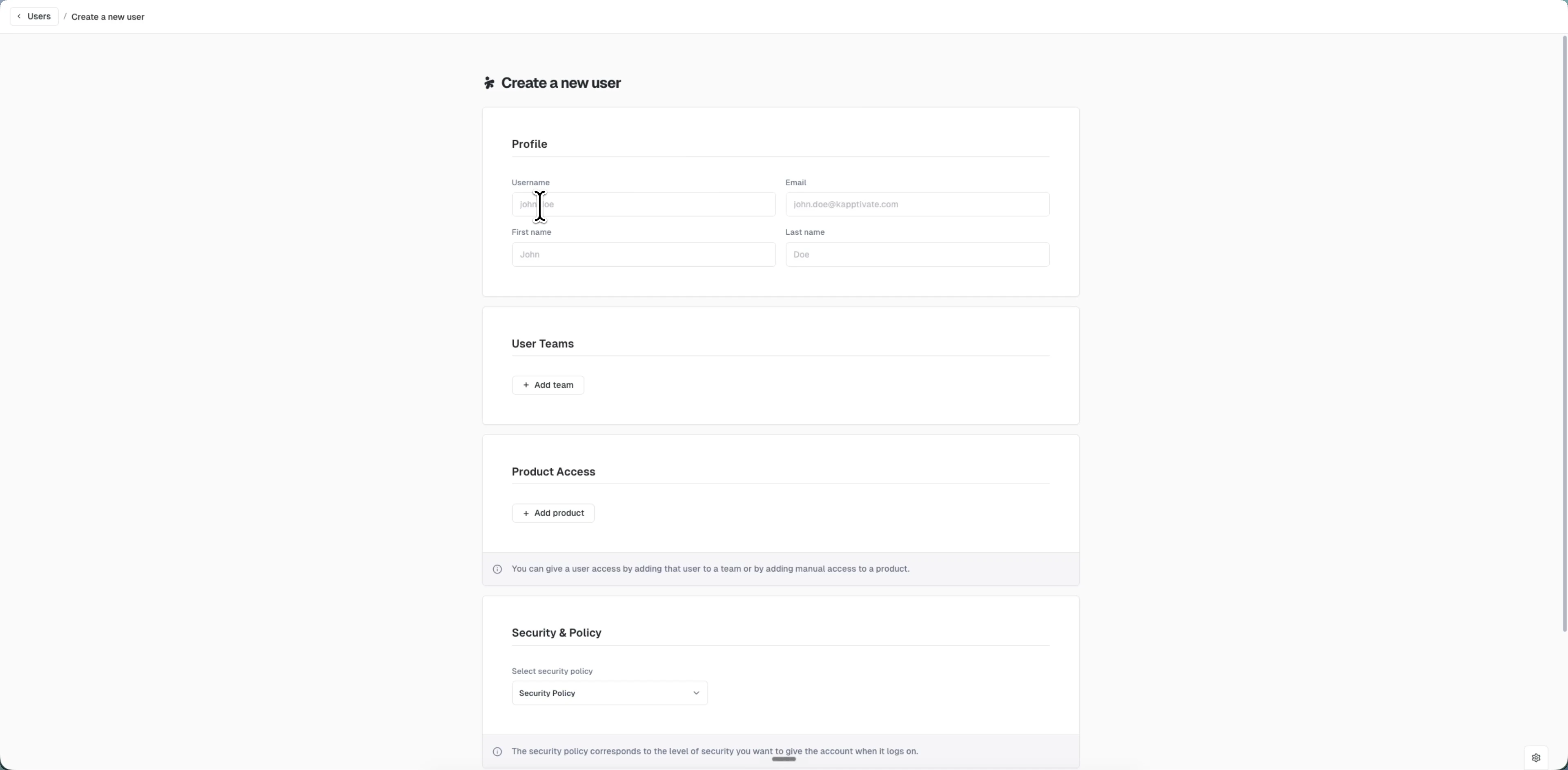
Create a new user
Go to Administration > Users and click Create user.
In the Profile section:
- Enter a username (must be unique; the system validates as you type)
- Enter first and last name
- Enter an email address (must be unique)
In the User Teams section, click Add team and select one or more teams. The user inherits each team's product access and roles.
In the Product Access section, click Add product to give the user direct access to a specific product, then pick a role for it (Administrator, Beta tester, Reporter, Supervisor, or Tester). Directly assigned products show Manually added as their access source.
A user must have access to at least one team or one product before you can create them. Team membership grants product access automatically, so you don't always need to add products directly.
In the Security & Policy section, choose a security policy. This defaults to your workspace's default policy and sets the login security level for the account.
Click Create user to add the user.
The system detects if you're adding a user who already exists in your workspace. If their username or email matches an existing user, the form switches to "add to operator" mode and auto-fills their profile from the system.
Last updated on