
Live session
Control real SIMs, smartphones, and web agents in a live session, run manual actions, and turn them into tests from the history log.
A live session gives you interactive control of a real device, a SIM, a smartphone, or a web agent, from your browser. Use it to explore an app, debug a failing flow, or run manual actions and capture them into a test.
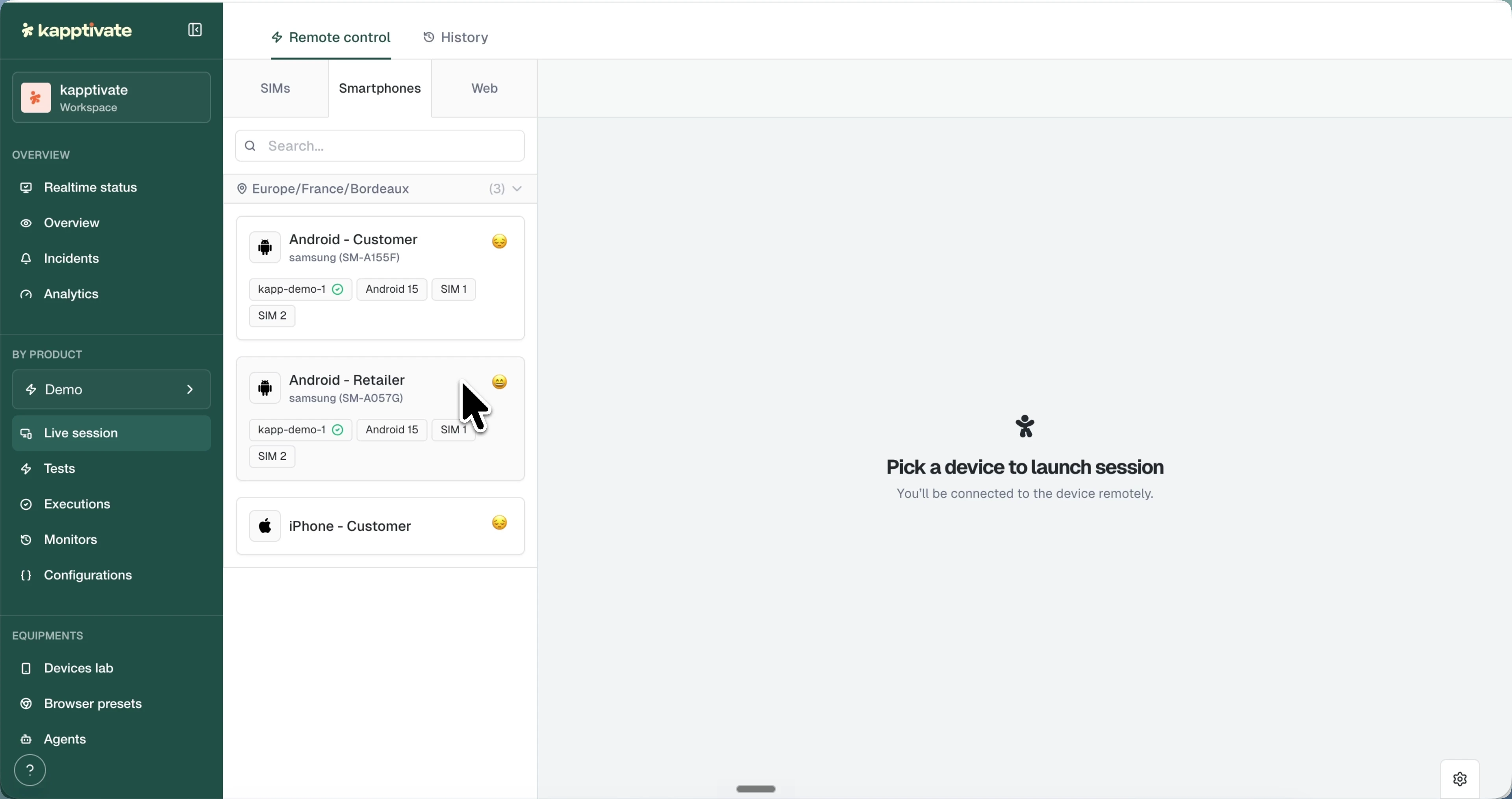
The page has two tabs: Remote control, where you drive a device, and History, where every manual action is logged and can become a test.
Pick a device
In Remote control, switch between the SIMs, Smartphones, and Web categories. The left panel lists the available devices for the selected category, grouped by location:
- Each card shows the device's name, its connection status, and its tags: the hosting agent, OS version and SIM slots for smartphones, operator and network technology for SIMs.
- Use the search bar to filter by name.
- Select a device to open its session. Until you do, the main area shows Pick a device to launch session.
SIM sessions
Selecting a SIM opens a command interface. The action dropdown at the top groups the manual actions you can run on the SIM:
- USSD: USSD Command
- SMS: Send SMS
- Data: PDP Activation, Ping, TCP Ping, HTTP Ping, DNS Lookup, Download File, HTTP Upload, FTP Download, FTP Upload, Send Mail, API Call, Ookla Speedtest, Traceroute, Check SSL/TLS Certificate, Youtube
- Call: Wait Call, Place Call
Each manual action mirrors a scripted step from the SIM steps library, so what you run here translates directly into a test.
Each action shows its own form. For a USSD Command, enter the shortcode and pick the Access technology (Default, AUTO, 5G, 4G, 3G, or 2G). For a Send SMS, set the destination number and message, optionally a Wait for delivery report time in seconds, and a Change default SMSC override.
Results appear in the feed below the form as each action completes, with the response content, status, and timing.
Smartphone sessions
Selecting a smartphone streams its screen live. Click and swipe directly on the stream; your gestures are sent to the physical device in real time.
The right panel adds device tooling:
- Information: battery, CPU, RAM, storage, hosting agent, model, OS and version, resolution, and how many users are on the phone.
- Control Panel: device-level actions such as restarting the phone, installing an APK, taking a screenshot, recording the screen, rotating it, or inspecting the current screen with Get XML.
- Quick Access: software equivalents of the hardware buttons, Back, Home, Recent apps, Lock, Volume, and Power.
Inspect the UI
Get XML opens the Find an element modal on the screen as it is right now: a capture on the left, the element tree in the middle, and the selected element on the right. Point at the capture and the smallest element under the pointer lights up, the tree follows, and the panel ranks the ways to reach that element with the number of matches each one has on this screen.
It is the same modal as the one in the mobile app recorder, so the mechanics are described once there: how the selectors are ranked, what a shared selector means, and how to read a point in Coords mode. In a live session there is no test being edited, so the selector is yours to copy into the step you are building elsewhere.
Web sessions
Selecting a web agent gives you network and web actions run from that agent's location: API Call, DNS Lookup, Send Mail, FTP Download, FTP Upload, Get webpage or file, HTTP Upload, HTTP Ping, Ping, TCP Ping, Ookla Speedtest, Traceroute, Check SSL/TLS Certificate, and Youtube.
An API Call takes the endpoint URL with Headers and Body tabs, plus execution options: custom proxy, DNS override, ignore SSL certificate, preserve cookies, and follow redirection.
Macros and spectating
Two controls sit at the top of SIM and web sessions:
- Record Macro: capture the sequence of manual actions you run, so a repeated setup or check doesn't have to be rebuilt action by action.
- Spectate: watch the other manual actions being run on the selected device, useful when several people work on the same equipment.
History
The History tab logs every manual action with its status, result, and timestamp. Filter by Creator and Resource, and adjust the date range (default: past 24 hours).
Click Add on the entries you want to keep: they land in the Action List panel, where two buttons turn your manual work into assets:
- Create test: convert the selected actions into a new test, each action becoming a step.
- Report: generate a formatted report of the selected actions to share.
Tips for live sessions
Start simple: a few commands help you understand the device before automating full tests.
Capture complex workflows: for intricate user journeys, running them live and converting the history is faster than authoring steps by hand.
Debug failures: replay a failed test's actions in a live session to see exactly where it breaks and what the device actually returns.
What's next?
Last updated on