
Browser presets
Learn how to create, edit, and apply browser presets to bundle device, language, proxy, and cookie settings for reusable test configurations.
A browser preset bundles browser settings, user agent, language, headers, cookies, proxy, geolocation, timezone, into a reusable configuration. Instead of hardcoding these values in each test, apply a preset to run the same test under different conditions without editing it.
Why presets matter
Testing across different configurations is common: desktop vs. mobile viewport, different languages, authenticated vs. anonymous sessions. Presets let you:
- Reuse the same test with different browser setups
- Test geolocation features by setting latitude and longitude
- Simulate proxy traffic through a corporate network
- Include auth cookies so tests start logged in
- Add custom headers for API testing or feature flags
Create a preset
Click Create Preset in the Presets list. Fill in the About tab, then configure optional settings.
About section: required:
- Preset name: a clear name (e.g., "Mobile Safari", "Authenticated User", "US Location")
- Device type: Desktop, Mobile, or Tablet
- Browser: Chrome, Firefox, or Edge
Optional:
- Version: browser version (if needed)
- Use as the default browser preset: pre-select this preset on every new web test (see Set a default preset)
Headers section: add HTTP headers (not available on Firefox).
- Key-value pairs
- Examples:
X-Feature-Flag: new-feature,Authorization: Bearer token
Cookies section: add cookies that the browser will include in requests.
- Cookie name (required)
- Value
- Path, domain, secure flag, http-only flag
- Reuse an add/edit modal for individual cookies
Proxy section: enable proxy and configure the URL.
- Proxy type (HTTP)
- Proxy URL (e.g.,
http://proxy.company.com:8080)
Additional settings (available across all sections):
- Timezone: set the browser's timezone (searchable list)
- Language: select from available languages with display names (e.g., "en-US - English")
- Geolocation: set latitude and longitude for location-based testing
- User agent suffix: append text to the browser's user agent (not available on Edge or mobile/tablet)
- Screen size: preset options (1920×1080, 768×1024, etc.) or custom width × height
View and edit presets
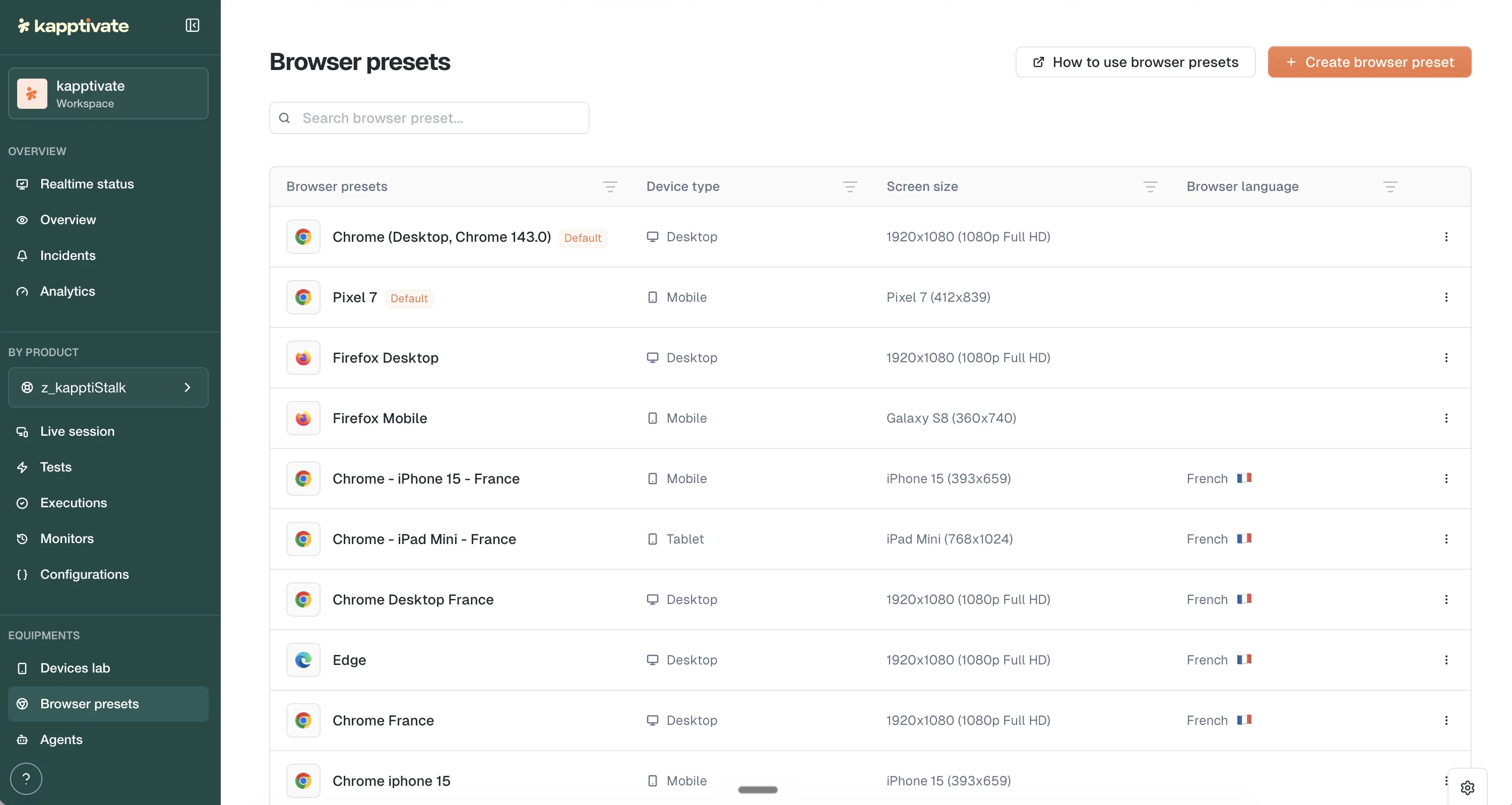
The Presets list shows all presets in a table with columns: Name, Browser, Device, Language, Screen size, Timezone, and Actions.
System presets (provided by Kapptivate) carry the System tag. You can view and duplicate them, but cannot edit or delete them.
Custom presets can be edited by clicking the preset and modifying any field. Changes save immediately.
Set a default preset
New web tests start on a system preset (Chrome, English). If your team always tests in another language or on another browser, designate one of your own presets as the default and it gets pre-selected instead.
Two ways to designate it:
- At creation: tick Use as the default browser preset in the About section.
- From the list: open the preset's three-dot menu and choose Set as default.
The designated preset carries the Default tag. Only one preset is the default at a time, so designating another one moves the tag. To go back to the system preset, open the three-dot menu and choose Remove default.
The default has to be one of your own presets. On a system preset, Set as default is greyed out: duplicate it first, then designate the copy.
The default applies to web tests you create in the interface. Monitors, campaign overrides, and tests created through the API or MCP keep the system preset.
Apply a preset to a test
When creating or editing a web test, choose a browser preset in the test's configuration. A new test opens on the default preset, so a team that always tests in the same conditions has nothing to change. The test will run with all the settings you defined in the preset, no need to reconfigure each time.
The selector opened from a test offers the same actions as the list (edit, duplicate, delete, set or remove the default) and shows which preset is the default one.
Browser-specific limitations
- Firefox: custom headers are not supported; location and language settings are cleared on save.
- Edge: user agent suffix is not supported; custom user agent is cleared on save.
- Mobile and Tablet: user agent suffix is not supported.
These limitations are enforced by the browser vendor. Other settings (cookies, proxy, geolocation, timezone) work on all browsers.
Duplicate and search
Duplicate a preset: click the menu and select Duplicate. A copy is created with "(copy)" appended to the name. Duplicates are independent; editing one does not affect the original.
Search presets: type in the search bar to find presets by name. Filtering is instant.
Last updated on