
Email & SMS testing
Extract SMS codes, email codes, and confirmation links automatically with AI-powered steps, no manual copy-paste or brittle parsing rules needed.
Sign-ups, logins with 2FA, and password resets all leave the browser at some point: a code arrives by SMS, a confirmation link lands in an inbox. Kapptivate closes that loop. Its mail and SMS service receives the real messages, and AI-powered steps extract the code or link into a variable your next steps use, no manual copy-paste, no brittle parsing rules.
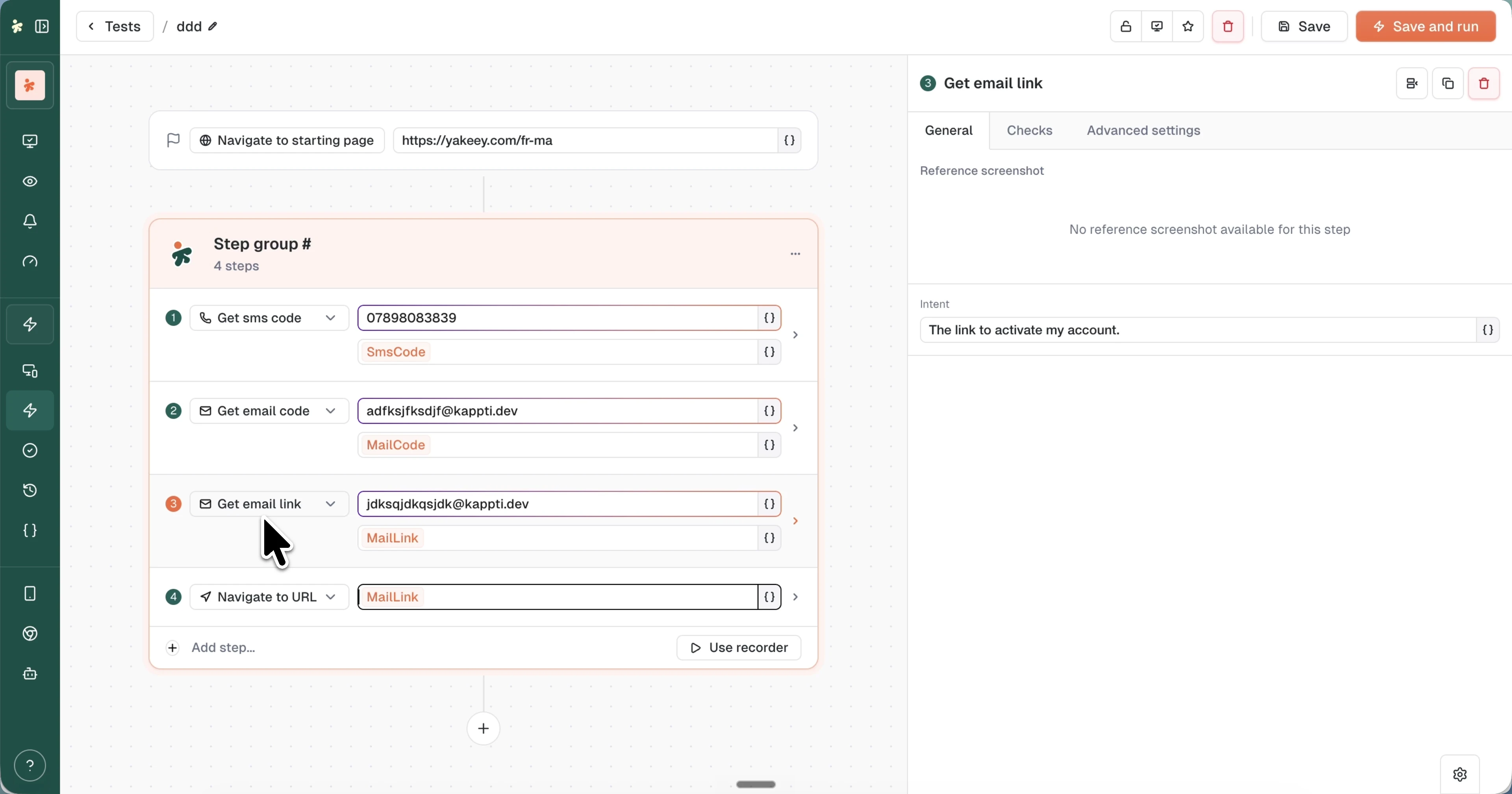
The Email & SMS steps
Add them from Add step... > Email & SMS in the builder. Each step extracts one value and stores it in a variable (you can rename the default):
| Step | Input | Default variable | What AI extracts |
|---|---|---|---|
| Get sms code | Phone number to receive code | SmsCode | The verification code in the SMS |
| Get email code | Email to receive code | MailCode | The OTP or verification code in the email |
| Get email link | Email to receive link | MailLink | The link matching your intent |
Each step name links to its reference page, with parameters and the JSON format. To fetch a whole message instead of one value, use Get mail. The same steps exist for smartphone tests.
The steps wait for the message to arrive, then parse it with AI: no format configuration, whatever the sender's wording or layout.
Addresses and phone numbers
Email works out of the box. Any address on the kappti.dev domain is a live test mailbox, so you can use a fresh one per run: signup-test@kappti.dev, qa-reset@kappti.dev, or whatever fits your flow. To guarantee a unique inbox on every execution, build the address from the Random tab in the variable picker, for example {Random text}@kappti.dev, so a sign-up never collides with a previous run. See Variables in tests for the random presets.
Phone numbers are attached to your organization. For now, ask your account manager to provision the numbers your SMS tests need, then use them in the Get sms code step.
Target the right link with Intent
An email often carries several links (the action link, but also unsubscribe footers, logos, help pages). Select a Get email link step and fill the Intent field in its General tab to tell the AI which one you mean, in plain language: "The link to activate my account".
Use the extracted values
The extracted variables behave like any test variable. Click the {} icon in a later step's field and pick them from the Previous steps tab: navigate to MailLink, type SmsCode into the 2FA input, assert on MailCode.
See Variables in tests for everything the variable picker can do.
What the results capture
Each Email & SMS step documents itself in the execution result:
- Email steps capture screenshots of the received email rendered in mobile, tablet, and desktop formats, so you also get a visual check of your transactional emails.
- SMS steps capture the raw text of the message alongside the extracted variables.
What's next?
Last updated on