
Web recorder
Record web tests in real time with Kompagnon's Chrome extension, capturing clicks, inputs, and verifications directly in the builder.
Recording is the fastest way to build a web test: walk through your scenario in a real browser, and each click, input, and navigation becomes a step in the builder. The recorder runs through Kompagnon, a Chrome extension that drives the recording and adds verifications without leaving the page.
Install Kompagnon
You install the extension once, from the builder. Create or open a Web (New experience) test, then click Use recorder. If Kompagnon isn't installed yet, an Install the Kompagnon extension modal lists what it does and offers Add to Chrome, which opens the Chrome Web Store. Install it there and return to the builder.
Record a test
With Kompagnon installed, Use recorder opens your start URL in a new tab with the recorder attached.
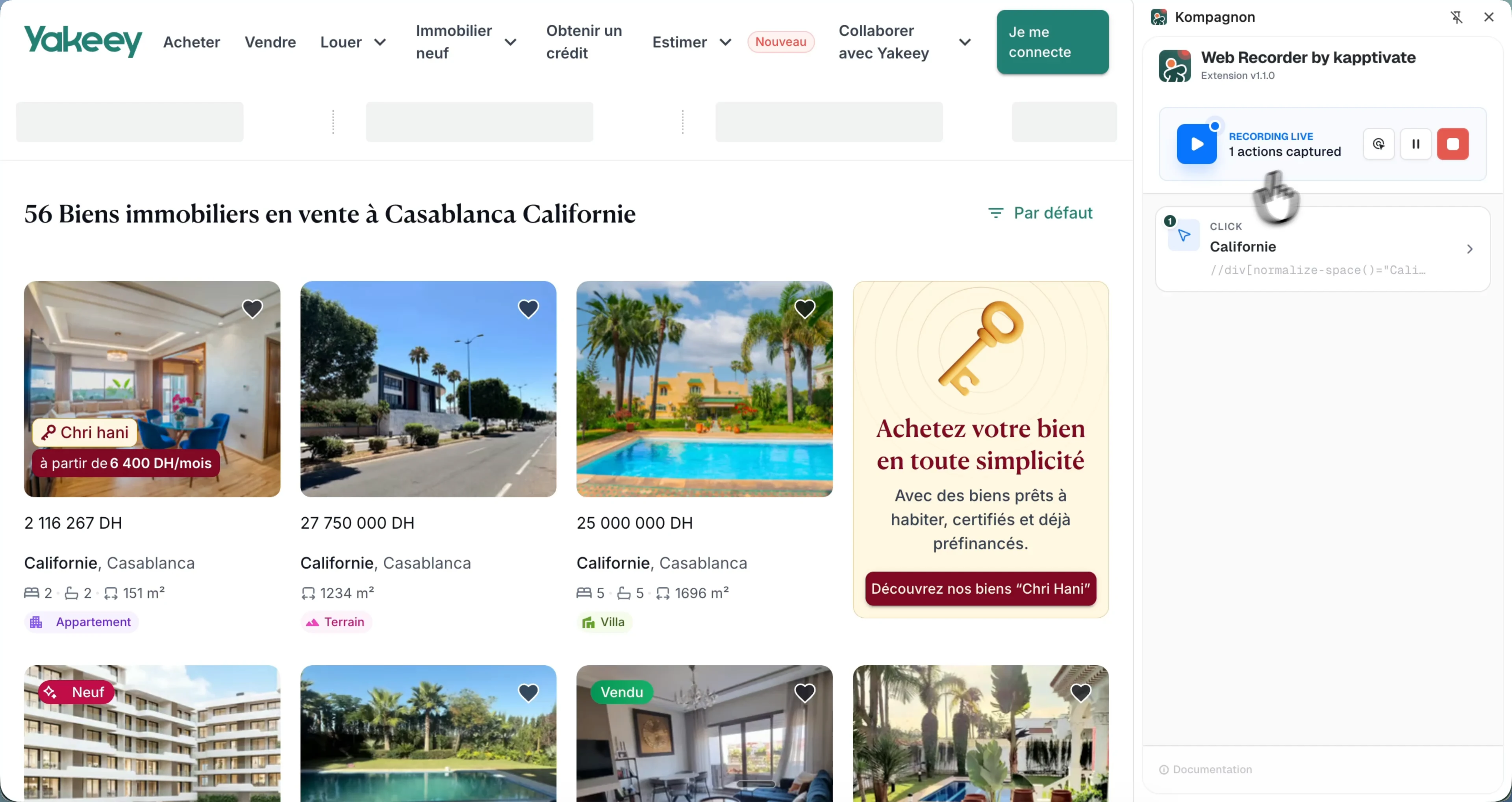
Browse the page normally. Clicks, inputs, and navigations are captured as steps in real time. A draggable widget overlays the page, showing the recording status and the number of actions captured, with Pause, Stop, and Open sidepanel buttons.
Click Open sidepanel to dock Kompagnon in Chrome's native side panel. It shows the current state (RECORDING LIVE or ASSERTION MODE), the live list of captured actions with their selectors, and the same pause, stop, and assertion controls.
Add verifications while recording
You can assert on the page without leaving the recorder. Click the eye icon to enter assertion mode, then click the element you want to verify. A Verify element modal opens to configure the check:
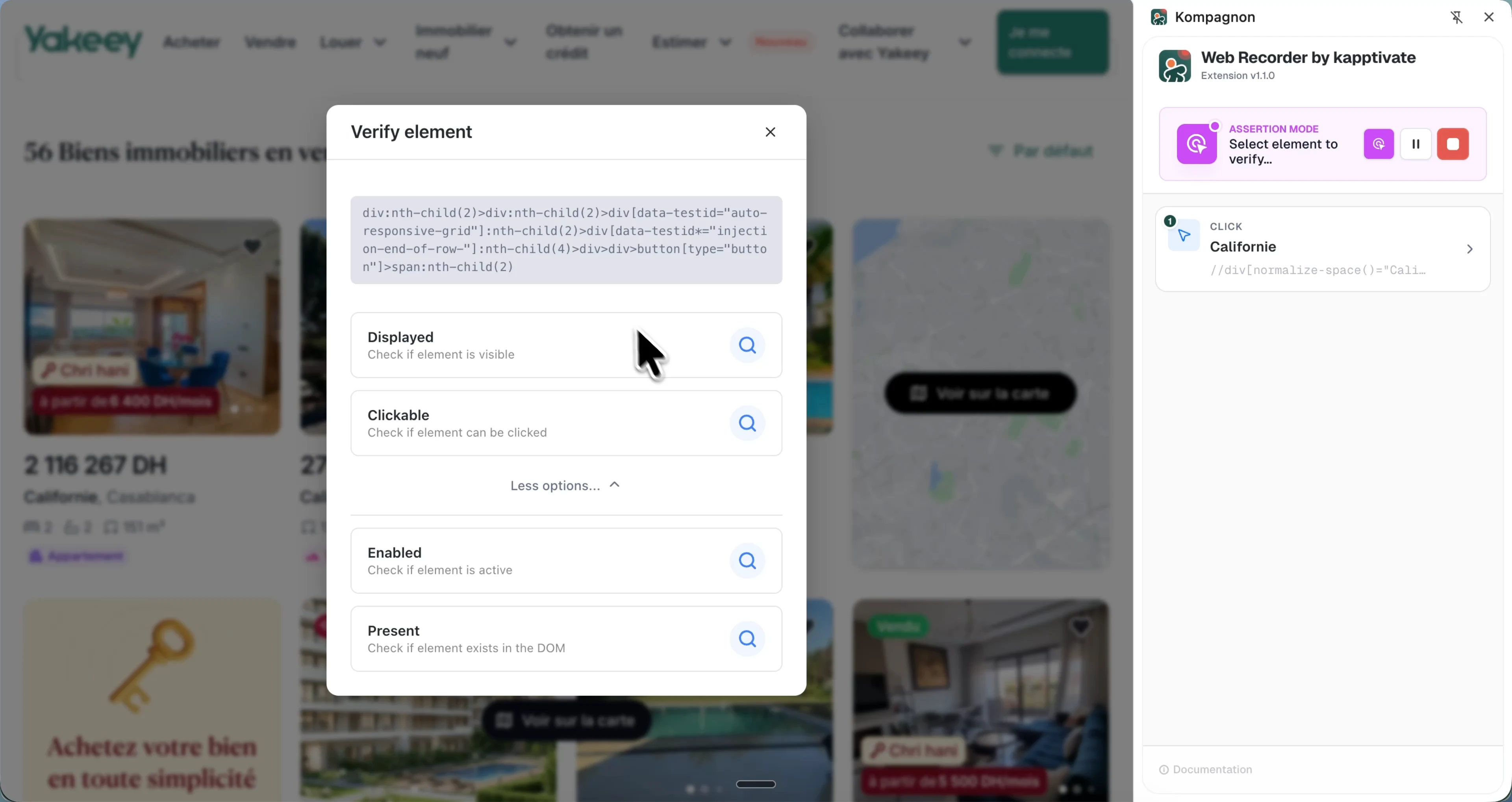
- Displayed: the element is visible.
- Clickable: the element can be clicked.
More options reveals two more conditions:
- Enabled: the element is active.
- Present: the element exists in the DOM.
Pick a condition and the verification is recorded as a Verify element step alongside your interactions.
Recorded steps are ordinary builder steps. Each web step's General tab includes a Reference screenshot of the page captured during the step's last run, so you can see exactly what it targets. Before the first run it shows "No reference screenshot available for this step".
Legacy: script export recorder
Before Kompagnon, web recording shipped as a standalone Chrome extension that exported a JavaScript Web Script you pasted into a test. It still works for existing scripts, but new web tests should use Kompagnon and the visual builder above.
Download and unzip kapptivate-web-recorder.zip, open chrome://extensions, enable Developer mode, click Load unpacked, and select the unzipped folder.
Click the Kapptivate icon, click Record, walk through your scenario, then Stop, Export, and CopyToClipboard.
Create a test with a Web Script action, select the default Ethernet agent, switch to raw script, and paste the recording. Save and run it once before wiring it into a monitor.
The export is a script action: JavaScript you can edit freely, add assertions to, or enrich with variables and custom metrics.
What's next?
Last updated on